logo website
  • Home
  • Features
  • Templates
  • Pricing
  • Docs
  • Install App
Menu
  • Home
  • Features
  • Templates
  • Pricing
  • Docs
  • Install App

Getting Started

1
  • Introduction

Quick Start

1
  • Create a new form

Display & Placement

5
  • Theme integration
  • Get embed form ID of a form
  • Display a form on Shopify front store
  • Display a form on a specific page
  • Add a form with app block

App Integration

2
  • Google reCAPTCHA Integration
  • hCaptcha integration

Mail Notification

4
  • Admin email notification
  • Customer email notification
  • SMTP Setup
  • Mail API setup

Data, Insights & Management

5
  • Check submissions data
  • View Insight of the Form
  • Export submissions data
  • Export and import forms
  • Disable saving submission data for forms
View Categories

View Insight of the Form

4 min read

How to View Form Insights in Viformy #

Form insights help you understand how your forms are performing by checking total submissions, submission trends over time, storage usage, and detailed submission data.

In the current Viformy app, insights are available mainly from the Dashboard and the Submissions page. The Dashboard gives an overview, while the Submissions page lets you filter and inspect data for specific forms.

Before You Start #

Before viewing insights, make sure the form is able to collect submission data.

  • Save submission data is enabled: Open the form Settings tab and make sure Save submission data is turned on.
  • The form has received submissions: Insight numbers and charts are based on saved submissions.
  • App Embed is enabled if the form is displayed on the storefront: This helps make sure customers can access and submit the form.
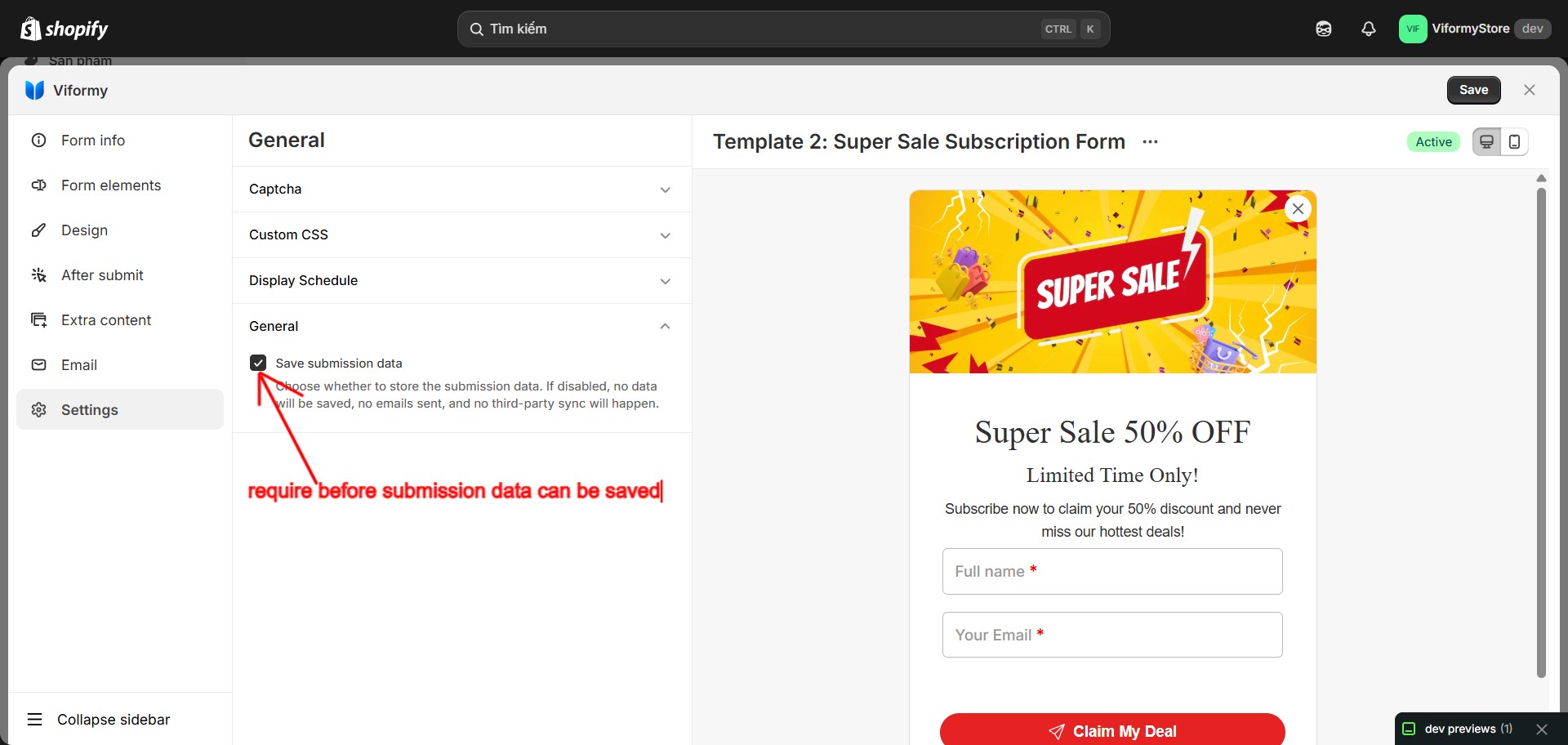
Important: If Save submission data is disabled, Viformy will not save submissions, send emails, or sync data to third-party integrations. Those submissions will not appear in insights.

check sum 1

Step 1: Open the Dashboard #

Go to the Viformy app in Shopify Admin and open the Dashboard.

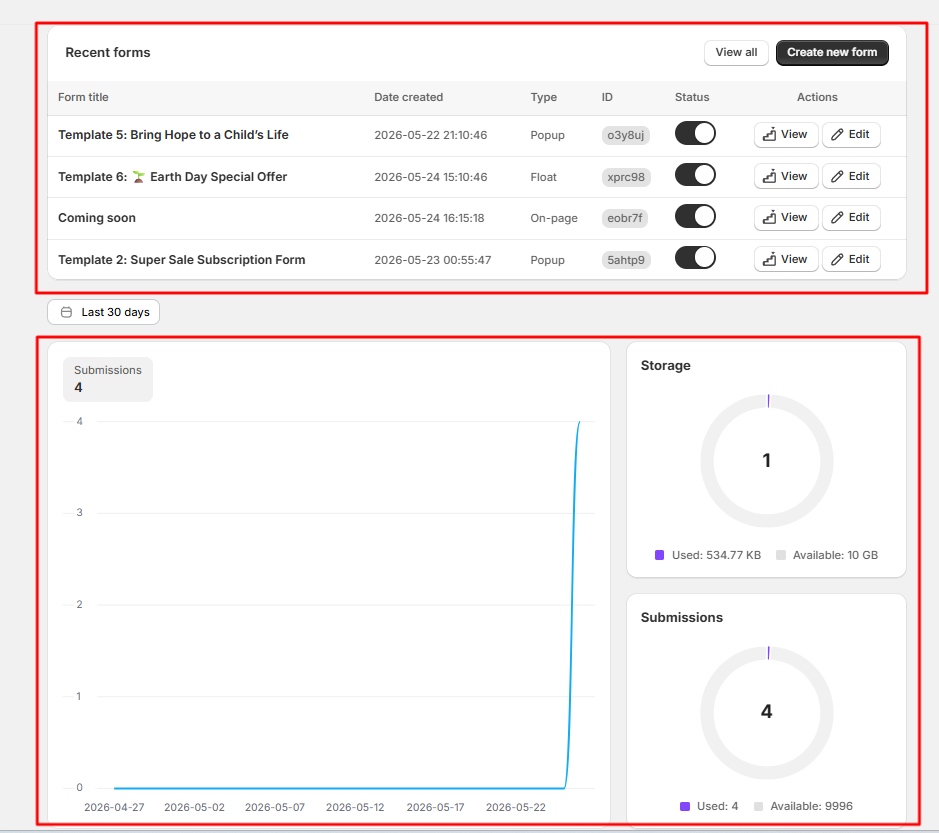
The Dashboard gives a quick overview of your store’s form activity.

  • Total submissions: Total saved submissions for the store.
  • Forms: Total forms created in the app.
  • Storage: Current storage usage compared with the available storage limit.
view insgight 1

Step 2: View the Submission Trend Chart #
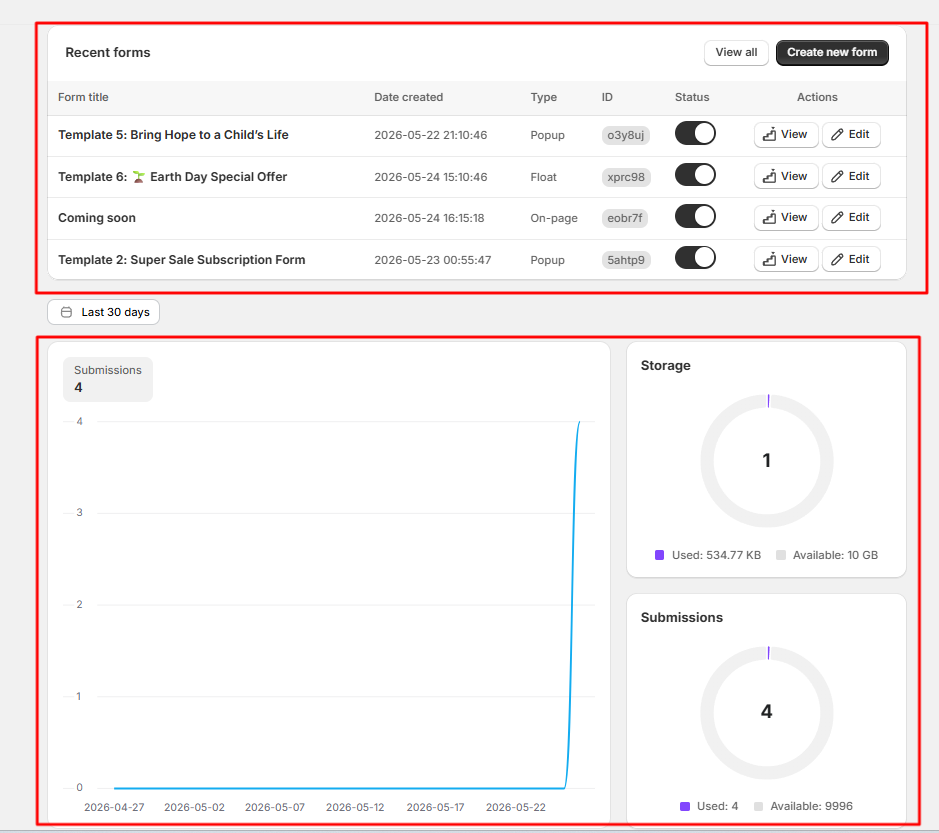
The Dashboard includes a submissions chart that shows how many submissions were received over time.

The chart is built from saved submission records and groups submissions by date. It helps you quickly see whether form activity is increasing, decreasing, or staying stable.

view insgight 1 1

Step 3: Change the Chart Date Range #
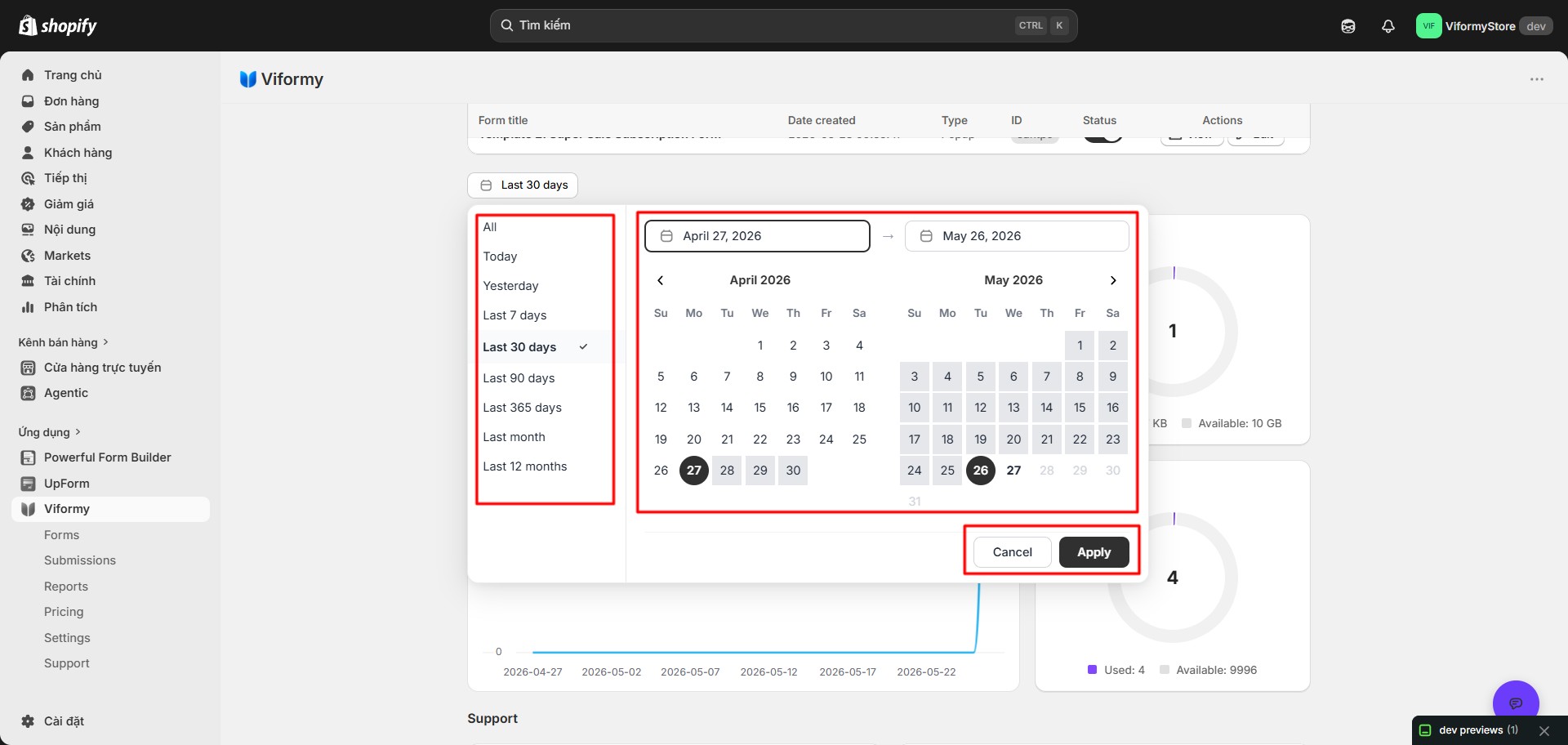
Use the date range selector above the submissions chart to change the reporting period.

Depending on the UI, you can select a preset range or choose a custom start and end date. After applying the range, the chart updates to show submissions within that period.

Note: The dashboard chart supports a date range up to 731 days.

view insgight 3

Step 4: Filter Form Insights by Date, Tags, or Status #

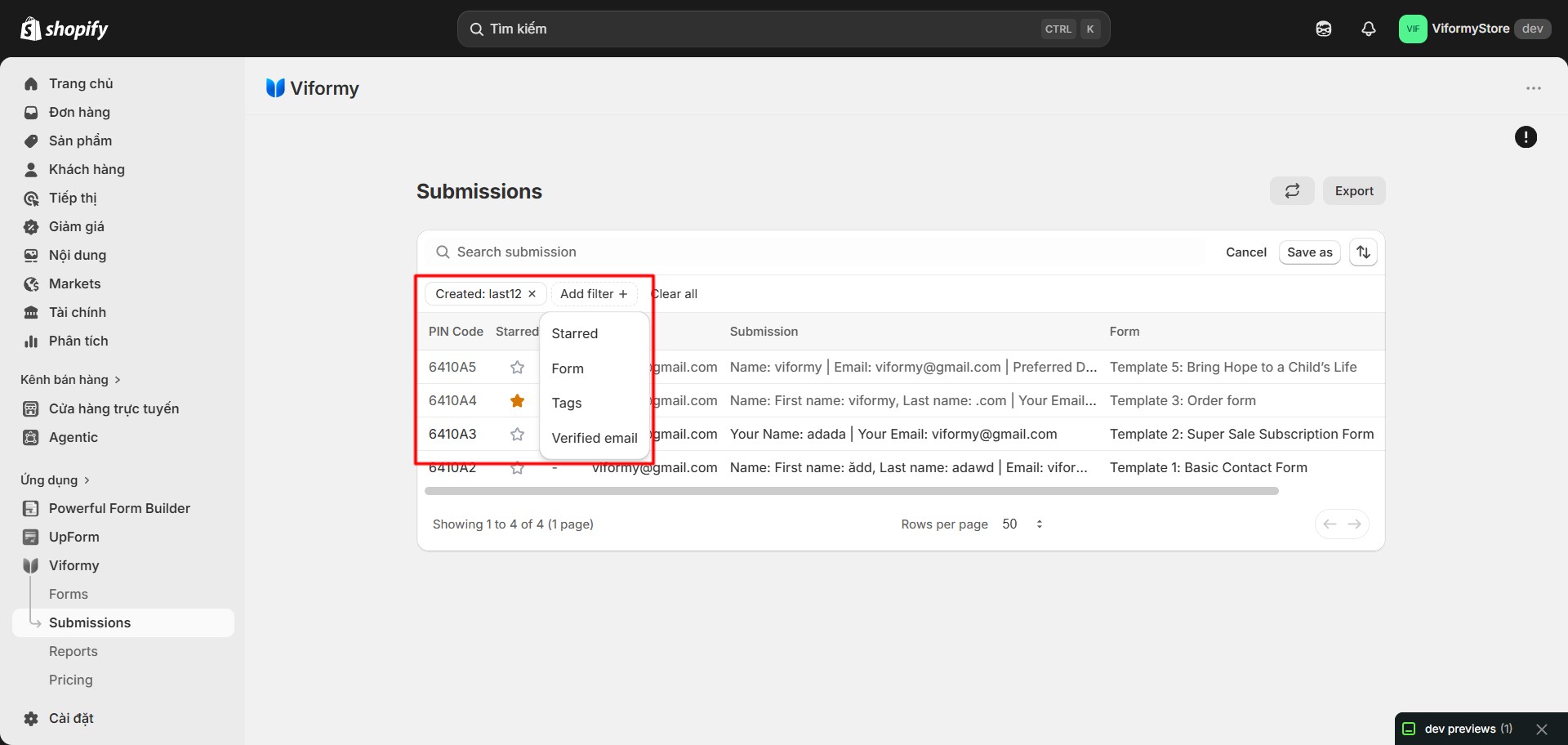
On the Submissions page, you can narrow down the data further with filters.

  • Created: Filter by Today, Last 7 days, Last 30 days, Last 90 days, Last 12 months, or a custom date range.
  • Starred: View important submissions only.
  • Tags: Review submissions grouped by internal labels.
  • Verified email: Filter submissions by verified email status.
view insgight 4

Step 5: Open Submission Details for Deeper Insight #

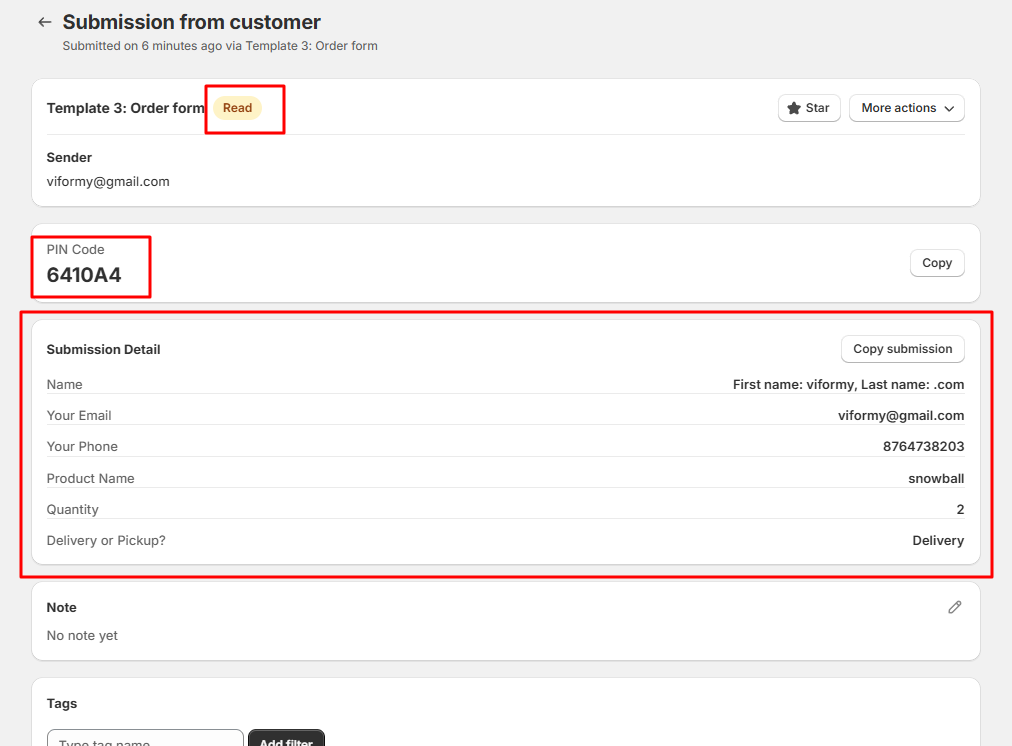
Click a submission row to open the submission detail page. This page gives more context about a single customer submission.

Submission detail can include:

  • Submitted field values
  • Sender information
  • PIN Code
  • Page, language, country, and device
  • IP address and user agent
  • Uploaded files, if available

check sum 6

Step 6: Export Form Insight Data #

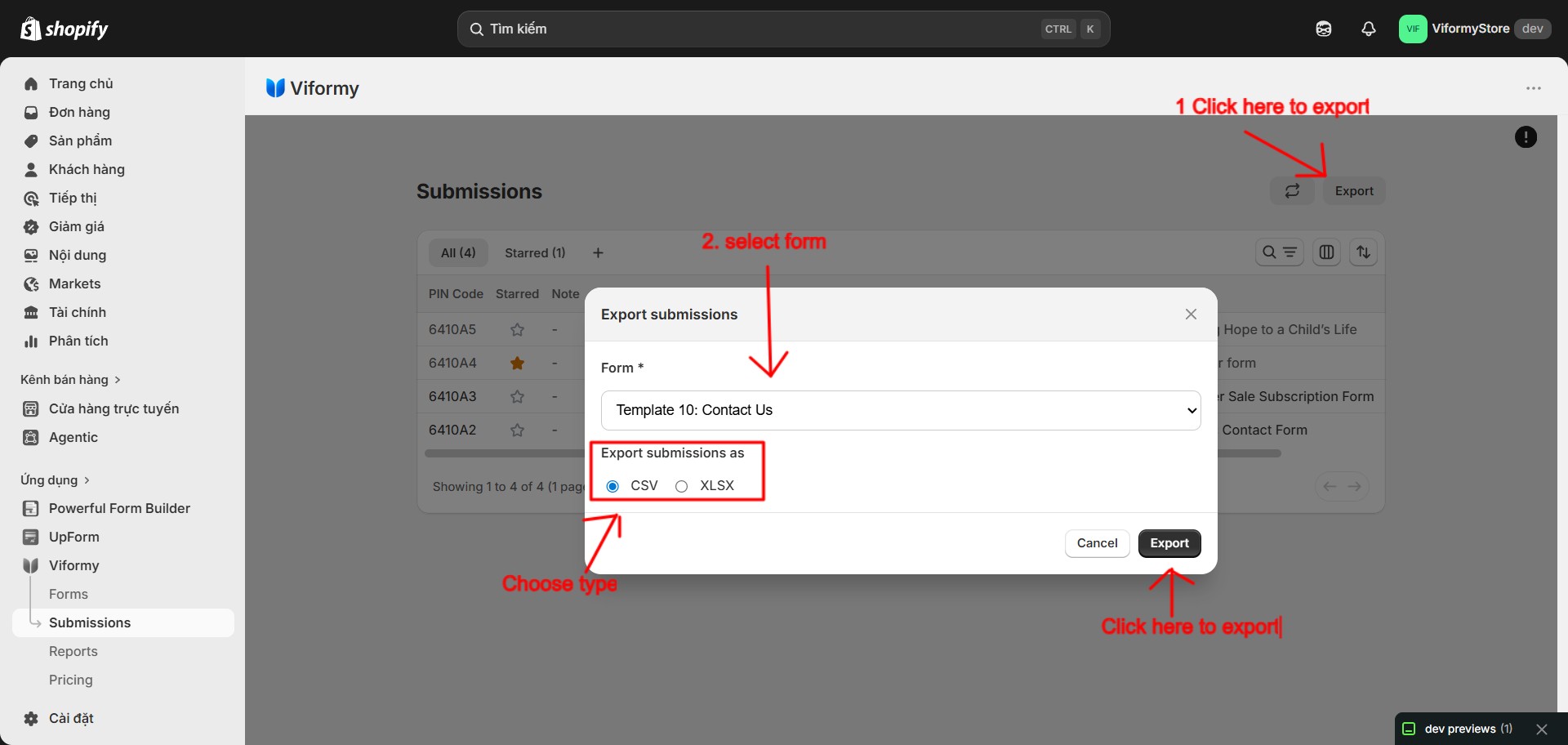
If you need to analyze form data outside Viformy, export submissions from the Submissions page.

Click Export, select a form, then choose CSV or Excel. The exported file includes submission fields such as PIN Code, Starred, Sender, Form, Submission, Date, Note, and Status.

check sum 11

What the Insight Data Means #

  • Total submissions: The total number of saved customer submissions.
  • Submission trend: How many submissions were received each day in the selected chart range.
  • Form filter: Helps you focus on submissions from one specific form.
  • Submission detail: Shows the actual customer data and contextual information for one submission.
  • Storage: Shows how much file/data storage has been used against the available limit.

Common Cases #

The chart shows zero submissions

Check whether the selected date range contains submissions. Also make sure the form has Save submission data enabled.

A specific form has no results

Open the Submissions page, clear existing filters, then apply the Form filter again. If the form has not received saved submissions, no results will be shown.

Submission data is missing

If Save submission data was disabled when the customer submitted the form, Viformy does not save that submission. Future submissions will be saved after the option is enabled.

Dashboard numbers do not update immediately

Refresh the page or open the Submissions page to confirm the latest saved submissions.

Quick Workflow #

  • Enable Save submission data in the form Settings tab.
  • Open the Dashboard.
  • Review Total submissions, Forms, Storage, and the submissions chart.
  • Change the chart date range if needed.
  • Open Submissions and filter by form for form-specific insight.
  • Export submissions as CSV or Excel when deeper analysis is needed.
Updated on May 27, 2026

What are your Feelings

  • Happy
  • Normal
  • Sad

Share This Article :

  • Facebook
  • X
  • LinkedIn
  • Pinterest
Check submissions dataExport submissions data
ON THIS PAGE
  • How to View Form Insights in Viformy
  • Before You Start
  • Step 1: Open the Dashboard
  • Step 2: View the Submission Trend Chart
  • Step 3: Change the Chart Date Range
  • Step 4: Filter Form Insights by Date, Tags, or Status
  • Step 5: Open Submission Details for Deeper Insight
  • Step 6: Export Form Insight Data
  • What the Insight Data Means
  • Common Cases
  • Quick Workflow

The most powerful and flexible form building solution for Shopify merchants.

Product

  • Features
  • Integrations
  • Pricing

Support

  • Documentation
  • Help Center
  • API Reference

Legal

  • Privacy Policy
  • Terms of Service