
How to Configure Mail API Setup in Viformy #
Step 1: Open Email Configuration #
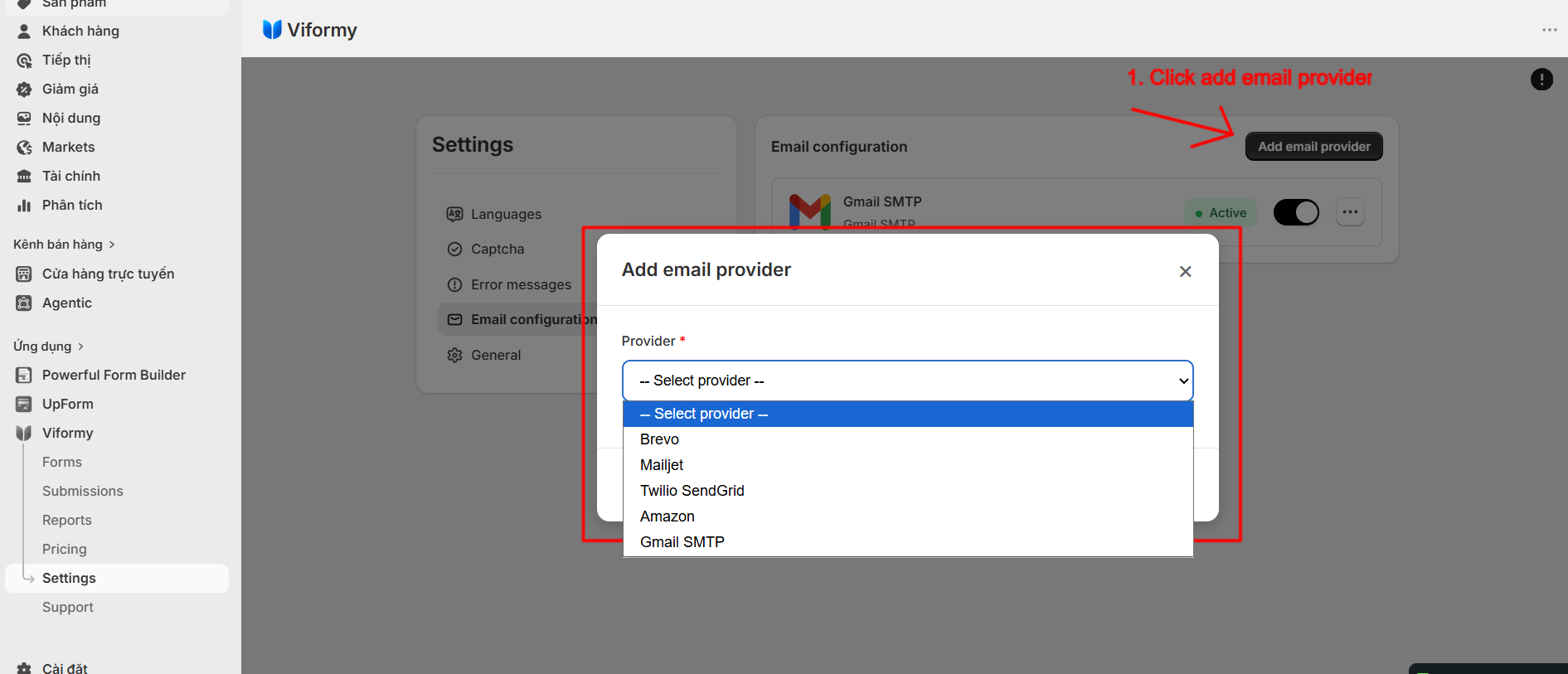
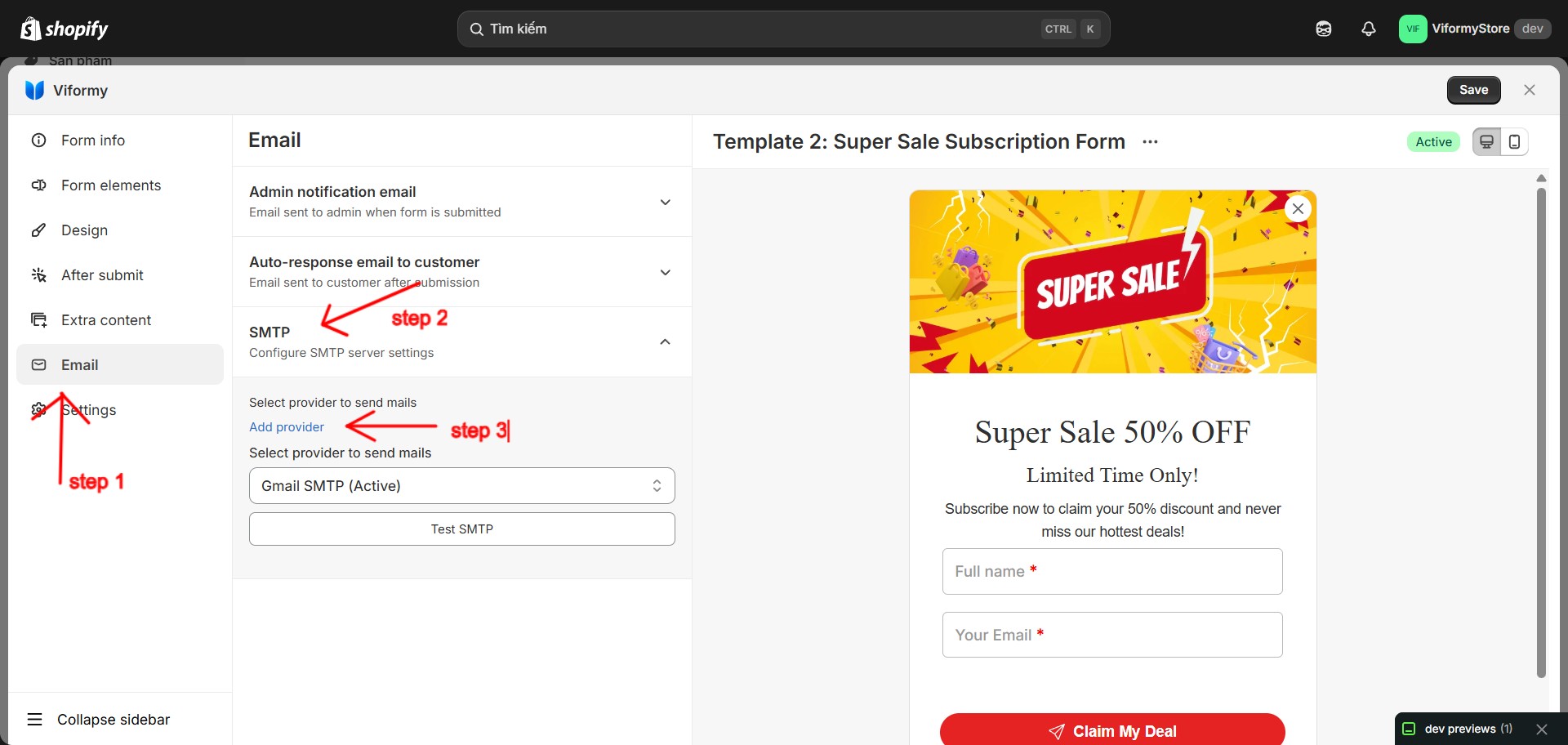
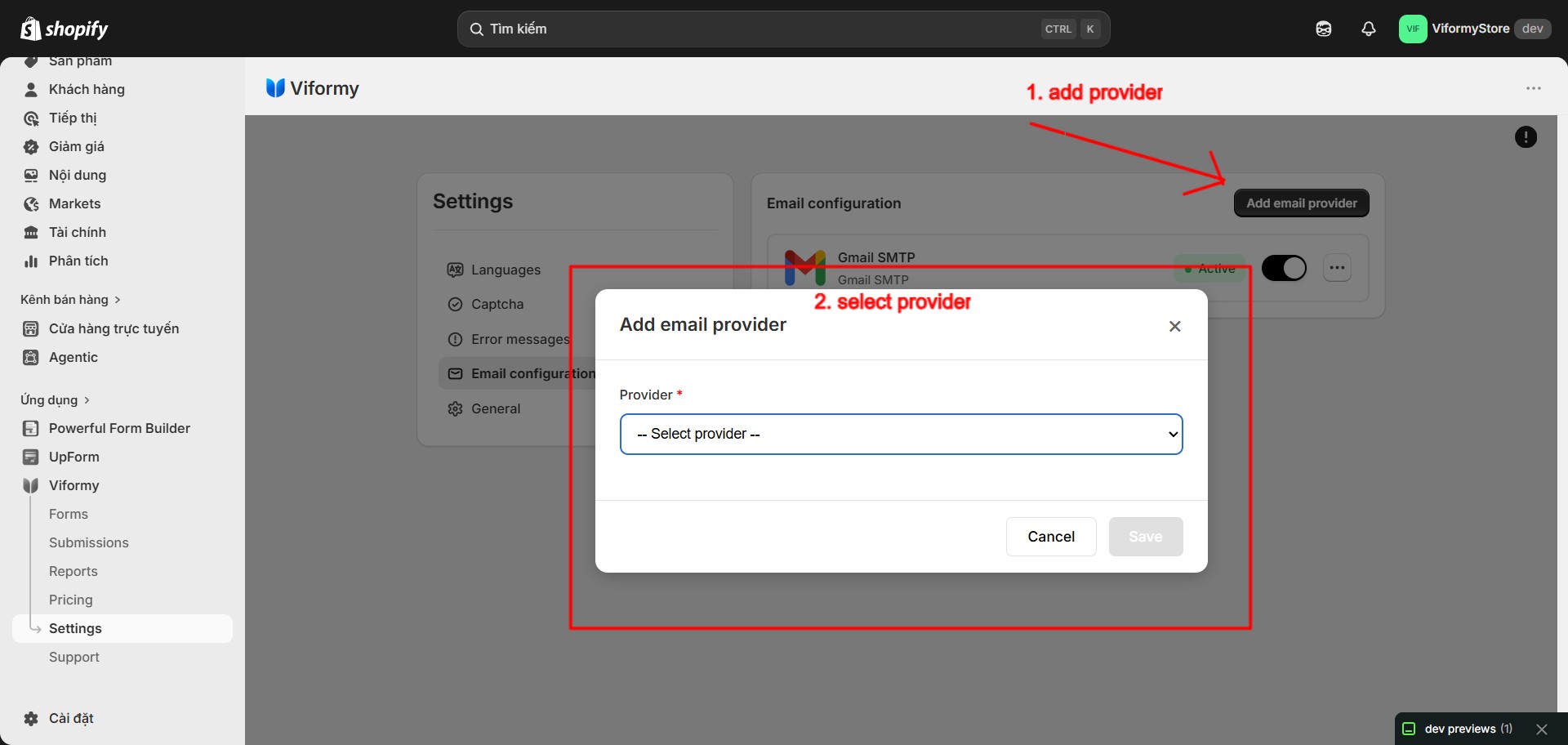
Step 2: Select a Provider #
-
Brevo
-
Mailjet
-
Twilio SendGrid
-
Amazon
-
Gmail SMTP
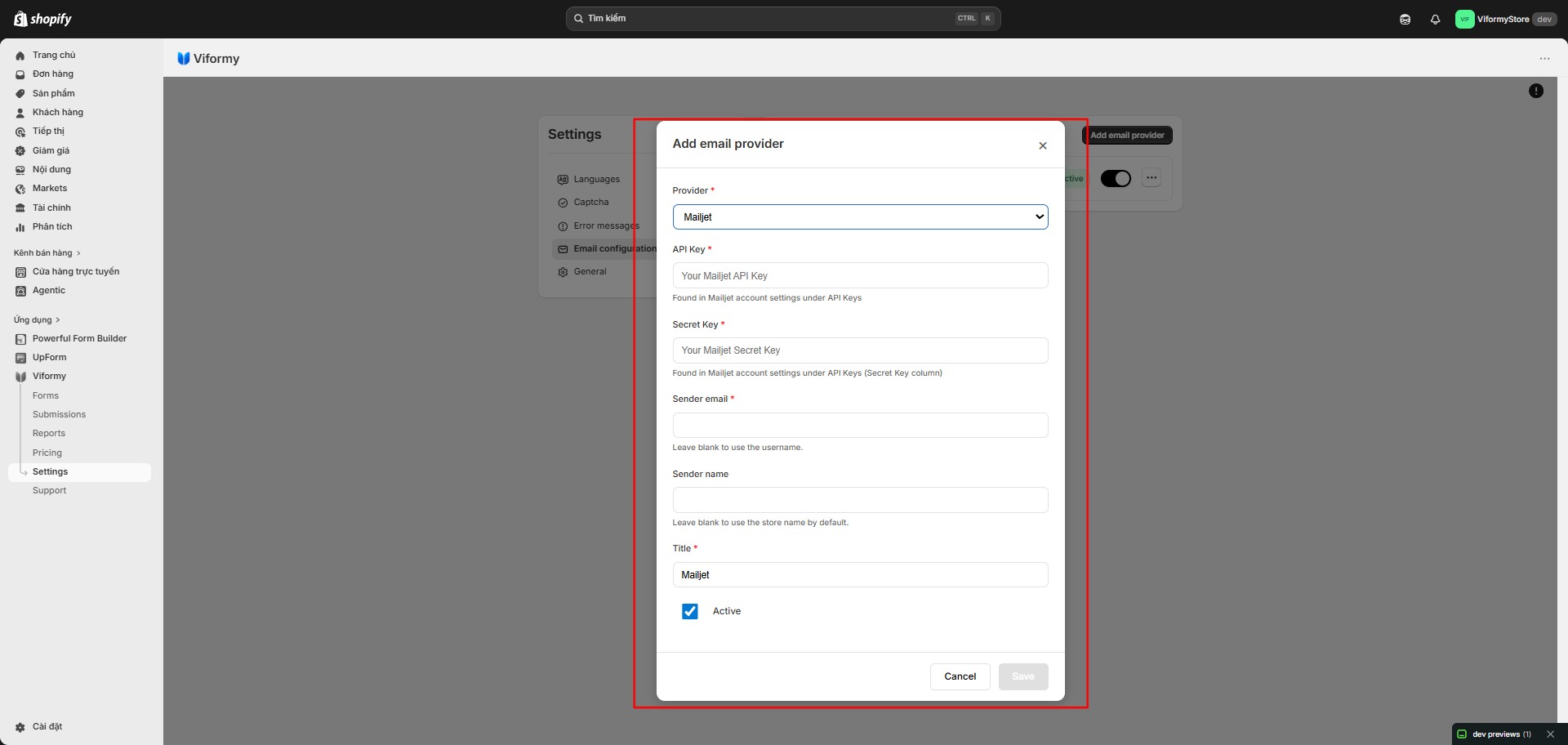
Mailjet API Configuration #
Mailjet-
API Key: Get this from your Mailjet account settings.
-
Secret Key: Get this from the Secret Key column in Mailjet API Keys.
-
Sender email: The email address used to send emails.
-
Sender name: The sender name displayed in the email.
-
Title: The provider name shown in Viformy, such as Mailjet Main.
-
Active: Enable this provider.
API Key: xxxxxxxxxxxxxxxxx
Secret Key: xxxxxxxxxxxxxxxxx
Sender email: support@yourstore.com
Sender name: Your Store
Title: Mailjet Main
Active: On
Twilio SendGrid API Configuration #
Twilio SendGrid-
API Key: The API key created in SendGrid.
-
Sender email: The email address used as the sender.
-
Sender name: The sender name shown in the email.
-
Title: The provider name shown in Viformy.
-
Active: Enable this provider.
API Key: SG.xxxxxxxx
Sender email: support@yourstore.com
Sender name: Your Store
Title: SendGrid Main
Active: On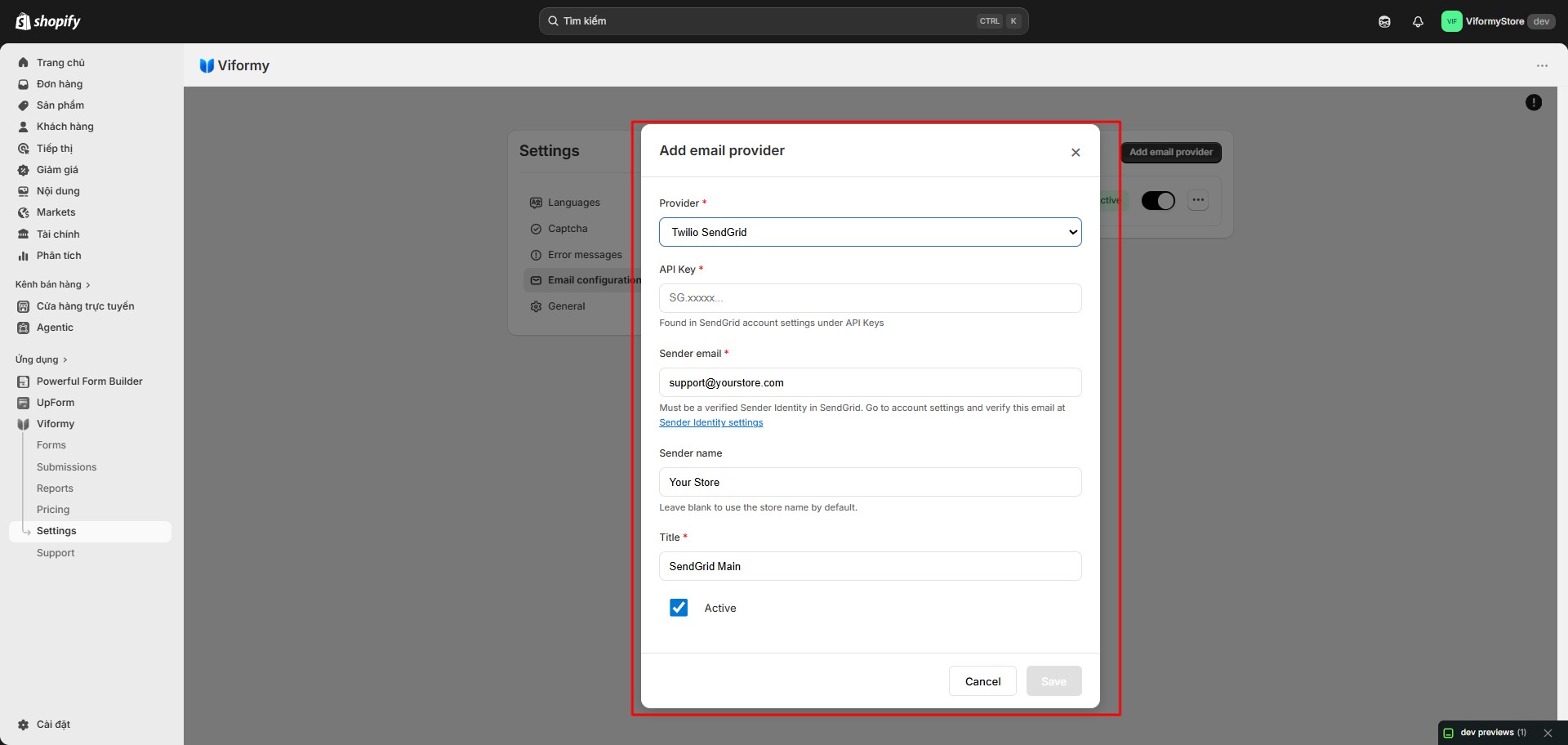
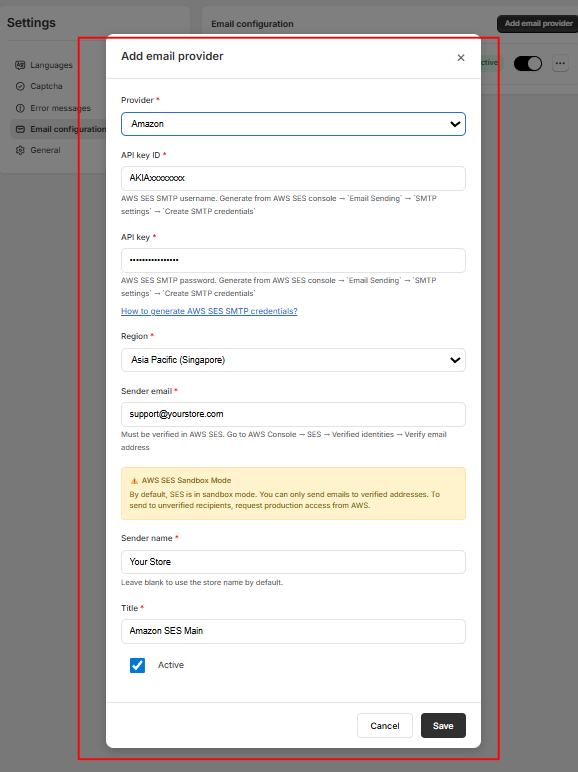
Amazon SES API / SMTP Credentials Configuration #
Amazon-
API key ID: AWS SES SMTP username.
-
API key: AWS SES SMTP password.
-
Region: The AWS SES region you use.
-
Sender email: The sender email, which must be verified in AWS SES.
-
Sender name: The sender name shown in the email.
-
Title: The provider name shown in Viformy.
-
Active: Enable this provider.
us-east-1
us-west-2
eu-west-1
ap-southeast-1API key ID: AKIAxxxxxxxx
API key: xxxxxxxxxxxxxxxx
Region: us-east-1
Sender email: support@yourstore.com
Sender name: Your Store
Title: Amazon SES Main
Active: On
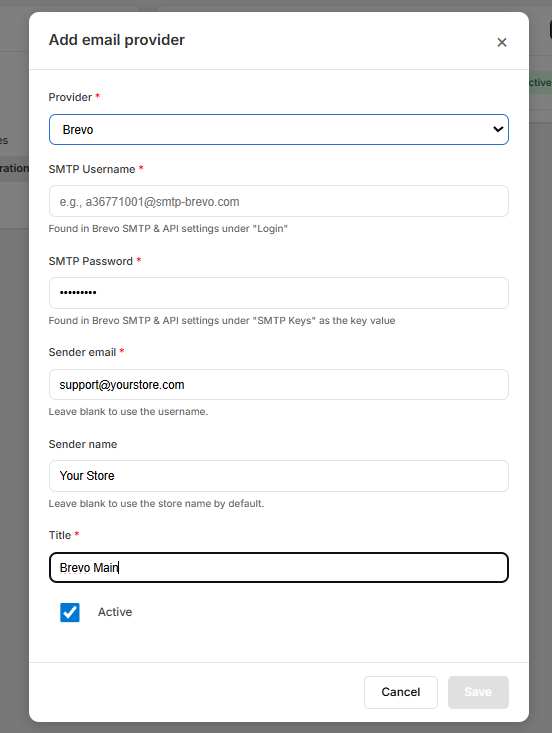
Brevo Configuration #
Brevo-
SMTP Username: Get this from Brevo SMTP & API settings, usually from the Login field.
-
SMTP Password: Get this from Brevo SMTP Keys.
-
Sender email: The email address used to send emails.
-
Sender name: The sender name shown in the email.
-
Title: The provider name shown in Viformy.
-
Active: Enable this provider.
SMTP Username: a123456@smtp-brevo.com
SMTP Password: xxxxxxxxx
Sender email: support@yourstore.com
Sender name: Your Store
Title: Brevo Main
Active: On
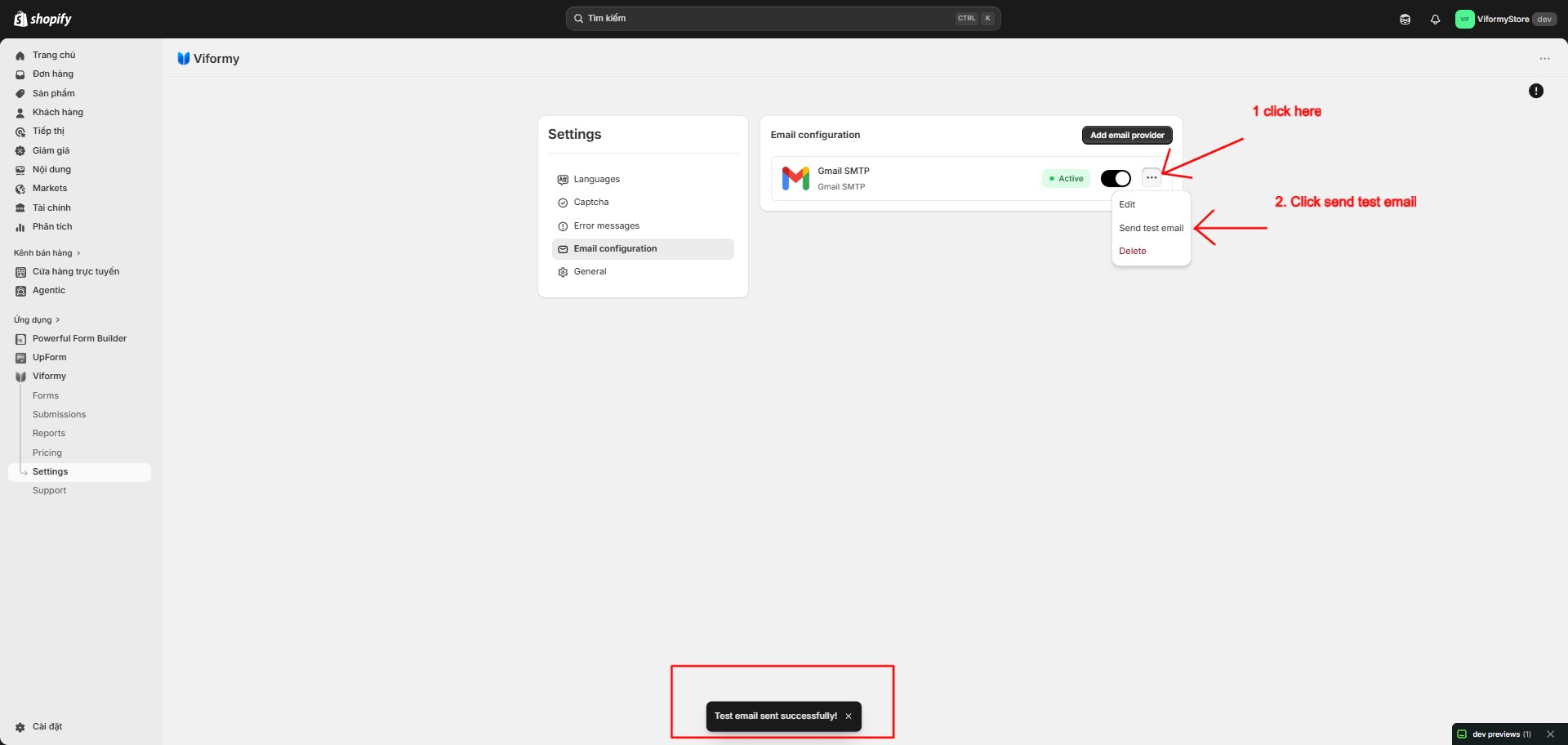
Step 3: Save and Test the Provider #
Step 4: Select the Provider for a Form #
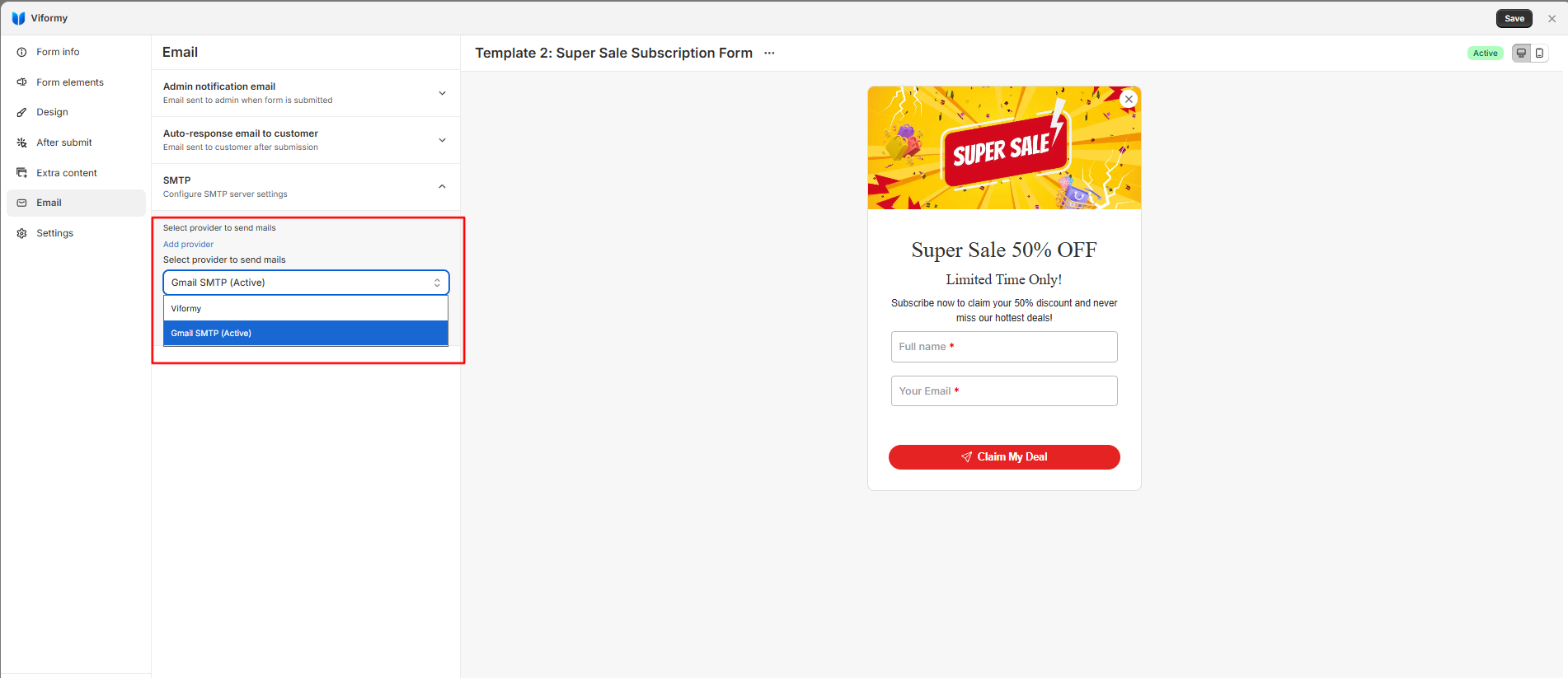
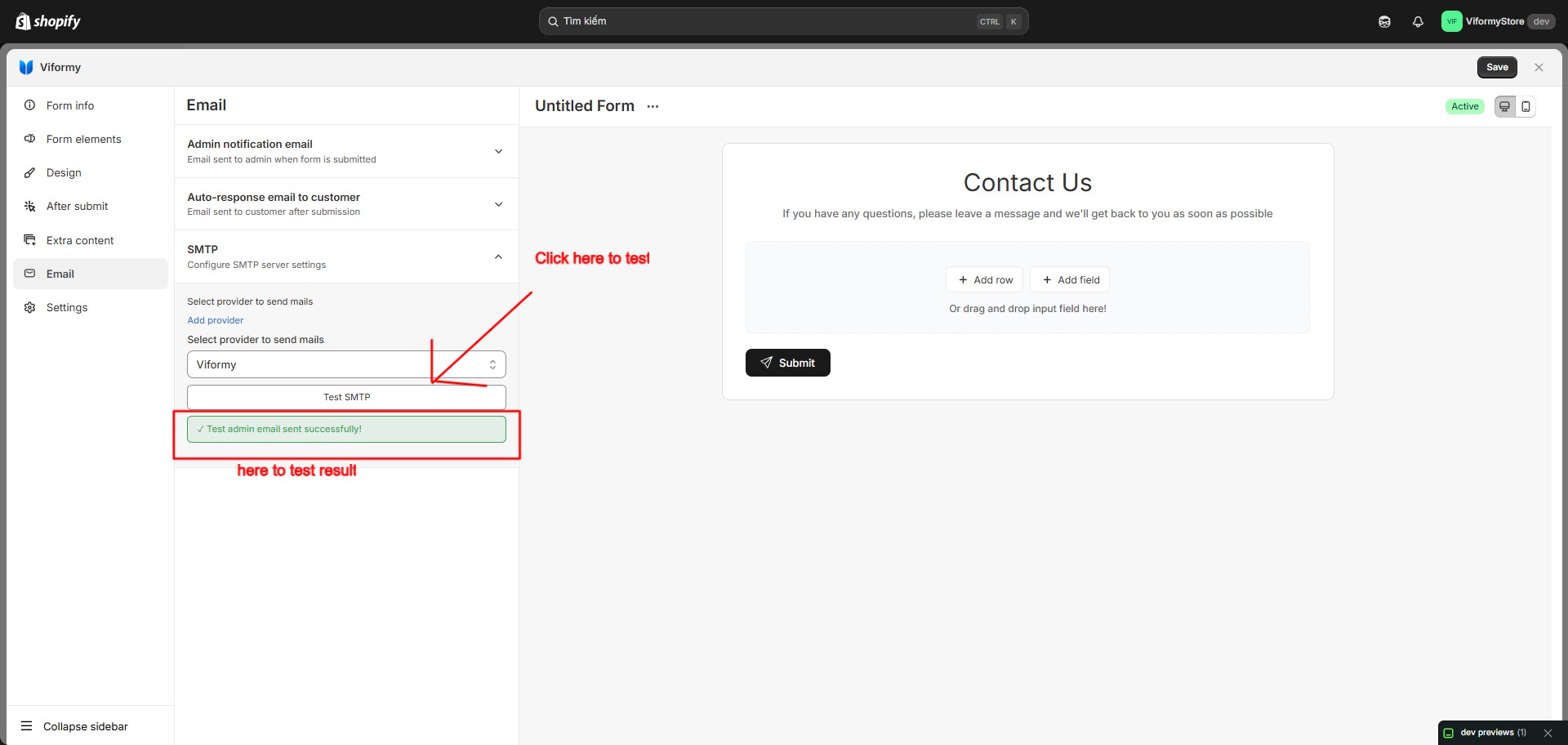
Step 5: Test with Test SMTP #
-
If Admin notification email is enabled, Viformy sends a test admin email.
-
If Auto-response email to customer is enabled, Viformy sends a test customer email.
-
If both are enabled, Viformy tests both email types.
Common Errors #
Missing API Key or Secret Key
Sender email is not verified
AWS SES Sandbox Error
Recipient email is required
Provider Recommendations #
-
Mailjet: Use this if you want a simple API Key and Secret Key setup.
-
SendGrid: Use this if you need higher email volume and clear sender identity management.
-
Amazon SES: Use this if your store already uses AWS and you want lower email sending costs.
-
Brevo: Use this if you already have Brevo SMTP/API settings available.
Quick Setup Example with SendGrid #
-
Provider: Twilio SendGrid
-
API Key: SG.xxxxxxxx
-
Sender email: support@yourstore.com
-
Sender name: Your Store
-
Title: SendGrid Main
-
Active: On
Email > SMTP > Select provider to send mails > SendGrid Main