
Long forms scare customers away. If a shopper only wants to check on an order, they shouldn’t have to scroll past wholesale questions, and a B2B buyer shouldn’t be asked for an order number they don’t have yet.
That’s what Conditional Logic in Viformy is for. You can show or hide any field based on what the customer has already answered, so every visitor sees a short form that fits their situation. You don’t need any code: you build the rules in the Conditions panel of the form builder, and they run live on your Shopify storefront as customers fill in the form.
This guide walks you through the feature step by step with a real example.
What you can do with Conditions #
Each rule in Viformy has two parts:
- IF: one or more conditions, such as “What can we help you with?” is equal to “Order status”.
- DO: one or more actions that run when the conditions are met.
There are four actions to choose from:
- Show field: show one field.
- Hide field: hide one field.
- Show multiple fields: show several fields at once.
- Hide multiple fields: hide several fields at once.
You can chain conditions with AND / OR, add as many actions as you like with + Do, and create as many rules as your form needs.
The example we’ll build #
We’ll turn a simple “Contact Us” form into a smart form. It has a required radio question, “What can we help you with?”, with four answers: Order status, Product question, Wholesale inquiry and Other. Based on that answer:
| When the customer… | …the form shows |
|---|---|
| chooses Order status | Order number |
| chooses Wholesale inquiry | Company name + Estimated quantity |
| chooses Wholesale inquiry and enters a quantity of 100 or more | Phone number (so your sales team can call back) |
Everyone else just sees Name, Email and Message.
Step 1: Open the Conditions panel #
- In the Viformy app, open the form you want to edit (or create a new one). Add all the fields you need first, because rules can only point to fields that already exist in the form.
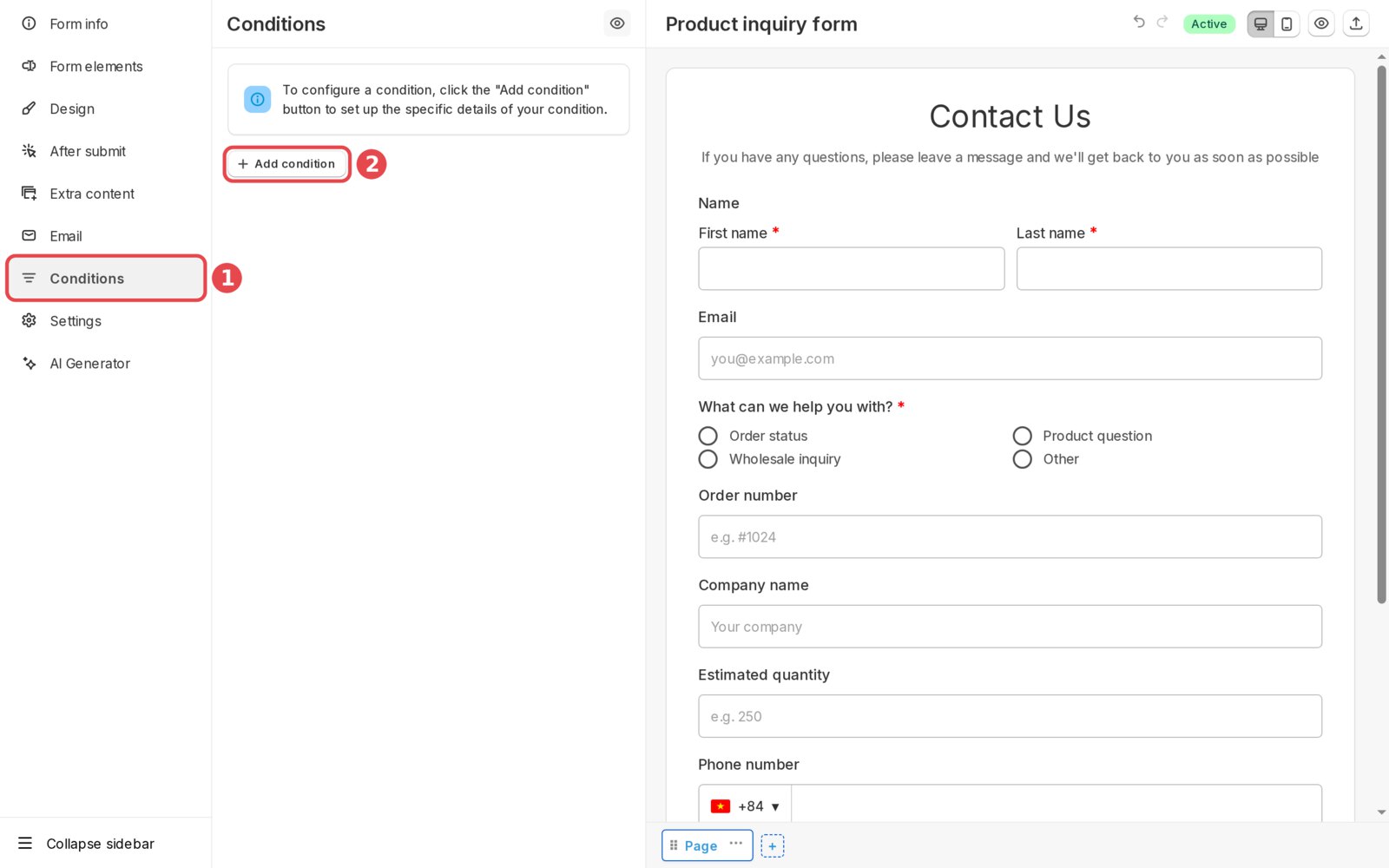
- In the left sidebar of the form builder, click Conditions.
- Click + Add condition to create your first rule.
Step 2: Get to know the rule card #
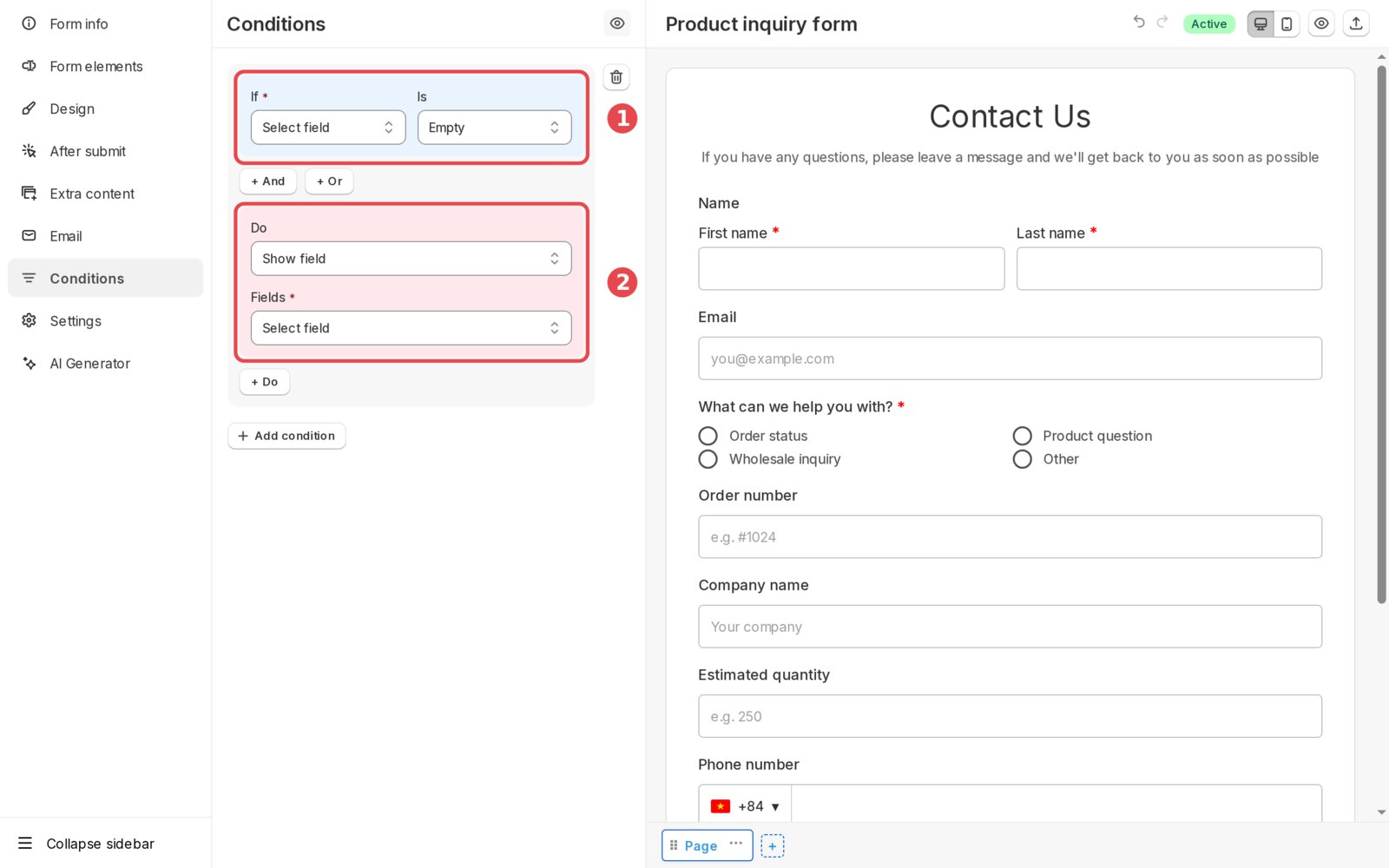
Every rule is shown as a card with two coloured blocks:
- The blue IF block holds your conditions.
- If: the field to check.
- Is: the operator, for example Equal to, Contains or Greater than.
- Value: what to compare against. It adapts to the field: a dropdown of options for radio and select fields, a number box for number fields, and so on.
- Use + And or + Or to add more conditions to the same rule.
- The pink DO block holds your actions.
- Do: Show field, Hide field, Show multiple fields or Hide multiple fields.
- Fields: the field or fields the action applies to.
- Use + Do to run more than one action from the same conditions.
To delete a whole rule, click the trash icon next to the card.
Step 3: Show a field when a specific answer is chosen #
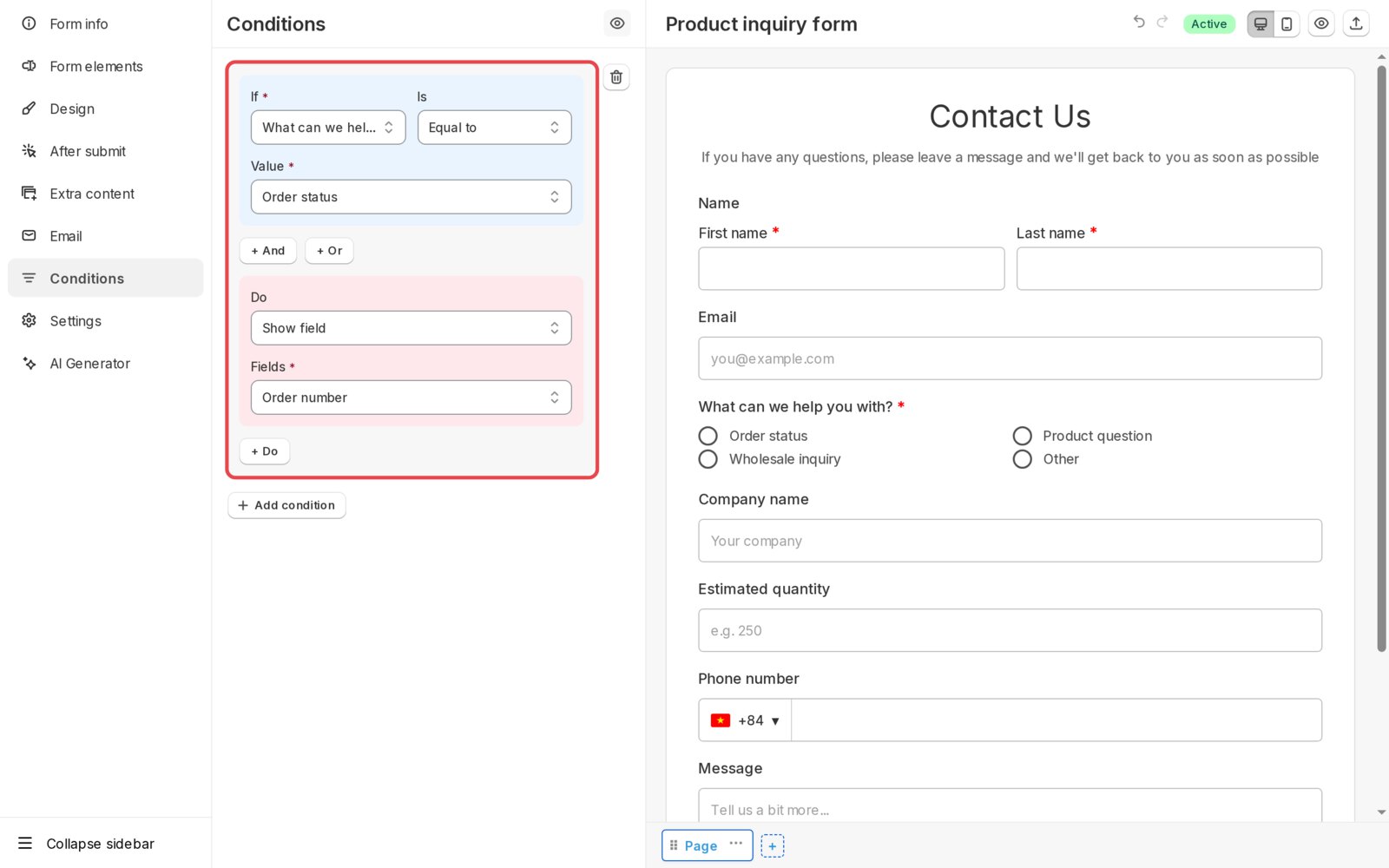
Let’s create the first rule: show “Order number” only when the customer chooses “Order status”.
- If: select What can we help you with?
- Is: select Equal to.
- Value: select Order status.
- Do: keep Show field.
- Fields: select Order number.
Look at the live preview on the right: Order number has disappeared. A field used in a Show action is hidden by default and only appears when its rule matches.
Tip: the eye icon next to the “Conditions” heading turns the logic on or off in the builder preview only. Turn it off when you want to see and edit every field on the canvas. Your storefront always applies the rules.
Step 4: Show several fields at once #
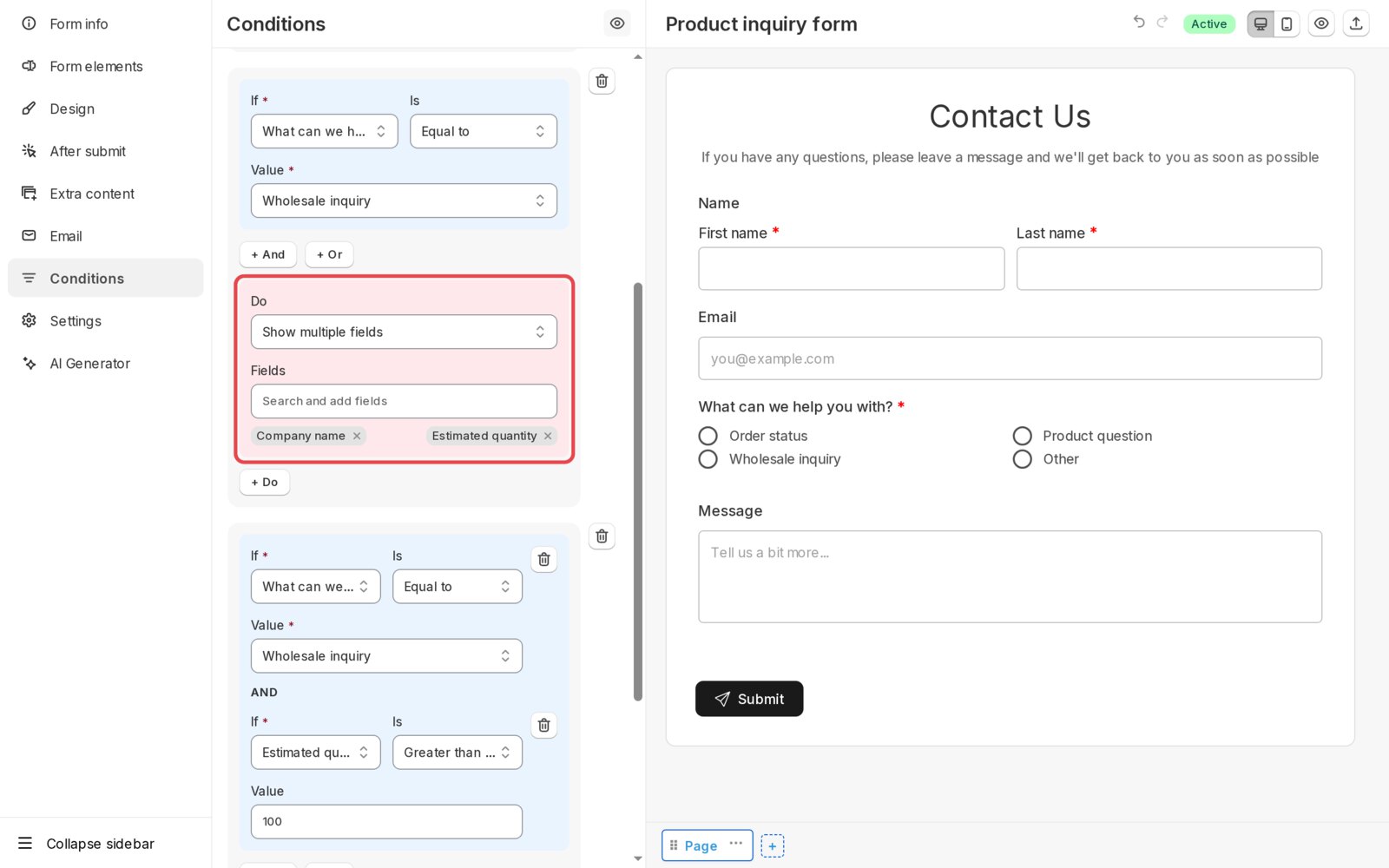
Wholesale buyers need two extra fields. Instead of creating two rules, use Show multiple fields:
- Click + Add condition to create a second rule.
- Set If What can we help you with? Is Equal to Value Wholesale inquiry.
- In Do, choose Show multiple fields.
- In the Search and add fields box, type and pick Company name, then Estimated quantity. Each selected field appears as a tag that you can remove with the small ×.
Step 5: Combine conditions with AND / OR #
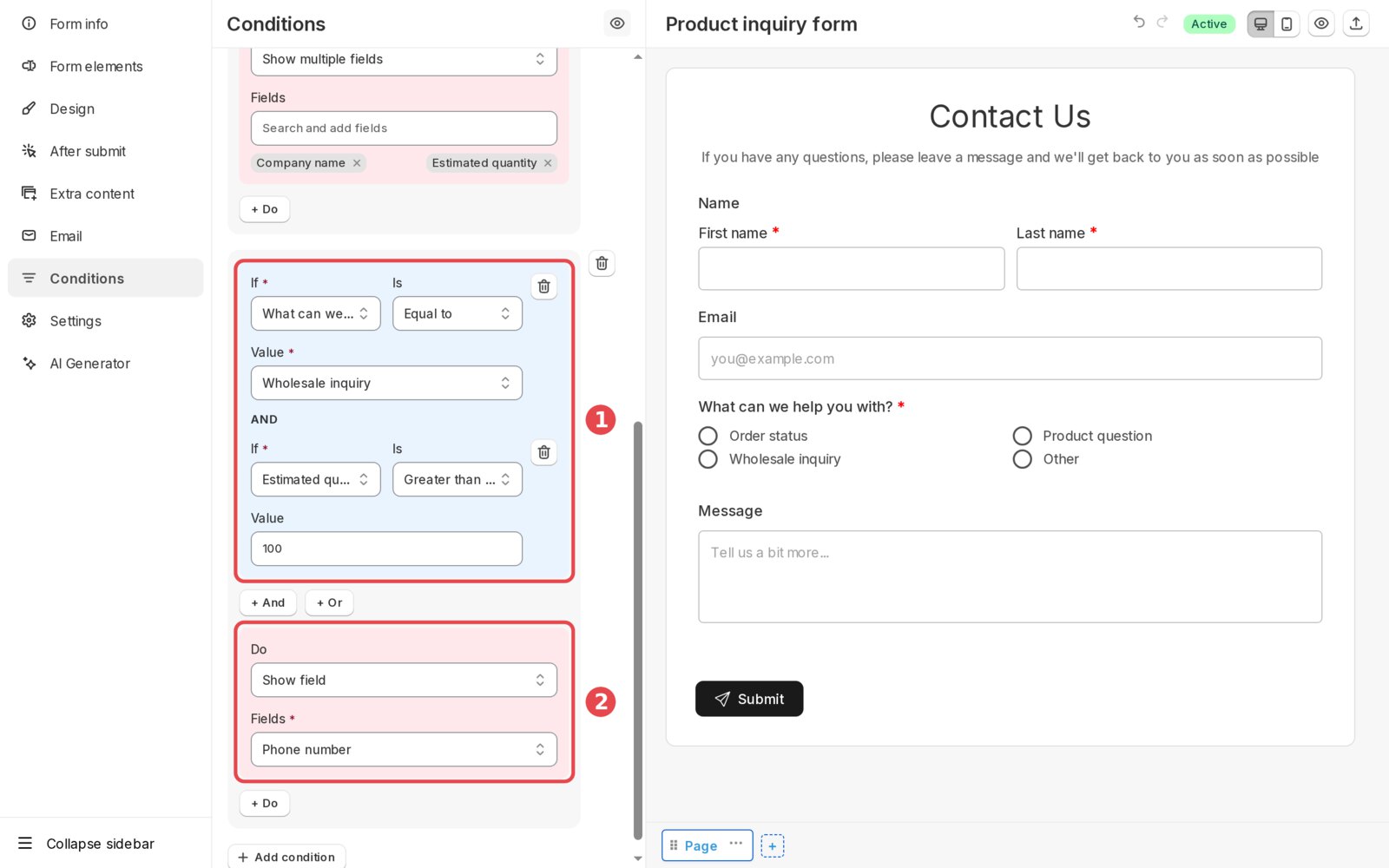
Now for a smarter rule: only ask for a phone number when it’s a wholesale inquiry and the quantity is 100 or more.
- Add a third rule and set the first condition to What can we help you with? Equal to Wholesale inquiry.
- Click + And. A second condition appears under an AND label. Set it to Estimated quantity, Greater than or equal to, 100.
- In the DO block, choose Show field and Phone number.
How AND / OR are evaluated: conditions are read as one chain, and AND is evaluated before OR, just like in most spreadsheet formulas. For example:
- A AND B OR C means (A AND B) OR C
- A OR B AND C means A OR (B AND C)
If you need a completely separate set of conditions to trigger the same action, it’s often clearer to create a second rule.
Step 6: Test your form, then save #
Click the Preview (eye) button in the top-right corner of the builder and fill in the form like a customer would.
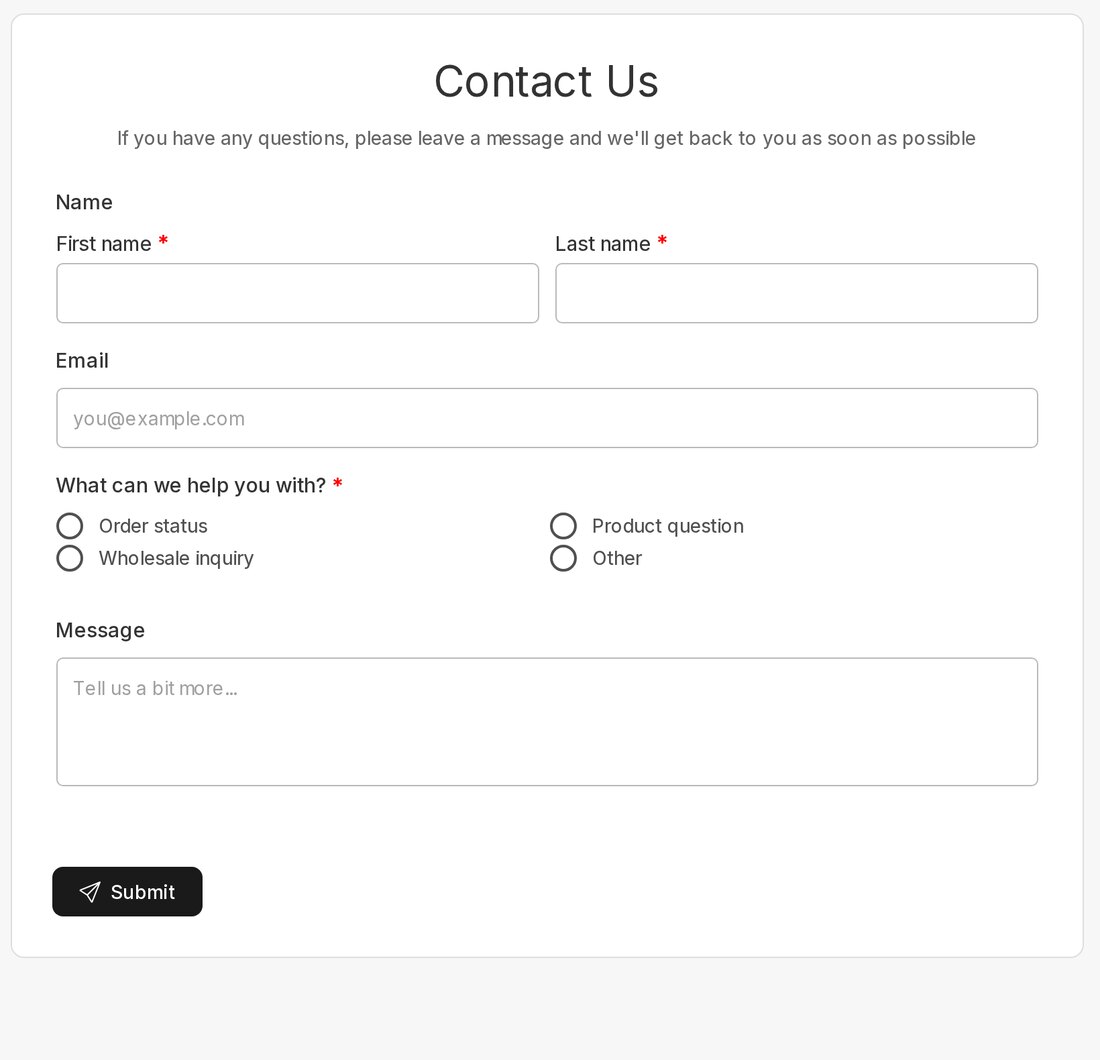
By default, the form is short and only shows Name, Email, the question and Message:
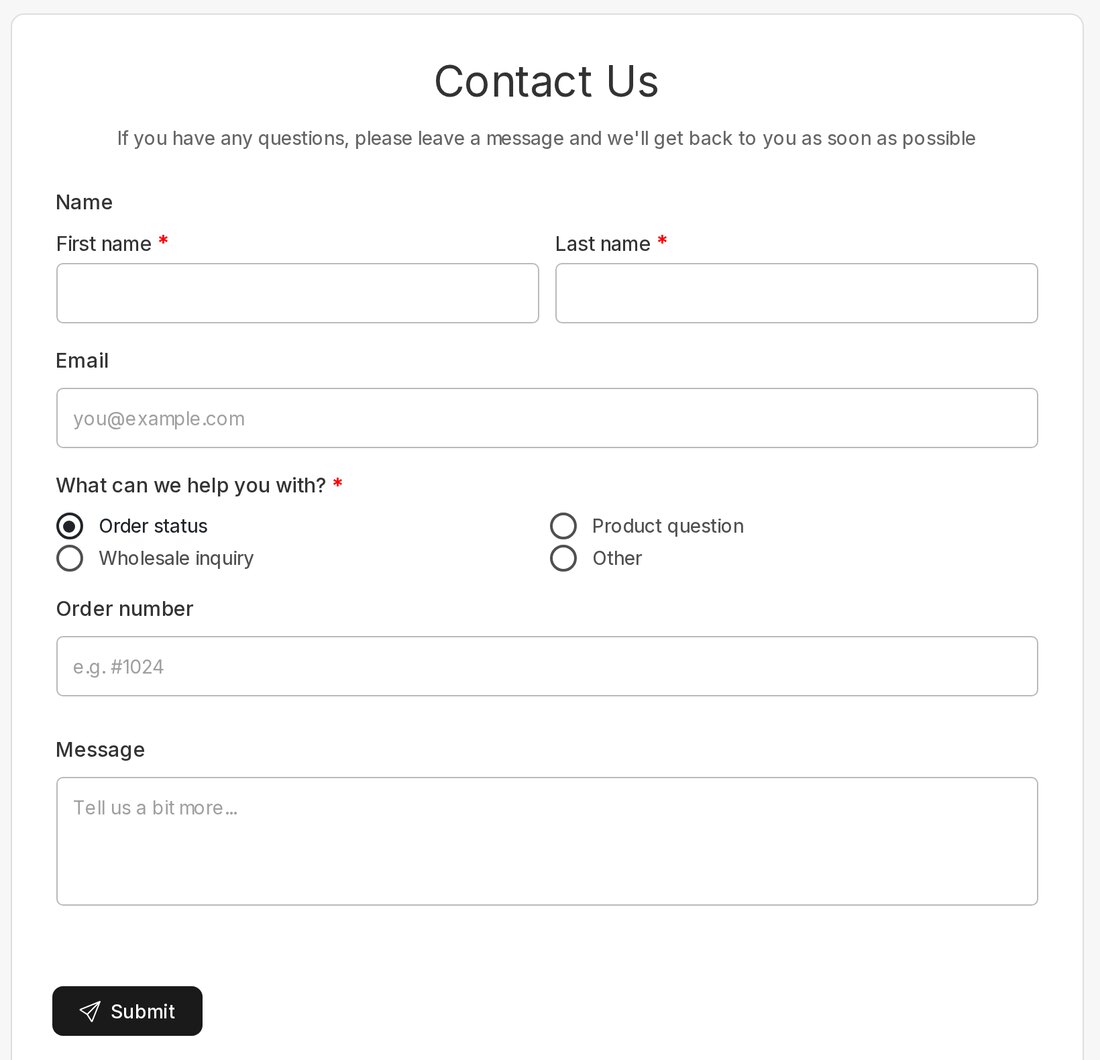
Choose Order status and Order number appears right away:
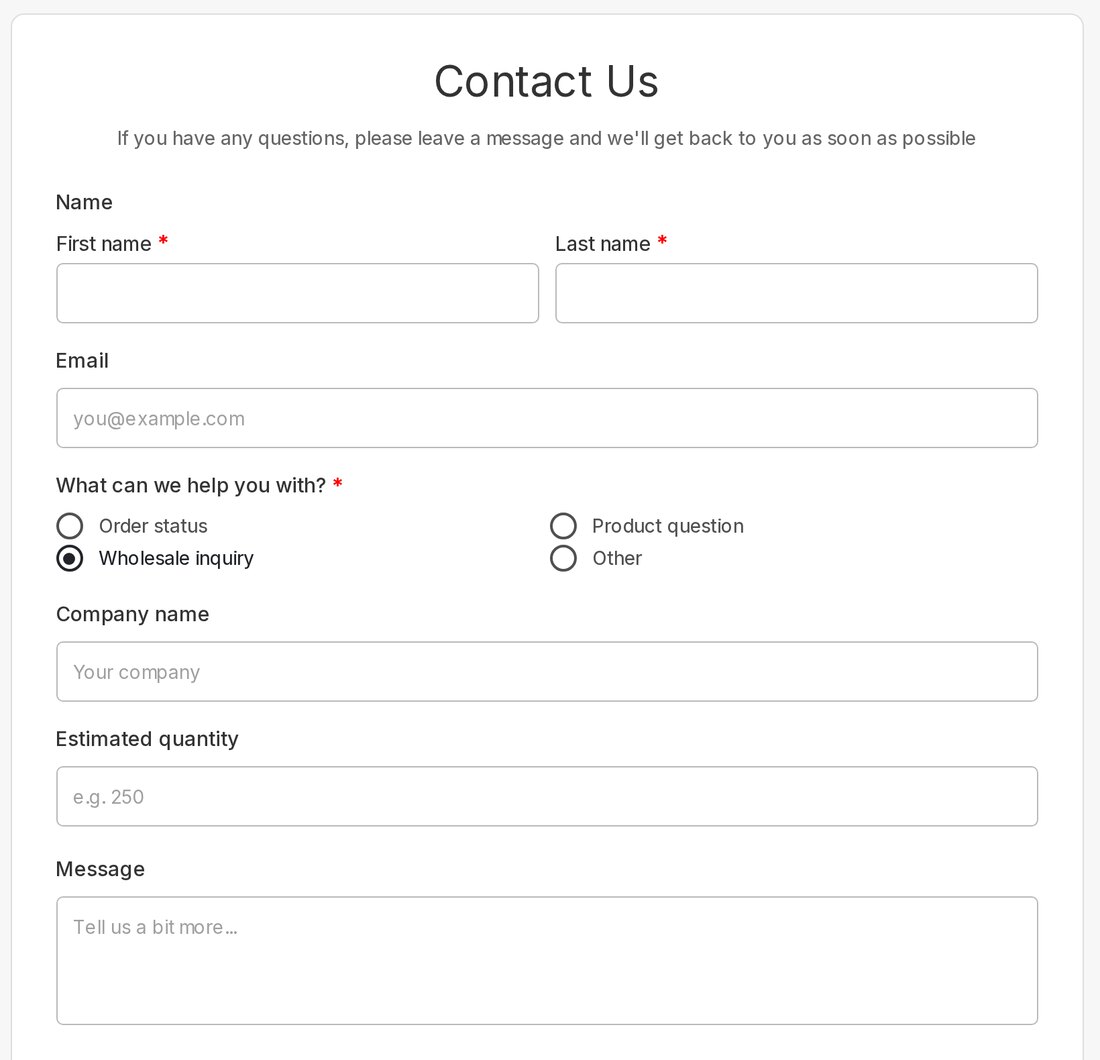
Switch to Wholesale inquiry: Order number disappears again, and Company name and Estimated quantity show up:
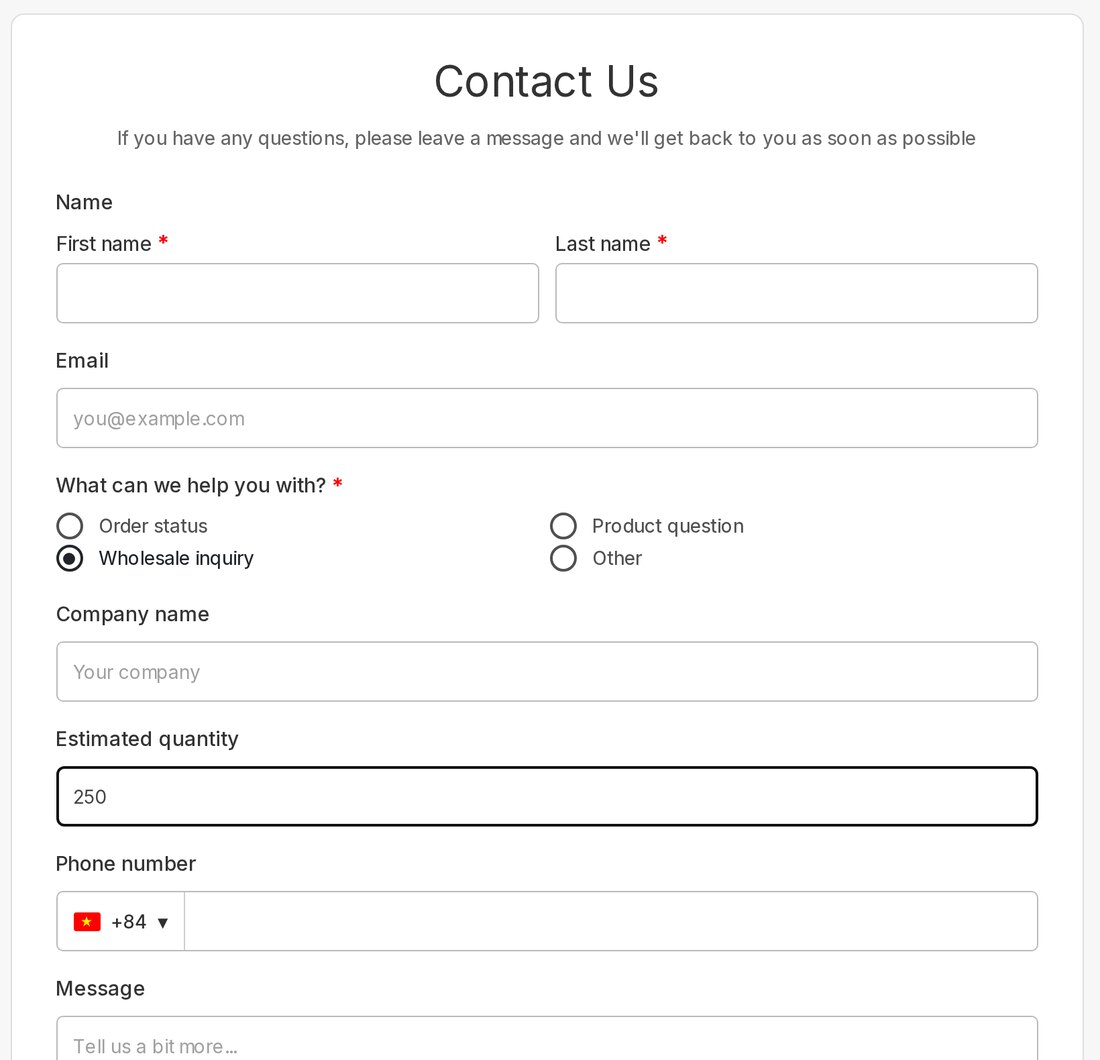
Type a quantity of 250 and the AND rule kicks in, so Phone number is shown:
When everything works as expected, click Save (or Publish). Your rules are saved with the form and run on your storefront immediately.
Operators available for each field type #
The options in the Is dropdown depend on the type of field you pick in If:
| Field type | Available operators |
|---|---|
| Text, Textarea, Email, Password, URL, Phone, Zipcode, Name | Empty, Filled, Contains, Does not contain, Starts with, Ends with |
| Select, Radio, Button, Q&A, Country, Language, Emoji feedback | Empty, Filled, Equal to, Not equal to |
| Checkbox, Multi-select | Empty, Filled, Contains, Does not contain |
| Number, Decimal, Slider, Quantity, Star rating, Numeric rating | Empty, Filled, Equal to, Not equal to, Less than, Greater than, Less than or equal to, Greater than or equal to |
| Switch, Acceptance | Equal to, Not equal to (e.g. Checked / Unchecked) |
| Date, Time, Date time, Color, Upload, Address | Empty, Filled |
Good to know #
- Hidden fields never block submission. If a Required field is hidden by a rule, it’s skipped during validation, so customers can still submit the form.
- Text comparisons ignore upper and lower case. “Contains vip” also matches “VIP” or “Vip”.
- Checkbox “Contains” matches any selected option. If the customer ticks several boxes, the rule matches as soon as one of them is the value you chose.
- Content blocks can be shown or hidden too. Headings, paragraphs, images, dividers, HTML, maps, countdowns and more can be the target of an action, although they can’t be used as a condition.
- Split name fields. With first and last name in separate boxes, you can build a condition on each part, such as “Name (First name)”.
- Multi-step forms are supported. Rules work on fields across every page of the form, and hidden fields are skipped when the customer clicks Next.
- Rules run in order. Every field is visible unless a rule says otherwise, and fields targeted by a Show action start hidden. If two matching rules disagree about the same field, the rule lower in the list wins.
- Viformy warns you about broken setups. If you delete a field that a rule uses, the rule is flagged so you can update it. If two fields control each other (A shows B and B shows A), you’ll see a circular dependency warning.
More ideas for your store #
- Returns and exchanges: when “Request type” is Return, show “Order number”, “Reason for return” and a photo upload.
- Customer feedback: when the star rating is less than or equal to 2, show “What went wrong?” so you can follow up with unhappy customers.
- Personalised products: when the “Add engraving” switch is on, show an “Engraving text” field.
- Event registration: when “Bringing a guest?” is Yes, show the guest’s name and email.
- Consent and marketing: when the customer ticks the newsletter checkbox, show “Topics you’re interested in”.
Frequently asked questions #
Do conditions work on my live store, or only in the builder?
Both. The builder preview lets you test rules while you edit, and the same rules run on your Shopify storefront in real time as customers fill in the form.
Can one answer show some fields and hide others?
Yes. Add several actions to the same rule with + Do, for example Show multiple fields for the fields you need and Hide field for the ones you don’t.
Can I trigger an action from several different answers?
Yes. Use + Or inside a rule (e.g. Order status OR Product question), or create a separate rule for each case.
How do I remove a condition?
Click the trash icon next to a single condition to remove just that condition, or the trash icon next to the card to delete the whole rule.
Start building smarter forms #
Conditional Logic keeps your Shopify forms short, relevant and easy to complete, which means more submissions and better-qualified leads. Open any form in Viformy, click Conditions and create your first rule in under a minute.
New to Viformy? Start with our guide to creating a new form, then come back here to make it smart.