logo website
  • Home
  • Features
  • Templates
  • Pricing
  • Docs
  • Install App
Menu
  • Home
  • Features
  • Templates
  • Pricing
  • Docs
  • Install App

Getting Started

1
  • Introduction

Quick Start

1
  • Create a new form

Display & Placement

5
  • Theme integration
  • Get embed form ID of a form
  • Display a form on Shopify front store
  • Display a form on a specific page
  • Add a form with app block

App Integration

2
  • Google reCAPTCHA Integration
  • hCaptcha integration

Mail Notification

4
  • Admin email notification
  • Customer email notification
  • SMTP Setup
  • Mail API setup

Data, Insights & Management

5
  • Check submissions data
  • View Insight of the Form
  • Export submissions data
  • Export and import forms
  • Disable saving submission data for forms
View Categories

Export and import forms

2 min read

How to Export and Import Forms in Viformy #

Export and Import Form lets you move a form configuration between stores, back up a form, or reuse an existing form setup without rebuilding it from scratch.

Viformy exports forms as a .json file. The imported form will be created as a new active form in the current store.

Before You Start #

  • You need at least one existing form to export.
  • Only .json files exported from Viformy should be imported.
  • Imported forms receive a new form ID and unique ID, so they do not overwrite existing forms.

Step 1: Open the Forms Page #
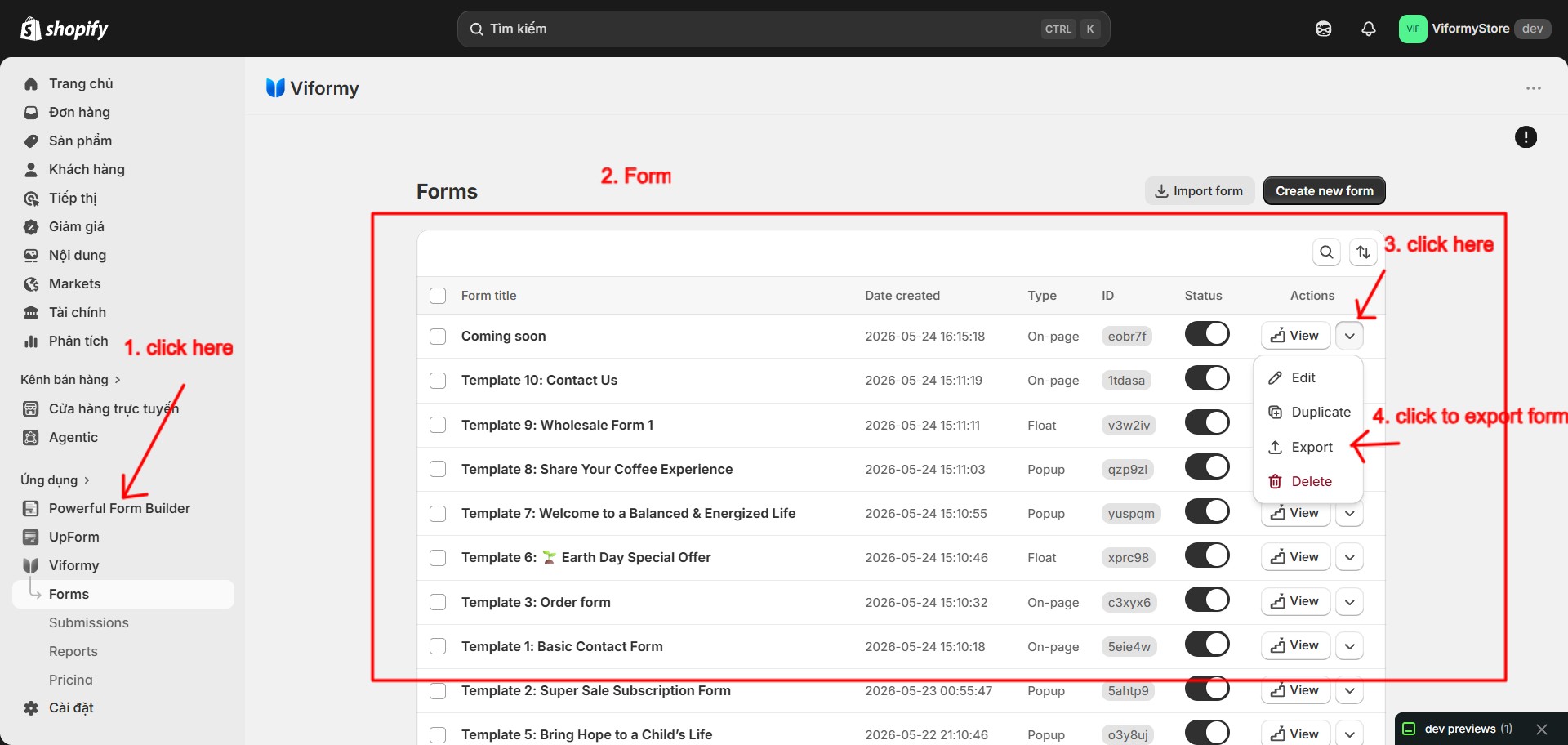
Go to the Viformy app in Shopify Admin and open the Forms page. This page shows all forms created in your store.

export form 1

Step 2: Export a Form #

Find the form you want to export, open its action menu, then click Export.

Viformy will download a .json file named after the form, for example:

Contact Us.json

The exported file contains the form configuration. Store-specific values such as the original form ID, shop ID, and unique ID are removed before export.

Step 3: Import a Form #

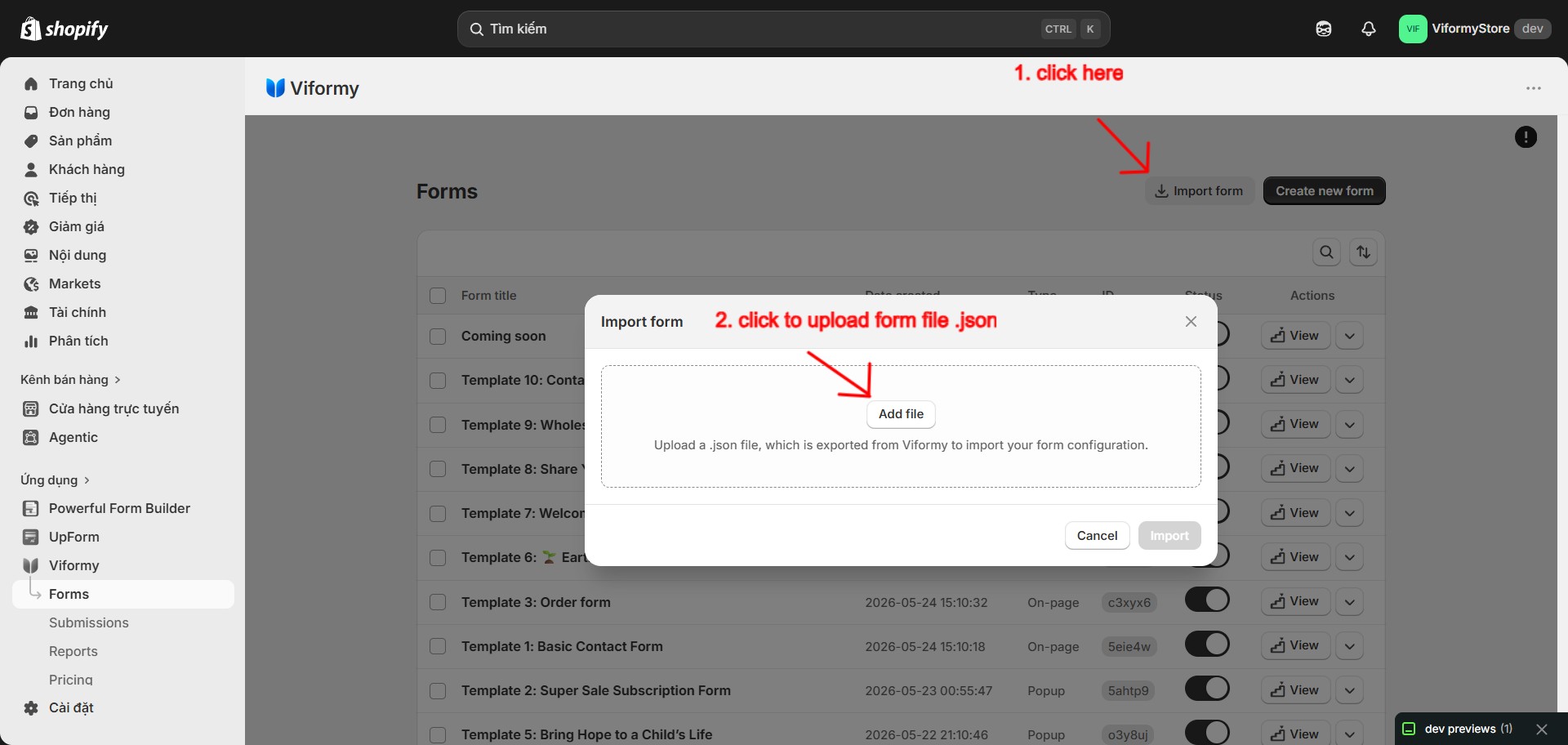
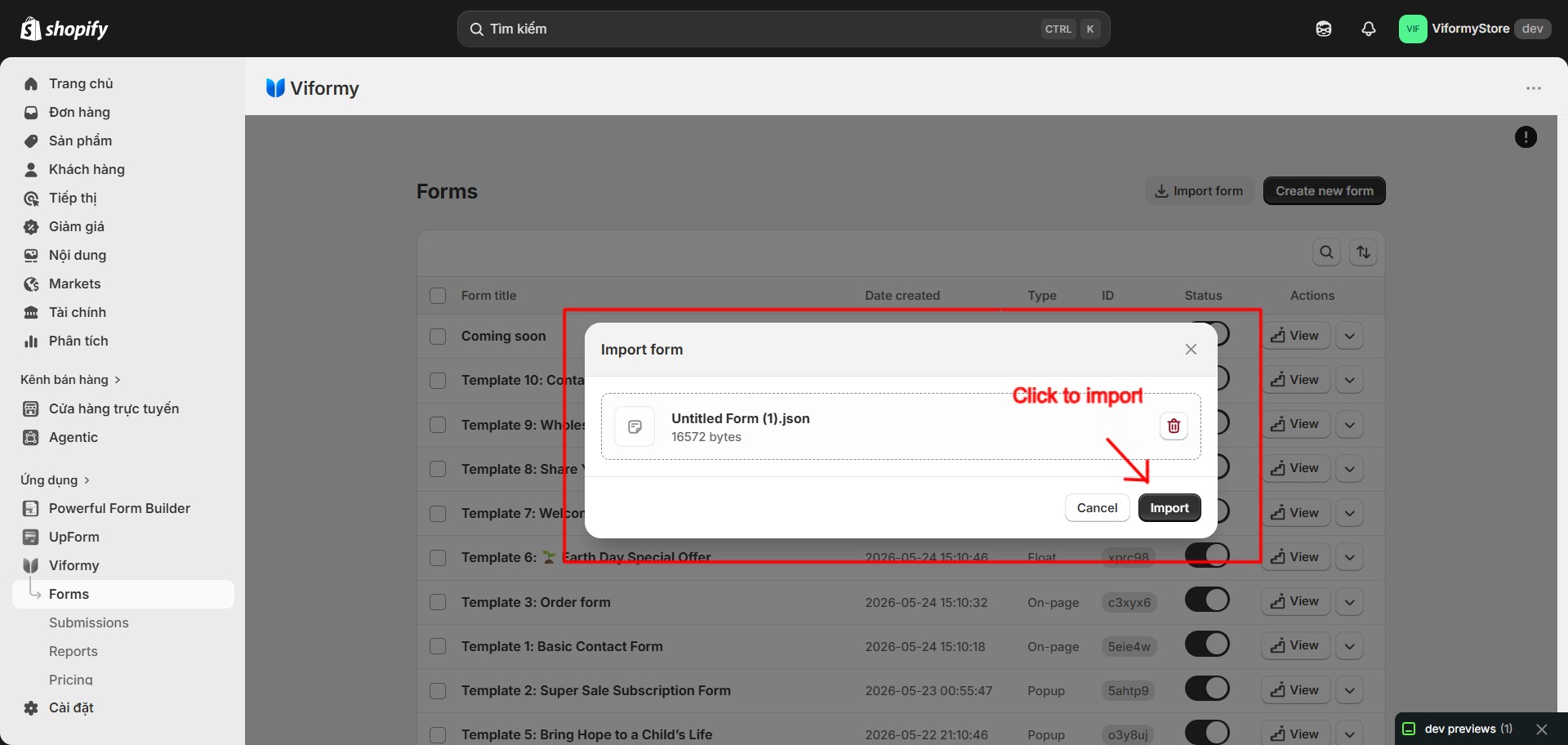
On the Forms page, click Import form. In the import modal, upload the .json file exported from Viformy, then click Import.

export form 2

export form 3

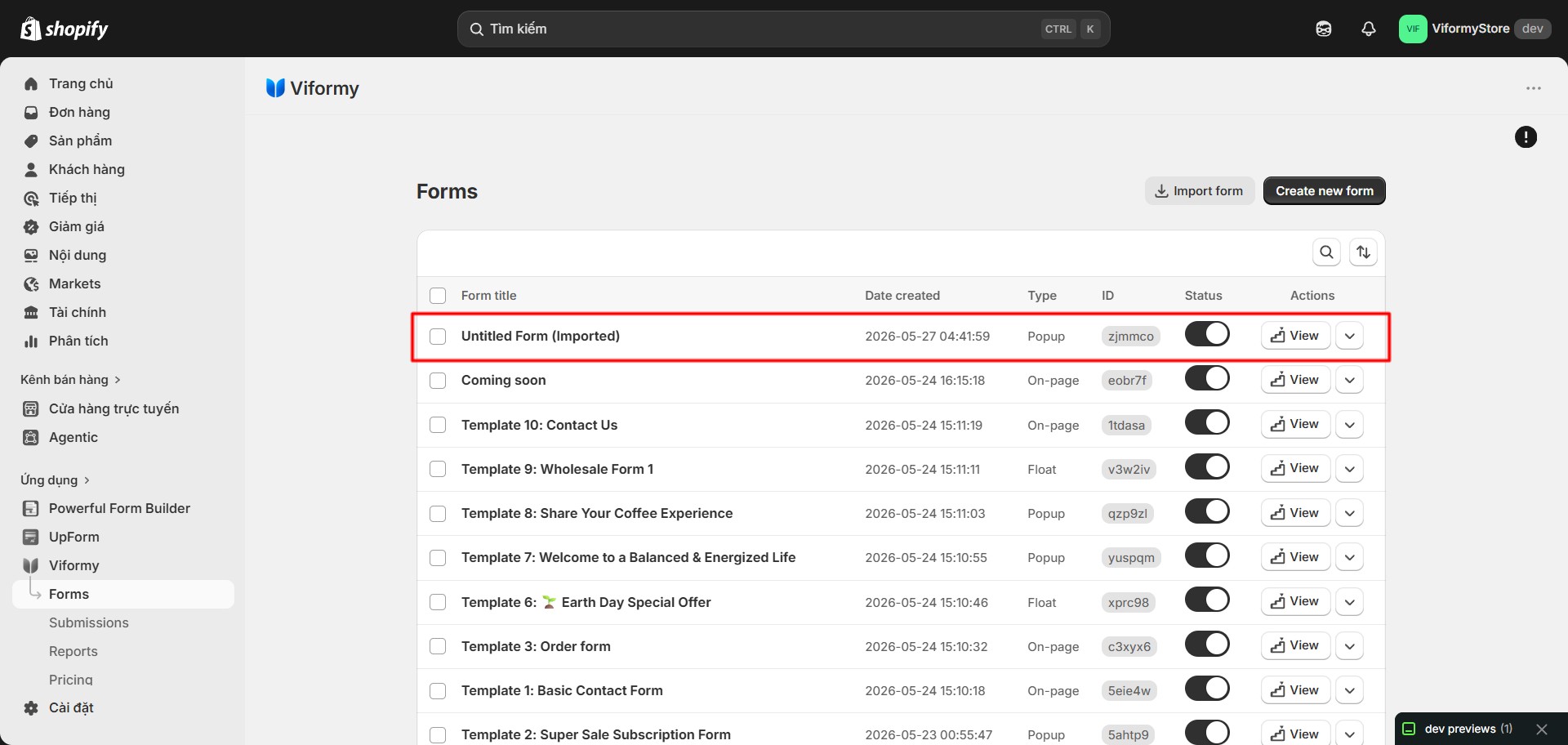
After import, Viformy creates a new active form. If the imported file contains a form name, the new form name will include:

(Imported)

For example:

Contact Us (Imported)
 export form 4

Common Cases #

Invalid JSON file

This means the uploaded file cannot be read as valid JSON. Export the form again from Viformy and upload the new file.

No file content

This can happen if no file was selected before clicking Import. Choose a .json file and try again.

Form not found

This can happen when exporting a form that no longer exists or does not belong to the current store. Refresh the Forms page and try again.

Quick Workflow #

  • Open Forms.
  • Use the form action menu and click Export to download a .json file.
  • Click Import form.
  • Upload the exported .json file.
  • Click Import to create a new active form.
Updated on May 27, 2026

What are your Feelings

  • Happy
  • Normal
  • Sad

Share This Article :

  • Facebook
  • X
  • LinkedIn
  • Pinterest
Export submissions dataDisable saving submission data for forms
ON THIS PAGE
  • How to Export and Import Forms in Viformy
  • Before You Start
  • Step 1: Open the Forms Page
  • Step 2: Export a Form
  • Step 3: Import a Form
  • Common Cases
  • Quick Workflow

The most powerful and flexible form building solution for Shopify merchants.

Product

  • Features
  • Integrations
  • Pricing

Support

  • Documentation
  • Help Center
  • API Reference

Legal

  • Privacy Policy
  • Terms of Service