
How to View Form Insights in Viformy #
Before You Start #
-
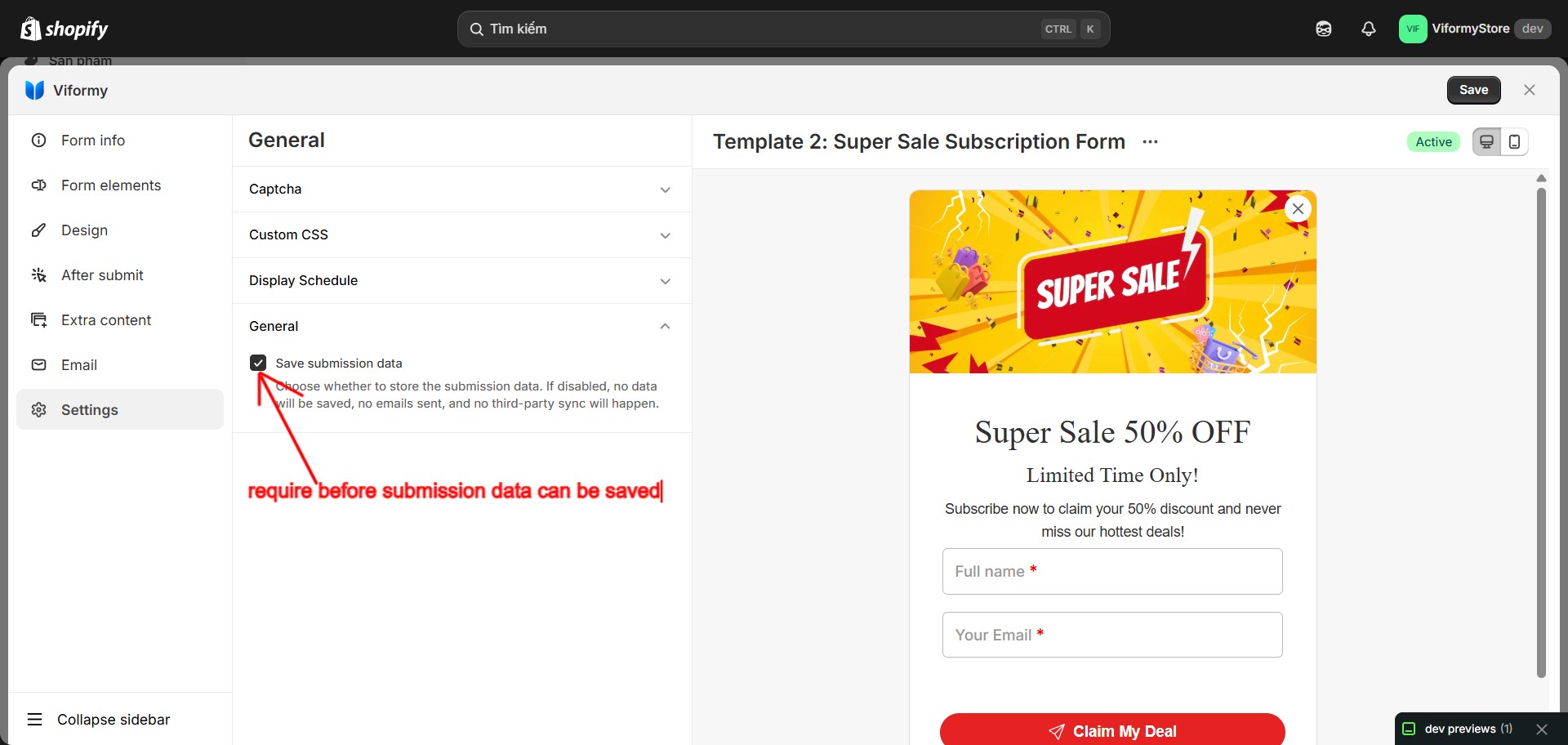
Save submission data is enabled: Open the form Settings tab and make sure Save submission data is turned on.
-
The form has received submissions: Insight numbers and charts are based on saved submissions.
-
App Embed is enabled if the form is displayed on the storefront: This helps make sure customers can access and submit the form.
Step 1: Open the Dashboard #
-
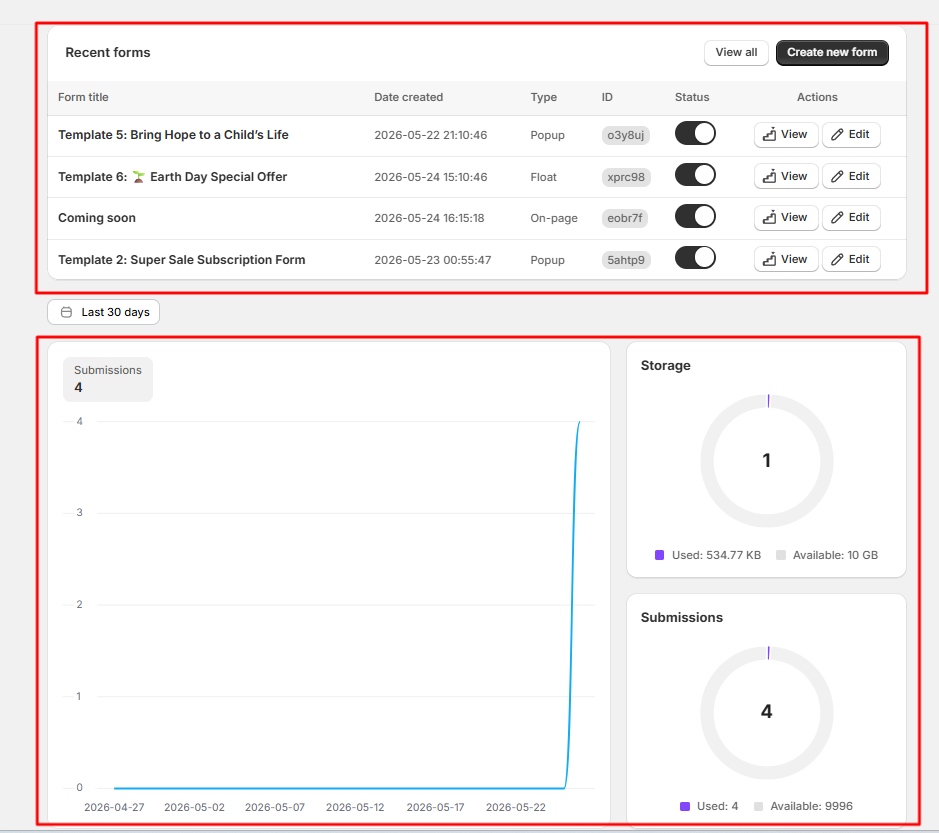
Total submissions: Total saved submissions for the store.
-
Forms: Total forms created in the app.
-
Storage: Current storage usage compared with the available storage limit.
Step 2: View the Submission Trend Chart #
Step 3: Change the Chart Date Range #
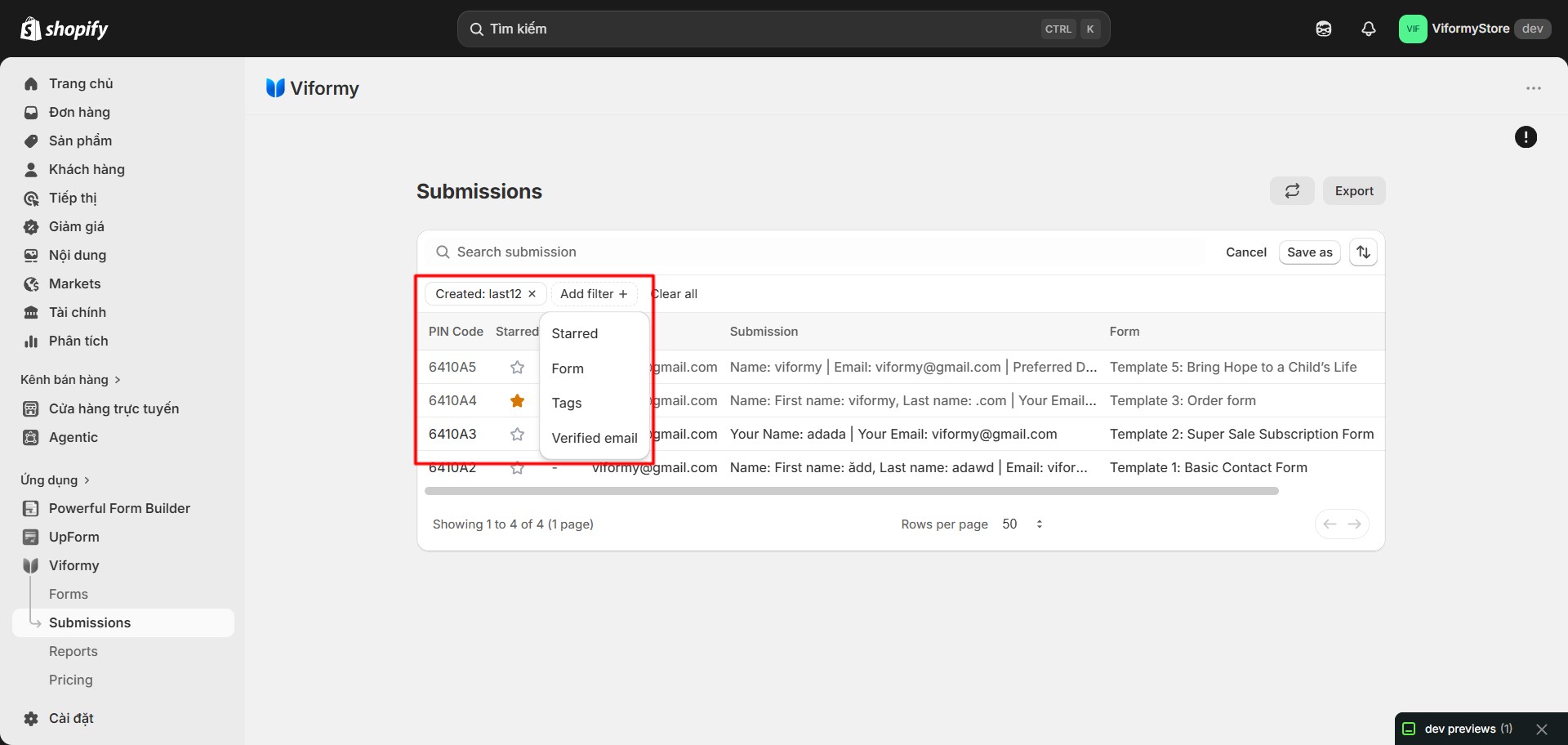
Step 4: Filter Form Insights by Date, Tags, or Status #
-
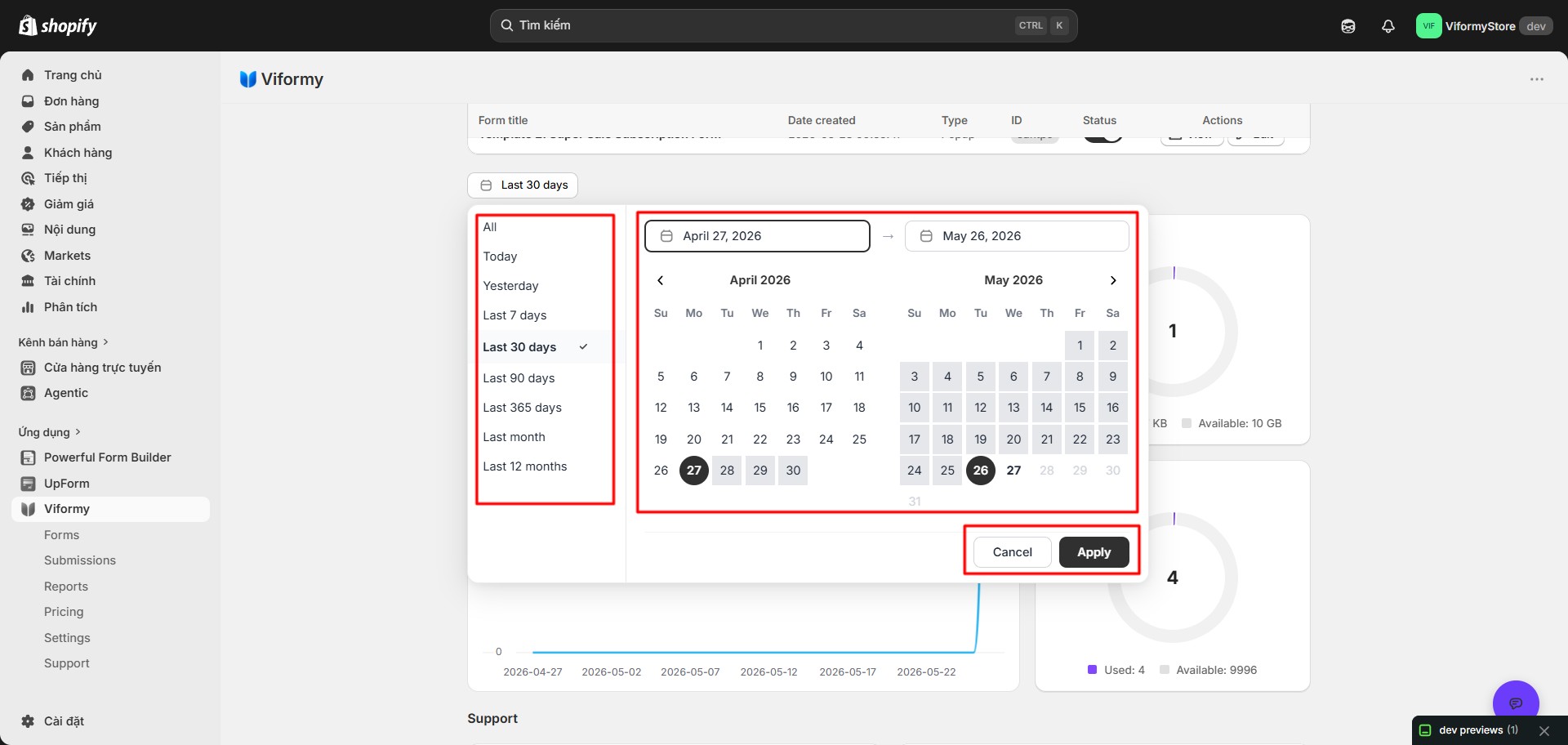
Created: Filter by Today, Last 7 days, Last 30 days, Last 90 days, Last 12 months, or a custom date range.
-
Starred: View important submissions only.
-
Tags: Review submissions grouped by internal labels.
-
Verified email: Filter submissions by verified email status.
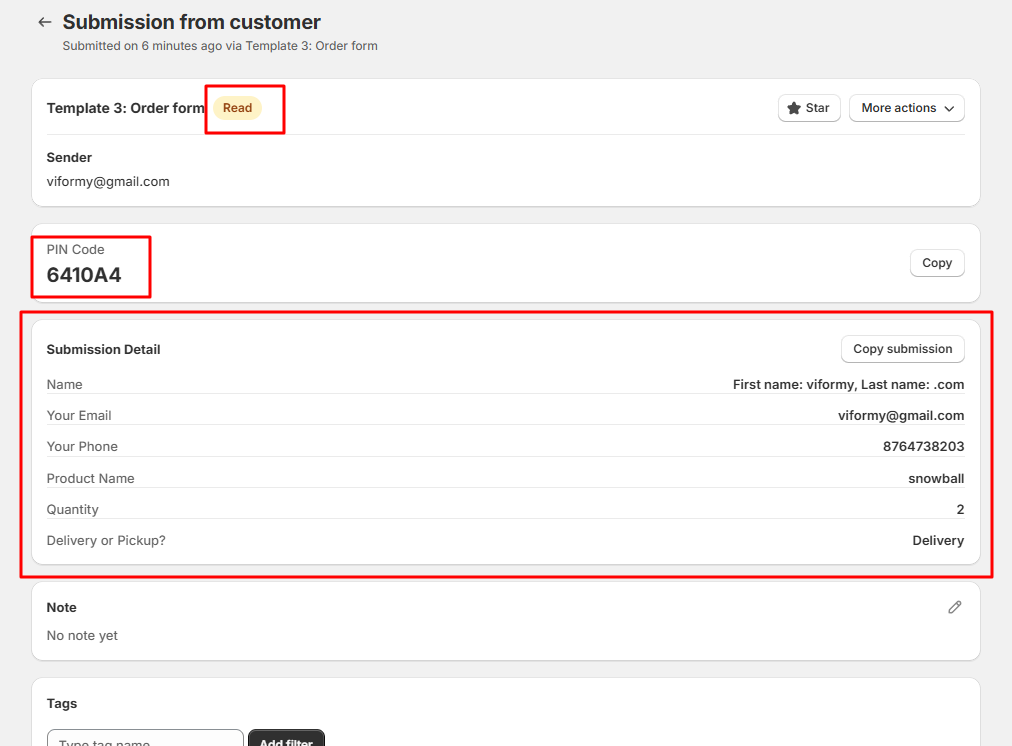
Step 5: Open Submission Details for Deeper Insight #
-
Submitted field values
-
Sender information
-
PIN Code
-
Page, language, country, and device
-
IP address and user agent
-
Uploaded files, if available
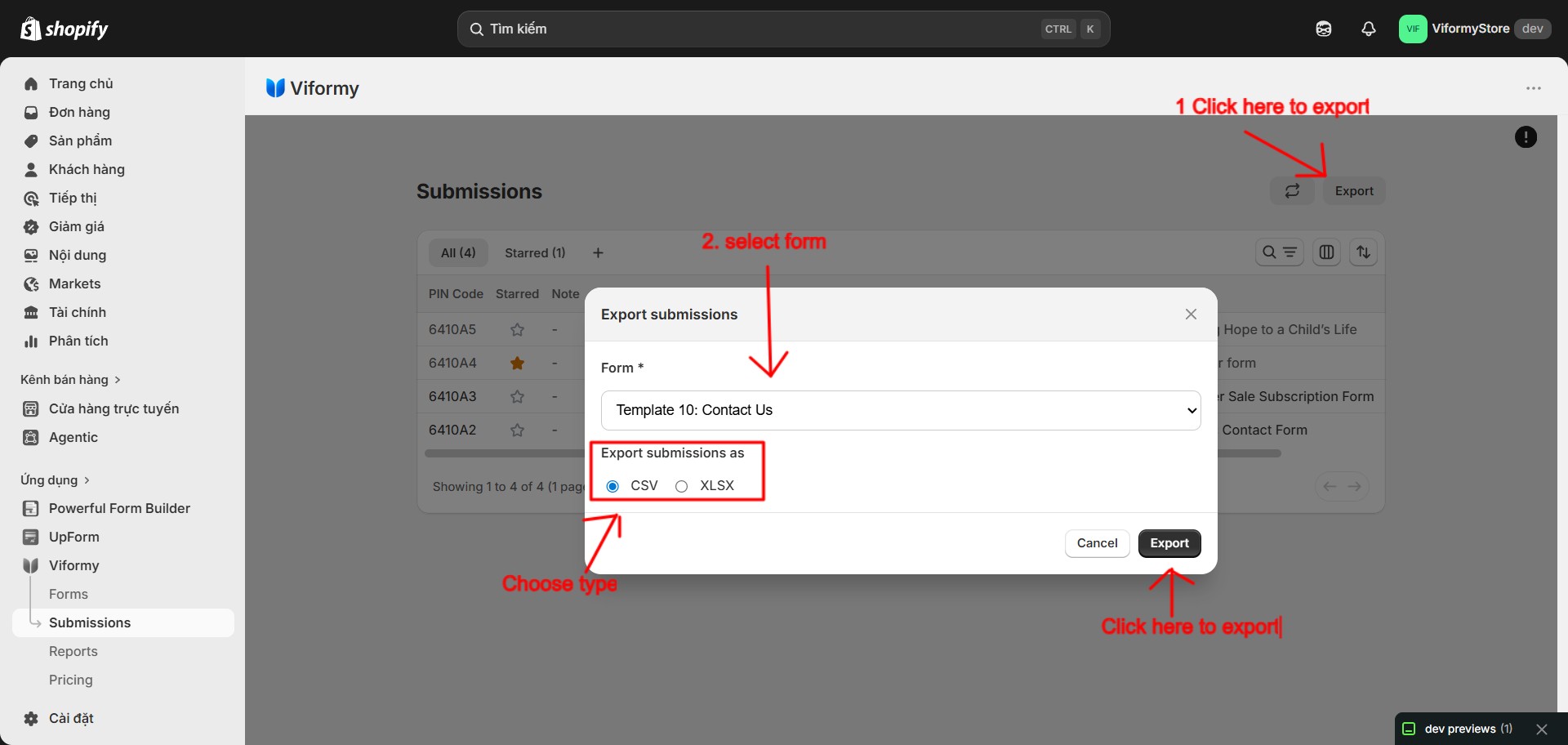
Step 6: Export Form Insight Data #
What the Insight Data Means #
-
Total submissions: The total number of saved customer submissions.
-
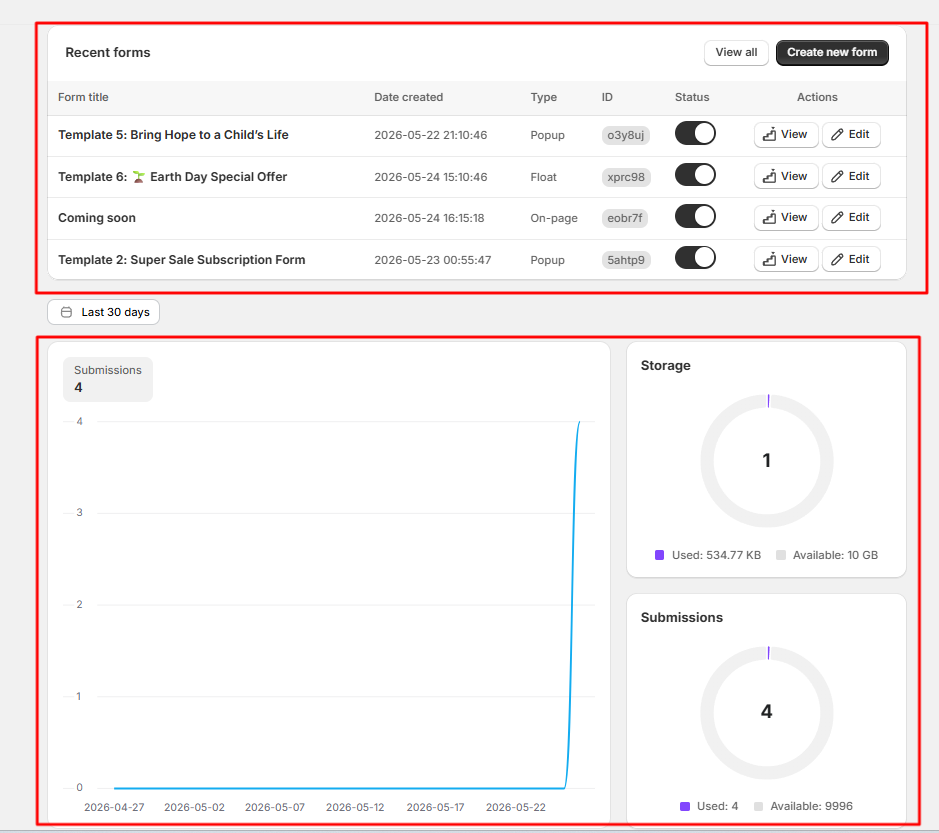
Submission trend: How many submissions were received each day in the selected chart range.
-
Form filter: Helps you focus on submissions from one specific form.
-
Submission detail: Shows the actual customer data and contextual information for one submission.
-
Storage: Shows how much file/data storage has been used against the available limit.
Common Cases #
The chart shows zero submissions
A specific form has no results
Submission data is missing
Dashboard numbers do not update immediately
Quick Workflow #
-
Enable Save submission data in the form Settings tab.
-
Open the Dashboard.
-
Review Total submissions, Forms, Storage, and the submissions chart.
-
Change the chart date range if needed.
-
Open Submissions and filter by form for form-specific insight.
-
Export submissions as CSV or Excel when deeper analysis is needed.