logo website
  • Home
  • Features
  • Templates
  • Pricing
  • Docs
  • Install App
Menu
  • Home
  • Features
  • Templates
  • Pricing
  • Docs
  • Install App

Getting Started

1
  • Introduction

Quick Start

1
  • Create a new form

Display & Placement

5
  • Theme integration
  • Get embed form ID of a form
  • Display a form on Shopify front store
  • Display a form on a specific page
  • Add a form with app block

App Integration

2
  • Google reCAPTCHA Integration
  • hCaptcha integration

Mail Notification

4
  • Admin email notification
  • Customer email notification
  • SMTP Setup
  • Mail API setup

Data, Insights & Management

5
  • Check submissions data
  • View Insight of the Form
  • Export submissions data
  • Export and import forms
  • Disable saving submission data for forms
View Categories

Mail API setup

4 min read

How to Configure Mail API Setup in Viformy #

Mail API Setup allows Viformy to connect with third-party email providers such as Brevo, Mailjet, Twilio SendGrid, or Amazon SES. After configuration, Viformy can use the selected provider to send admin notification emails, customer auto-response emails, and test emails.

Note: In the current UI, Mail API Setup is configured inside Email configuration or the Add email provider popup. Some providers use API keys, while others use SMTP credentials, but they are configured in the same provider setup flow.

Step 1: Open Email Configuration #

Go to the Viformy app in Shopify Admin, open the Settings page, then select Email configuration.

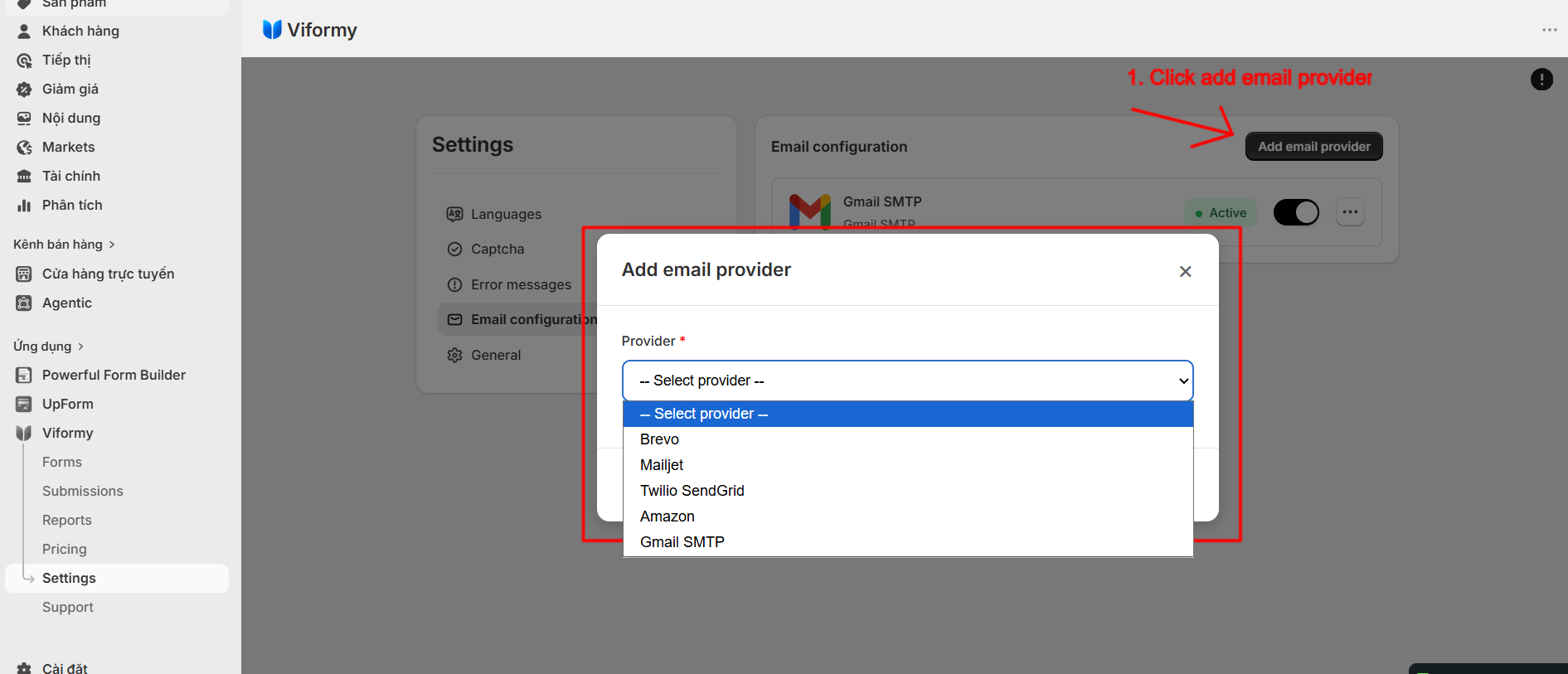
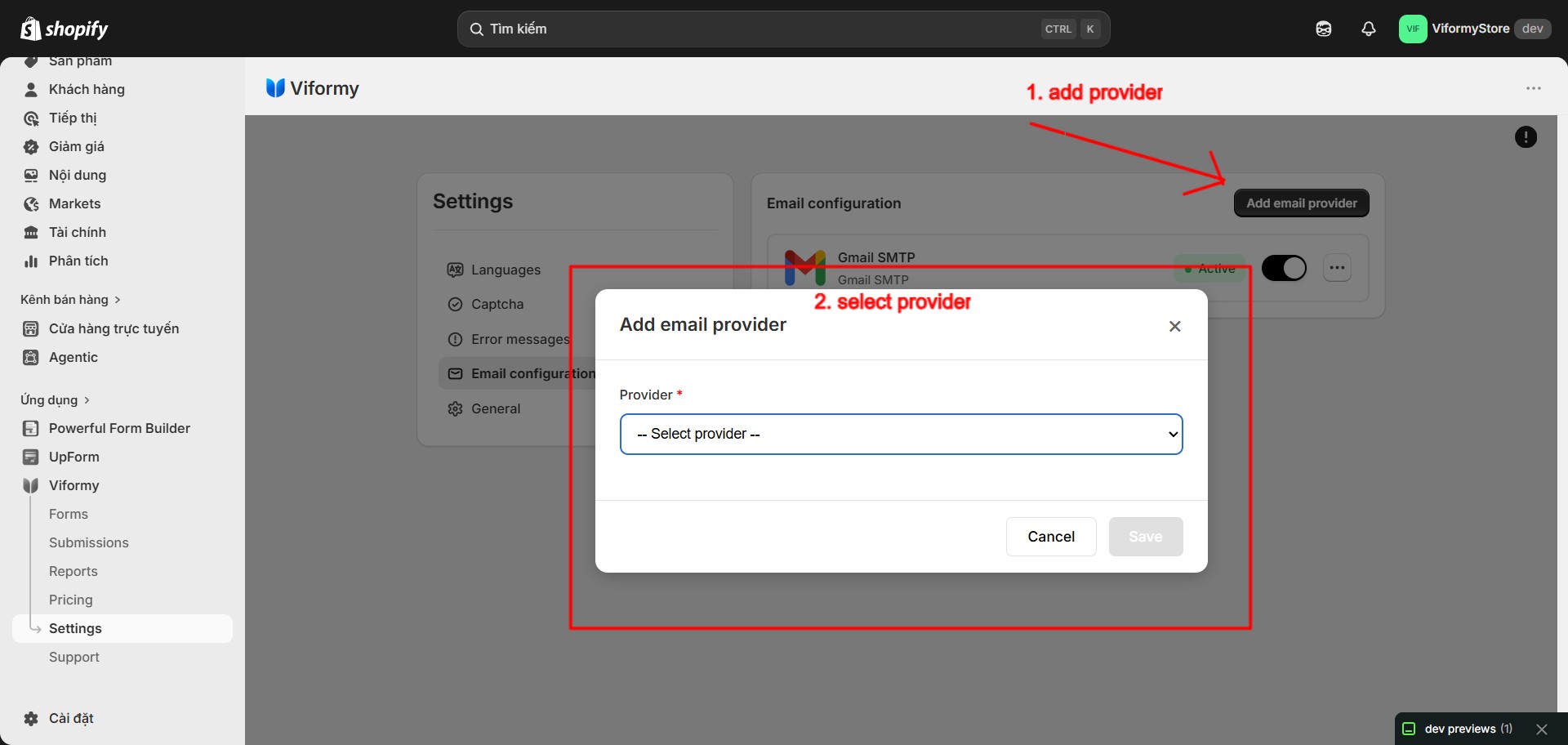
Click Add email provider. The Add email provider popup will appear.

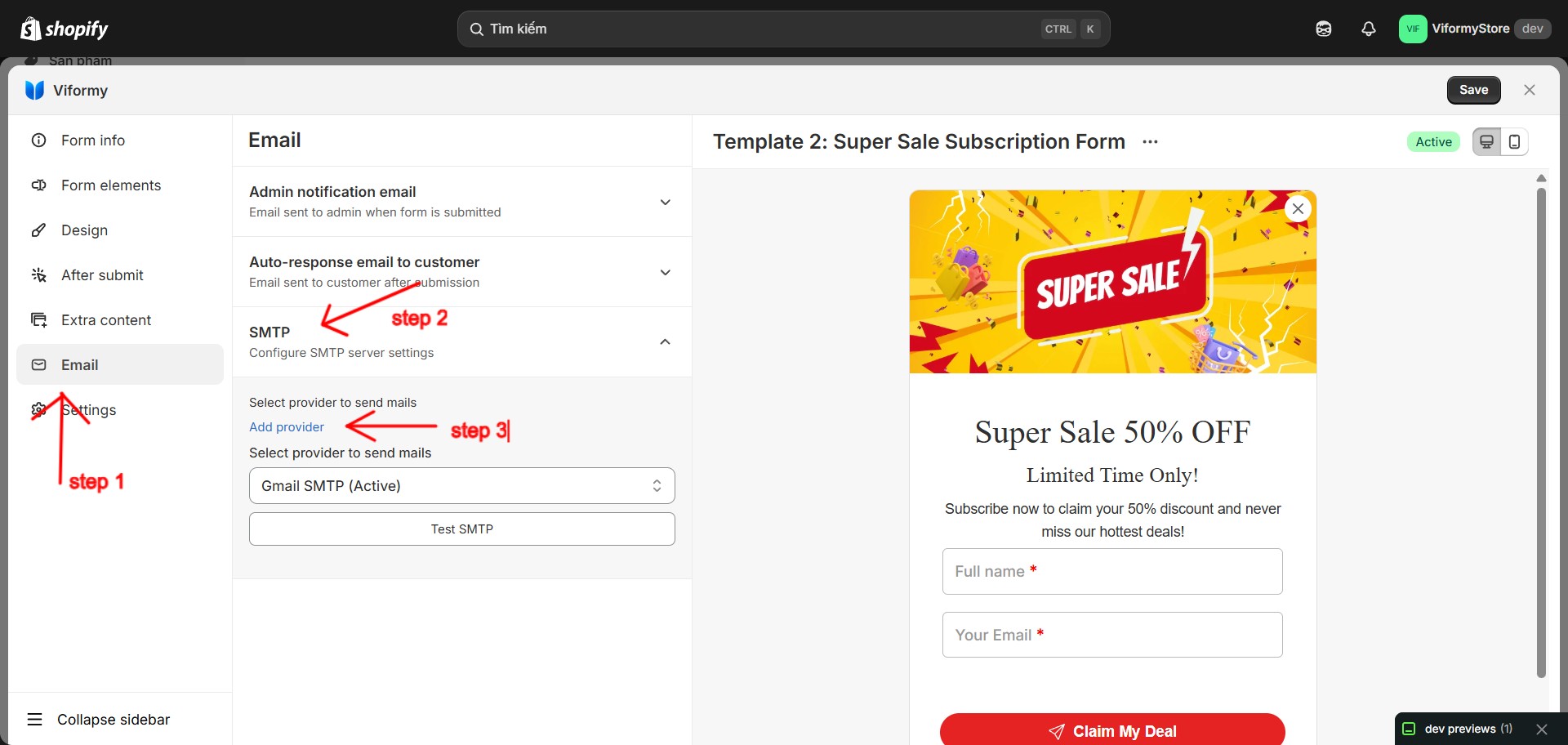
You can also add a provider from Form Builder. Open a form, go to the Email tab, open SMTP, then click Add provider

mail api setup 1

mail api setup 2


Step 2: Select a Provider #

In the Add email provider popup, select the provider you want to connect.

  • Brevo
  • Mailjet
  • Twilio SendGrid
  • Amazon
  • Gmail SMTP

For Mail API Setup, the most common API-based providers are Mailjet, Twilio SendGrid, and Amazon SES. Brevo uses SMTP username and password from Brevo SMTP & API settings.

smtp setup 3

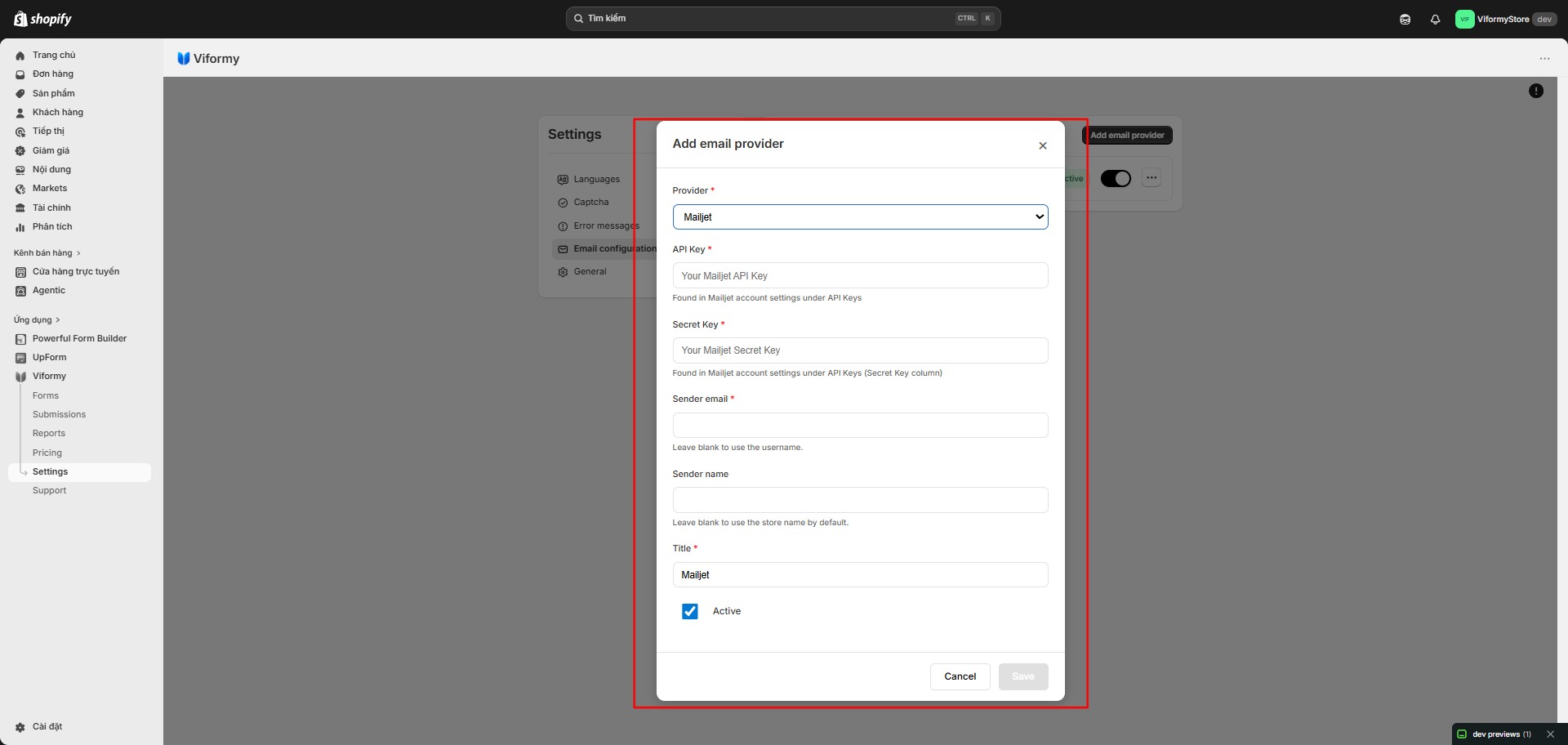
Mailjet API Configuration #

Select provider:

Mailjet

Required fields:

  • API Key: Get this from your Mailjet account settings.
  • Secret Key: Get this from the Secret Key column in Mailjet API Keys.
  • Sender email: The email address used to send emails.
  • Sender name: The sender name displayed in the email.
  • Title: The provider name shown in Viformy, such as Mailjet Main.
  • Active: Enable this provider.

Example:

API Key: xxxxxxxxxxxxxxxxx
Secret Key: xxxxxxxxxxxxxxxxx
Sender email: support@yourstore.com
Sender name: Your Store
Title: Mailjet Main
Active: On
 mail api setup 3

Twilio SendGrid API Configuration #

Select provider:

Twilio SendGrid

Required fields:

  • API Key: The API key created in SendGrid.
  • Sender email: The email address used as the sender.
  • Sender name: The sender name shown in the email.
  • Title: The provider name shown in Viformy.
  • Active: Enable this provider.

Example:

API Key: SG.xxxxxxxx
Sender email: support@yourstore.com
Sender name: Your Store
Title: SendGrid Main
Active: On
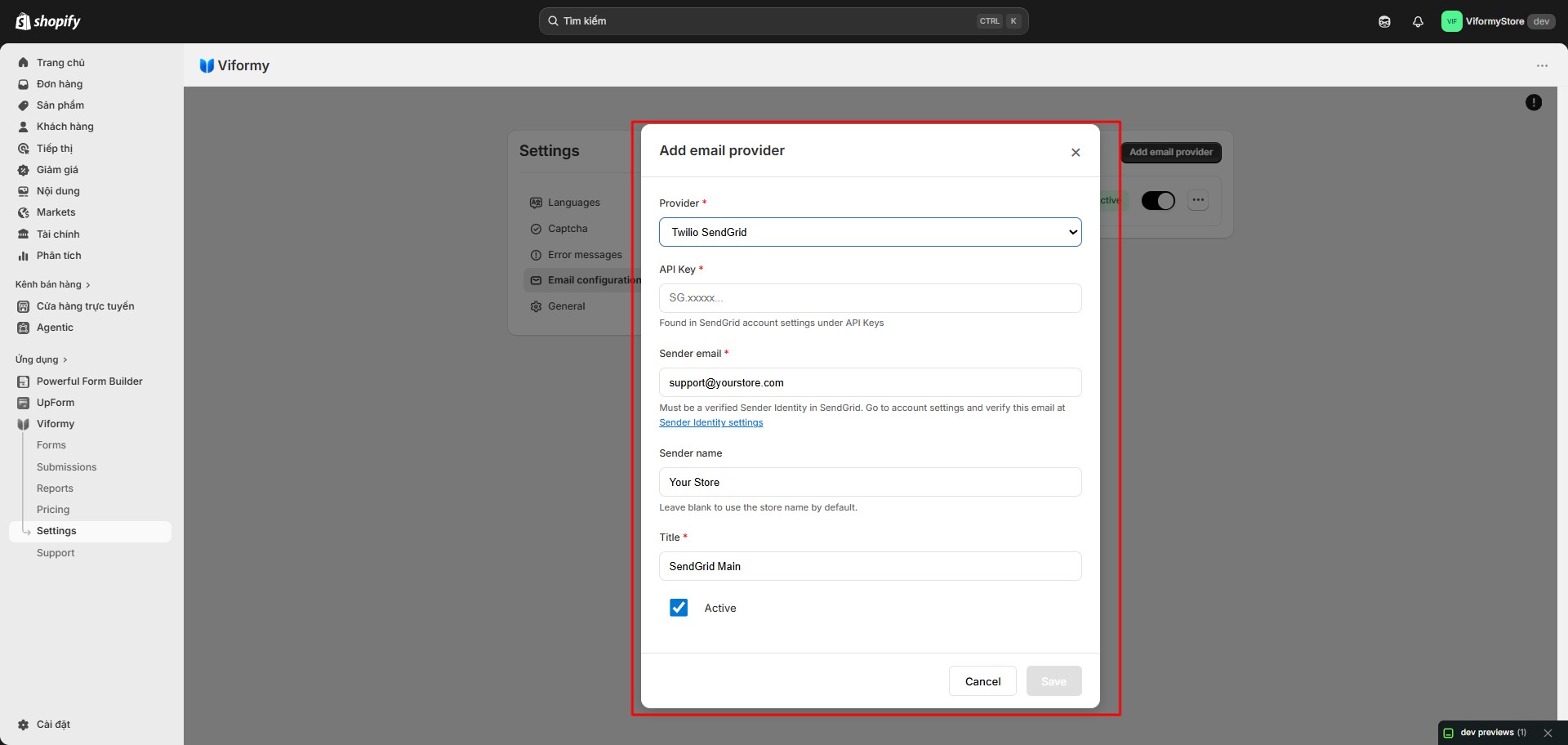
Important: The sender email must be verified in SendGrid Sender Identity. If it is not verified, Viformy may show an error when sending a test email.

mail api setup 4

Amazon SES API / SMTP Credentials Configuration #

Select provider:

Amazon

Required fields:

  • API key ID: AWS SES SMTP username.
  • API key: AWS SES SMTP password.
  • Region: The AWS SES region you use.
  • Sender email: The sender email, which must be verified in AWS SES.
  • Sender name: The sender name shown in the email.
  • Title: The provider name shown in Viformy.
  • Active: Enable this provider.

Available regions in the UI include:

us-east-1
us-west-2
eu-west-1
ap-southeast-1

Example:

API key ID: AKIAxxxxxxxx
API key: xxxxxxxxxxxxxxxx
Region: us-east-1
Sender email: support@yourstore.com
Sender name: Your Store
Title: Amazon SES Main
Active: On
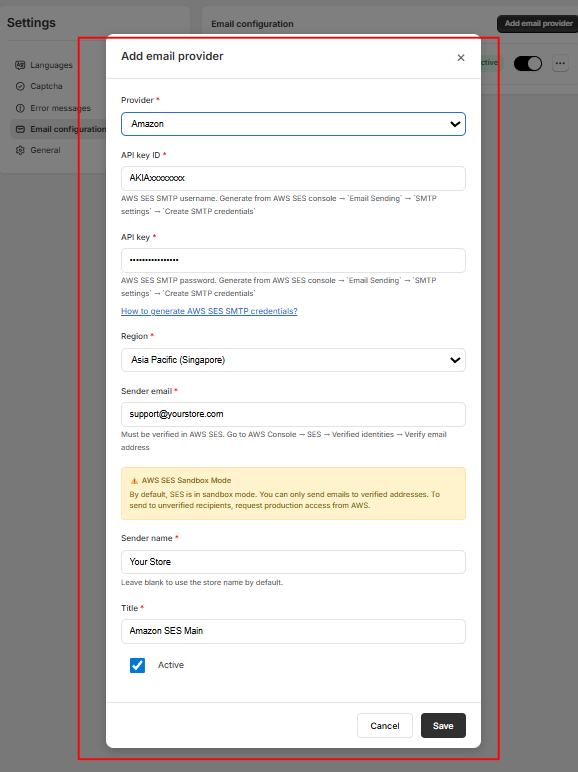
Note: AWS SES may be in Sandbox Mode. In sandbox mode, you can only send emails to verified addresses. To send emails to real customers, request production access in AWS.


Screenshot 2026 05 27 031225

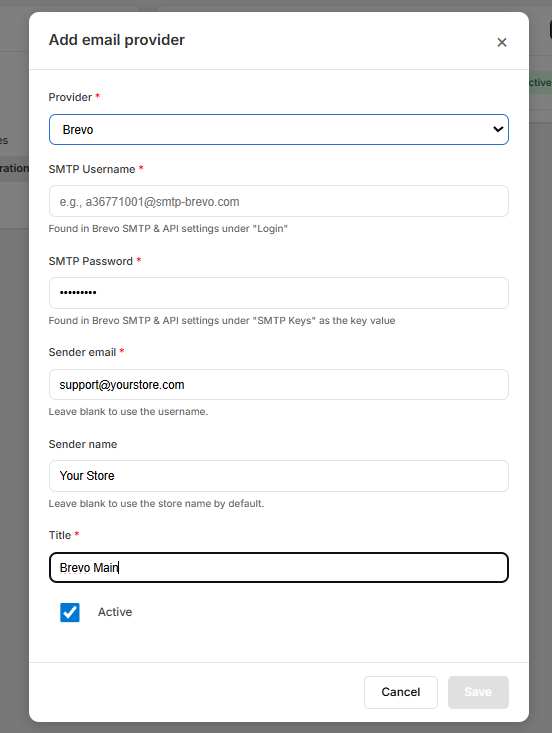
Brevo Configuration #

Select provider:

Brevo

Required fields:

  • SMTP Username: Get this from Brevo SMTP & API settings, usually from the Login field.
  • SMTP Password: Get this from Brevo SMTP Keys.
  • Sender email: The email address used to send emails.
  • Sender name: The sender name shown in the email.
  • Title: The provider name shown in Viformy.
  • Active: Enable this provider.

Example:

SMTP Username: a123456@smtp-brevo.com
SMTP Password: xxxxxxxxx
Sender email: support@yourstore.com
Sender name: Your Store
Title: Brevo Main
Active: On
 Screenshot 2026 05 27 0314152

Step 3: Save and Test the Provider #

After filling in the required information, click Save.

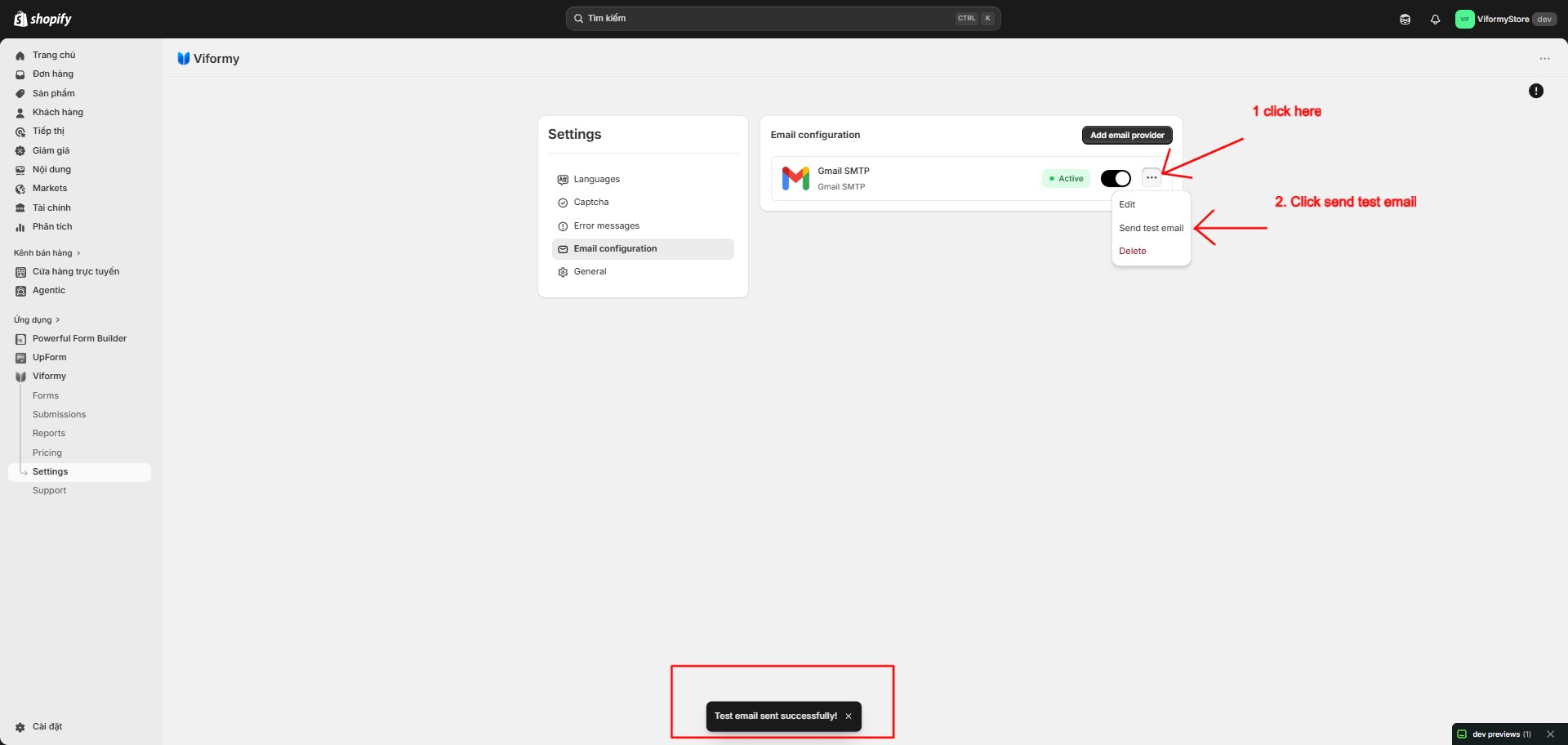
When you save, Viformy will validate the required fields and send a test email to verify the provider configuration. If the test succeeds, the provider is saved and appears in the Email configuration list.

If the test fails, the provider will not be saved and Viformy will show an error message.

smtp setup 5

Step 4: Select the Provider for a Form #
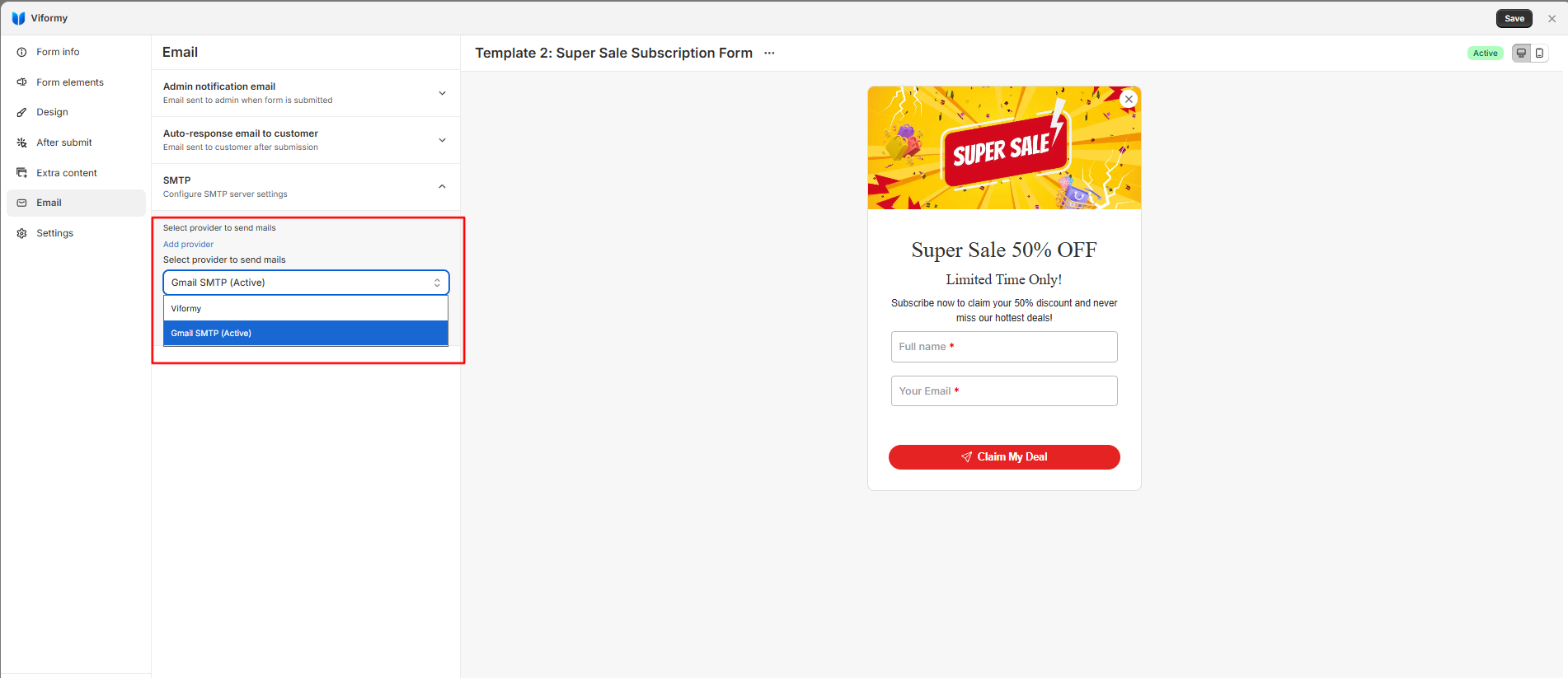
After creating a Mail API provider, open the form that should use it. Go to the Email tab, open SMTP, then select the provider from Select provider to send mails.

The configuration is saved automatically for the form. From that point, emails from that form will be sent using the selected provider.

smtp setup 6

Step 5: Test with Test SMTP #

In the form, go to Email > SMTP and click Test SMTP.

Viformy will send test emails based on the email options currently enabled:

  • If Admin notification email is enabled, Viformy sends a test admin email.
  • If Auto-response email to customer is enabled, Viformy sends a test customer email.
  • If both are enabled, Viformy tests both email types.
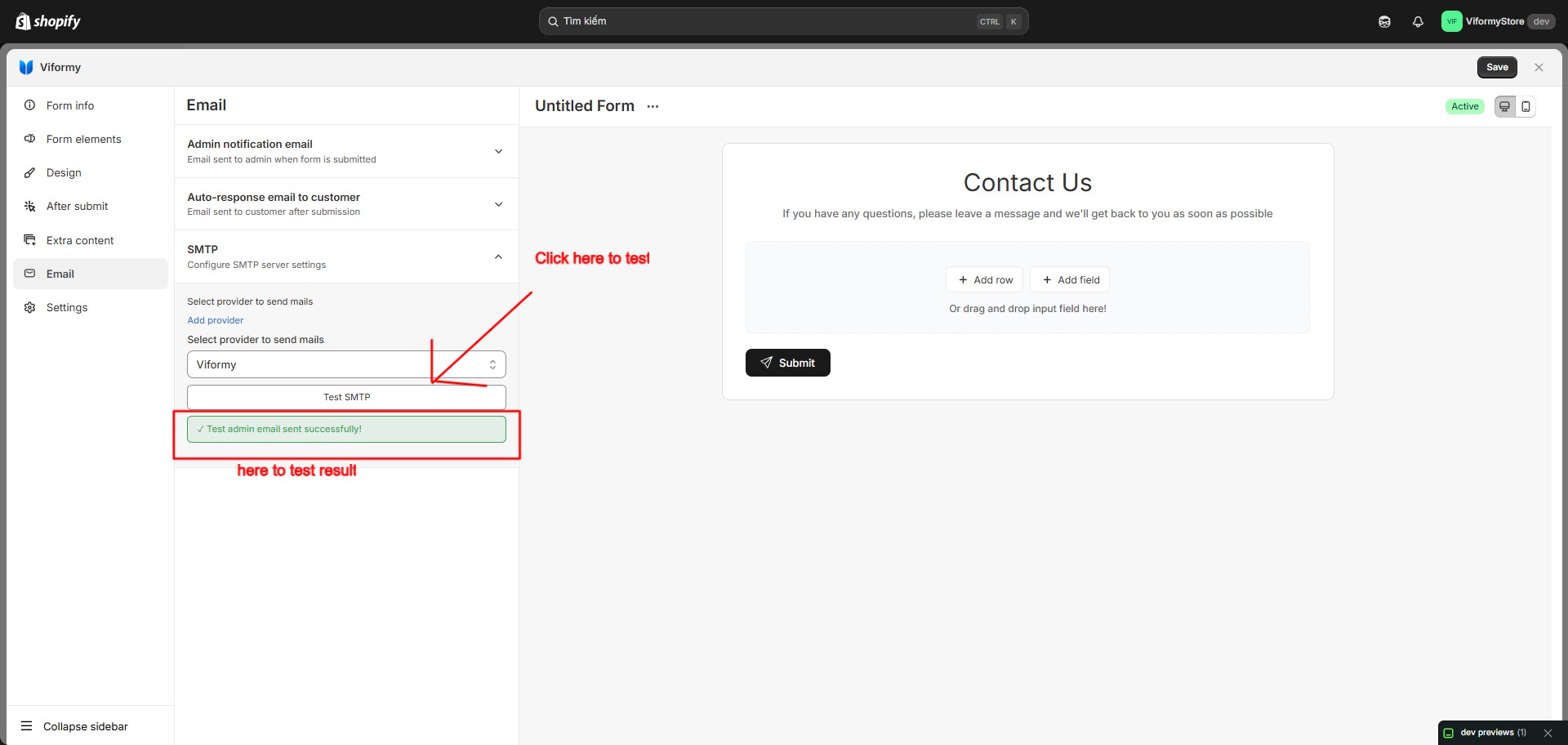
The result is recorded in Email Reports.

admin email image 5

Common Errors #

Missing API Key or Secret Key

This means the credential fields are incomplete. Check the API Key, Secret Key, SMTP Username, SMTP Password, or API key fields from your provider account.

Sender email is not verified

This is common with SendGrid or Amazon SES. Verify the sender email or domain in the provider account, then return to Viformy and test again.

AWS SES Sandbox Error

This happens when AWS SES is in sandbox mode. Verify both sender and recipient email addresses for testing, or request production access to send emails to real customers.

Recipient email is required

This means the test email does not have a recipient. Check the To field in Admin notification or Customer auto-response. If you use {{shop_email}}, make sure your Shopify store has an email in Store details.

Provider Recommendations #

  • Mailjet: Use this if you want a simple API Key and Secret Key setup.
  • SendGrid: Use this if you need higher email volume and clear sender identity management.
  • Amazon SES: Use this if your store already uses AWS and you want lower email sending costs.
  • Brevo: Use this if you already have Brevo SMTP/API settings available.

Quick Setup Example with SendGrid #

  • Provider: Twilio SendGrid
  • API Key: SG.xxxxxxxx
  • Sender email: support@yourstore.com
  • Sender name: Your Store
  • Title: SendGrid Main
  • Active: On

After saving, open your form and select the provider:

Email > SMTP > Select provider to send mails > SendGrid Main
Updated on May 27, 2026

What are your Feelings

  • Happy
  • Normal
  • Sad

Share This Article :

  • Facebook
  • X
  • LinkedIn
  • Pinterest
SMTP SetupAdmin email notification
ON THIS PAGE
  • How to Configure Mail API Setup in Viformy
  • Step 1: Open Email Configuration
  • Step 2: Select a Provider
  • Mailjet API Configuration
  • Twilio SendGrid API Configuration
  • Amazon SES API / SMTP Credentials Configuration
  • Brevo Configuration
  • Step 3: Save and Test the Provider
  • Step 4: Select the Provider for a Form
  • Step 5: Test with Test SMTP
  • Common Errors
  • Provider Recommendations
  • Quick Setup Example with SendGrid

The most powerful and flexible form building solution for Shopify merchants.

Product

  • Features
  • Integrations
  • Pricing

Support

  • Documentation
  • Help Center
  • API Reference

Legal

  • Privacy Policy
  • Terms of Service