
How to Configure SMTP Setup in Viformy #
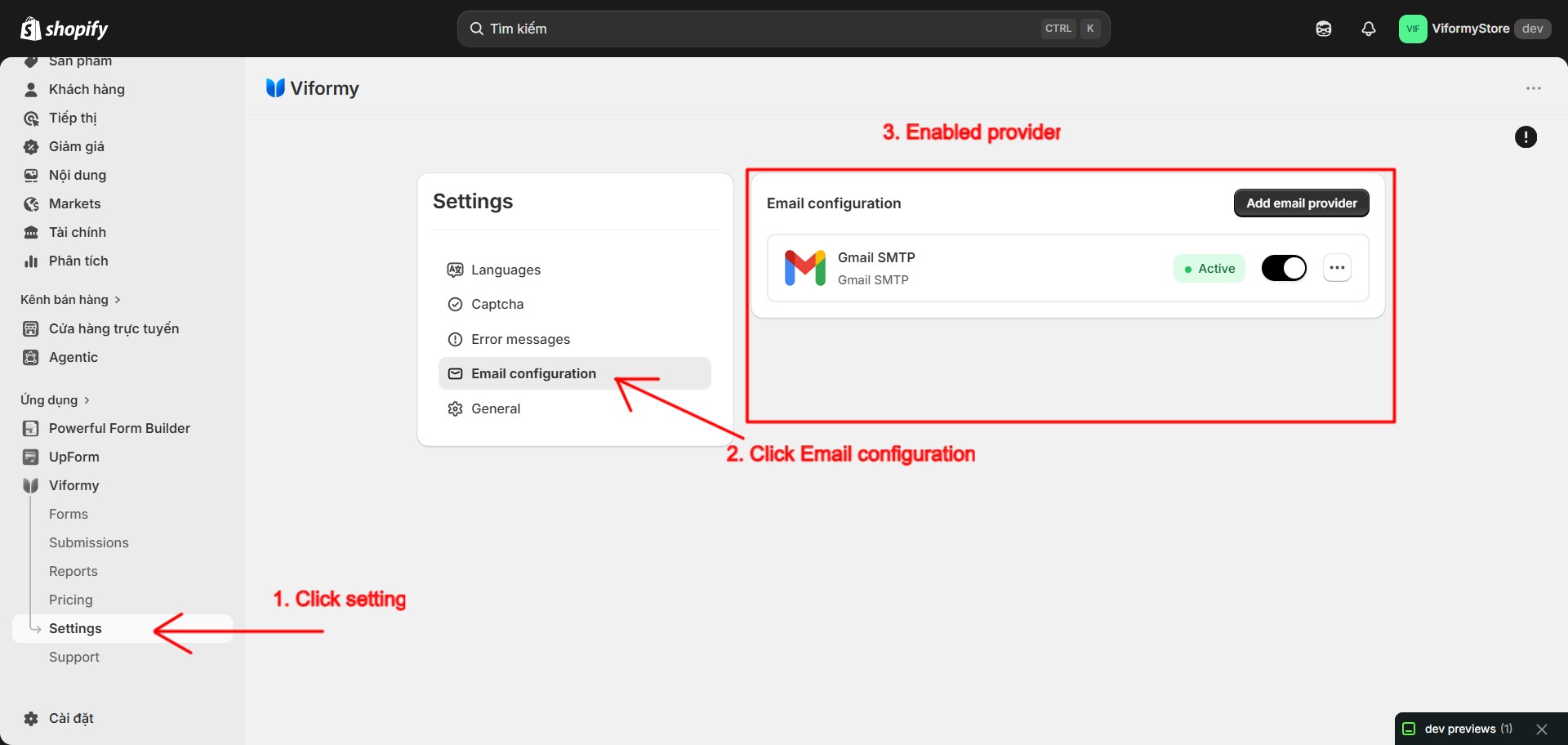
Step 1: Open SMTP Setup #
1. In Form Builder
2. In App Settings
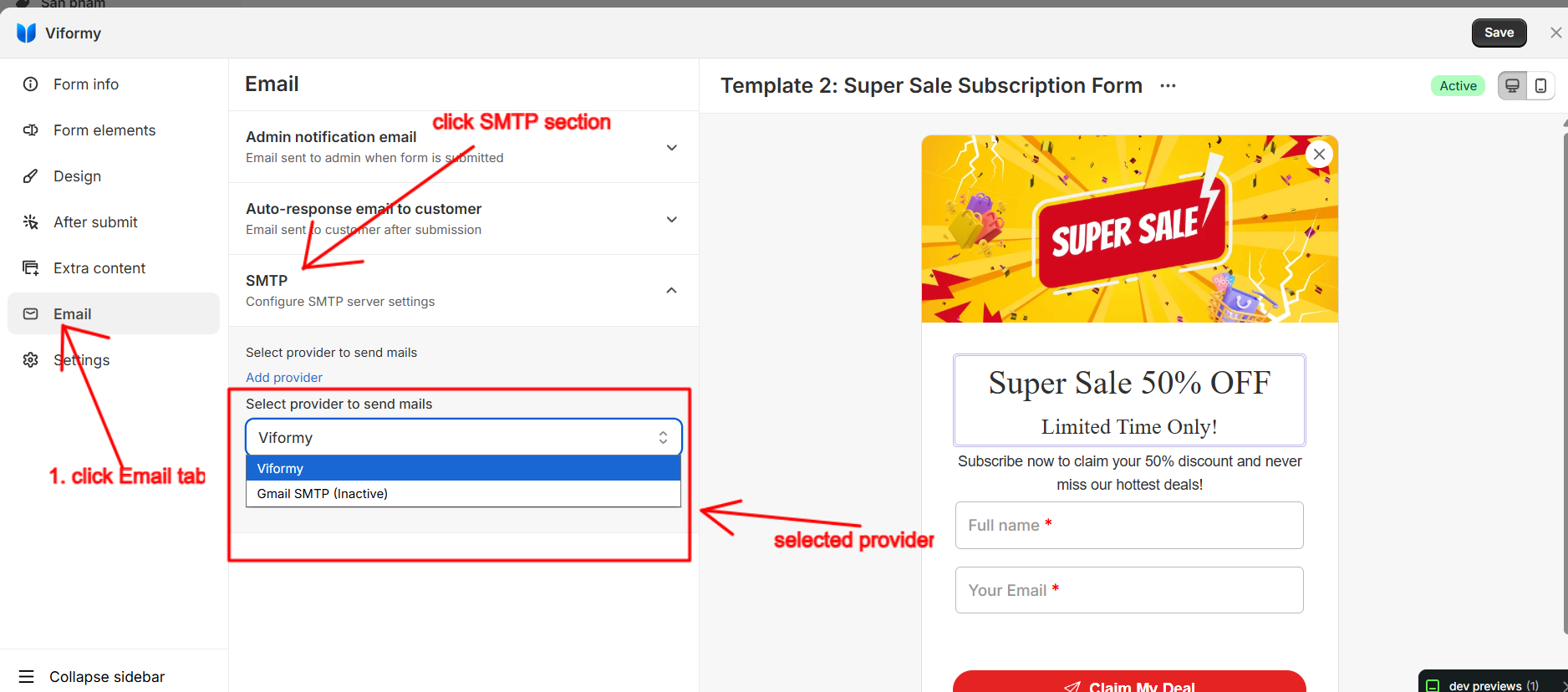
Step 2: Select an Email Provider #
ViformyMy Gmail SMTP (Active)
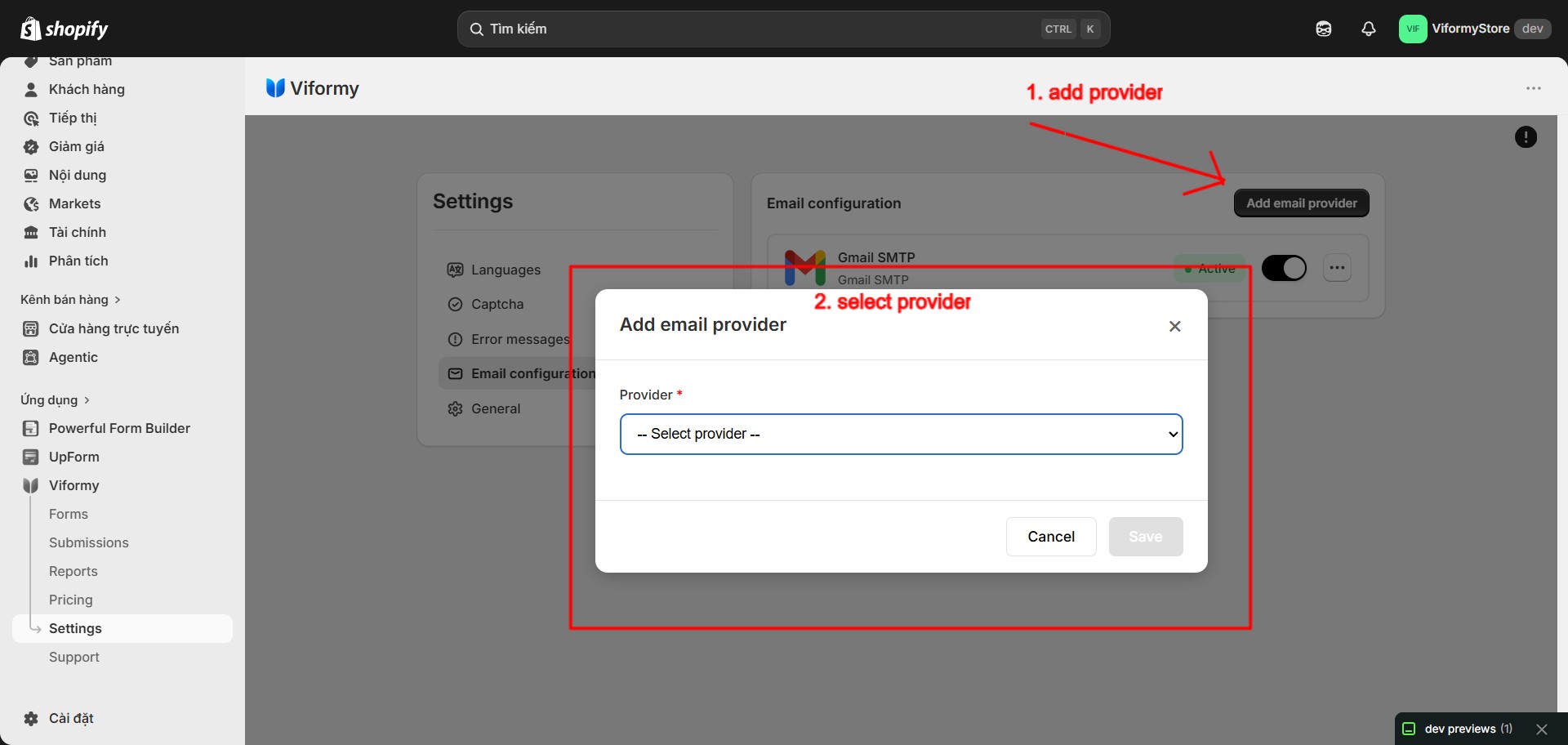
My SendGrid (Active)Step 3: Add a New Email Provider #
-
Brevo
-
Mailjet
-
Twilio SendGrid
-
Amazon
-
Gmail SMTP
Gmail SMTP Configuration #
Gmail SMTP-
Your Gmail email address
-
App password
-
Title
-
Active
Host: smtp.gmail.com
Port: 587
Encryption: TLS or SSL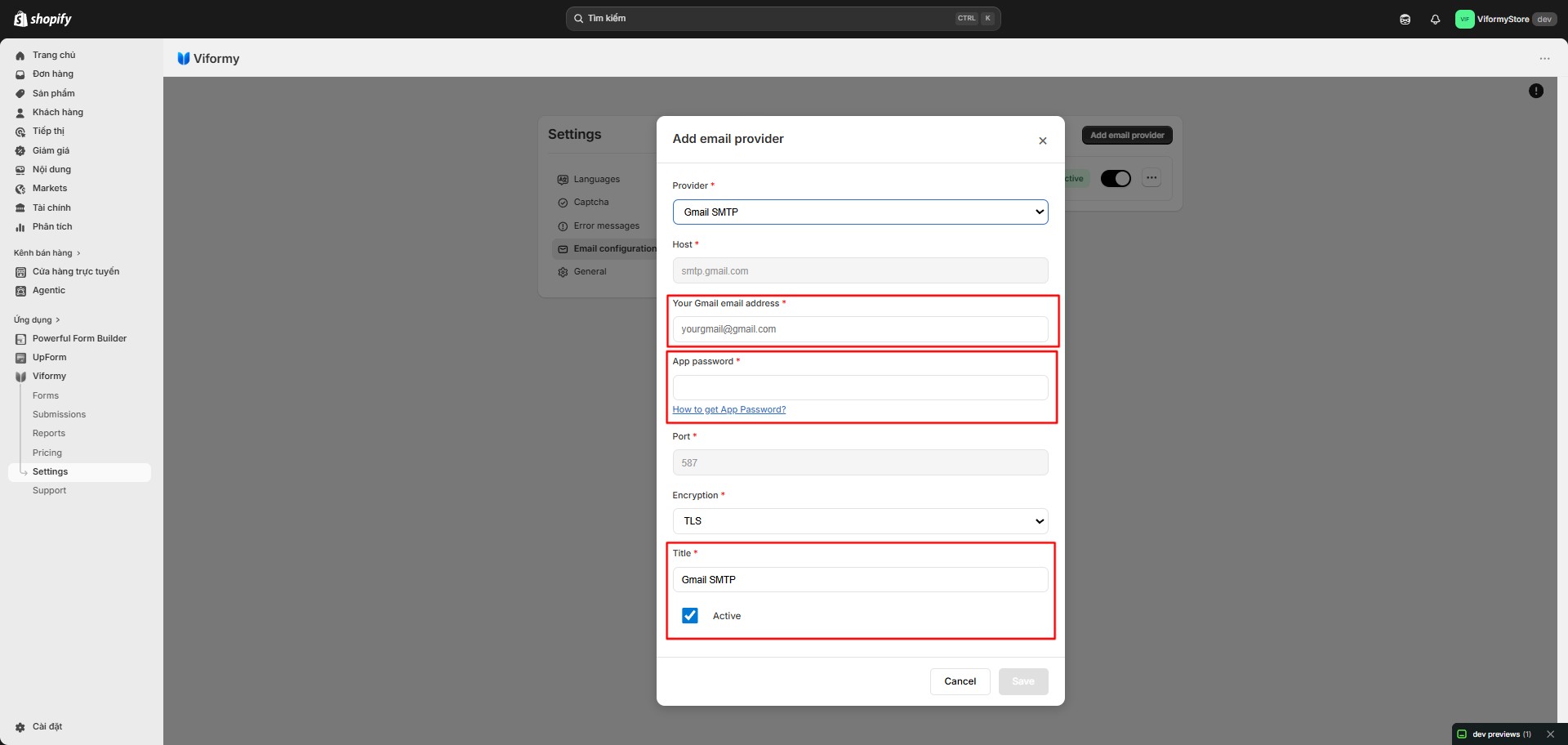
Brevo Configuration #
Brevo-
SMTP Username
-
SMTP Password
-
Sender email
-
Sender name
-
Title
-
Active
Host: smtp-relay.brevo.com
Port: 587
Mailjet Configuration #
Mailjet-
API Key
-
Secret Key
-
Sender email
-
Sender name
-
Title
-
Active
Twilio SendGrid Configuration #
Twilio SendGrid-
API Key
-
Sender email
-
Sender name
-
Title
-
Active
Amazon SES Configuration #
Amazon-
API key ID
-
API key
-
Region
-
Sender email
-
Sender name
-
Title
-
Active
Step 4: Save the Provider #
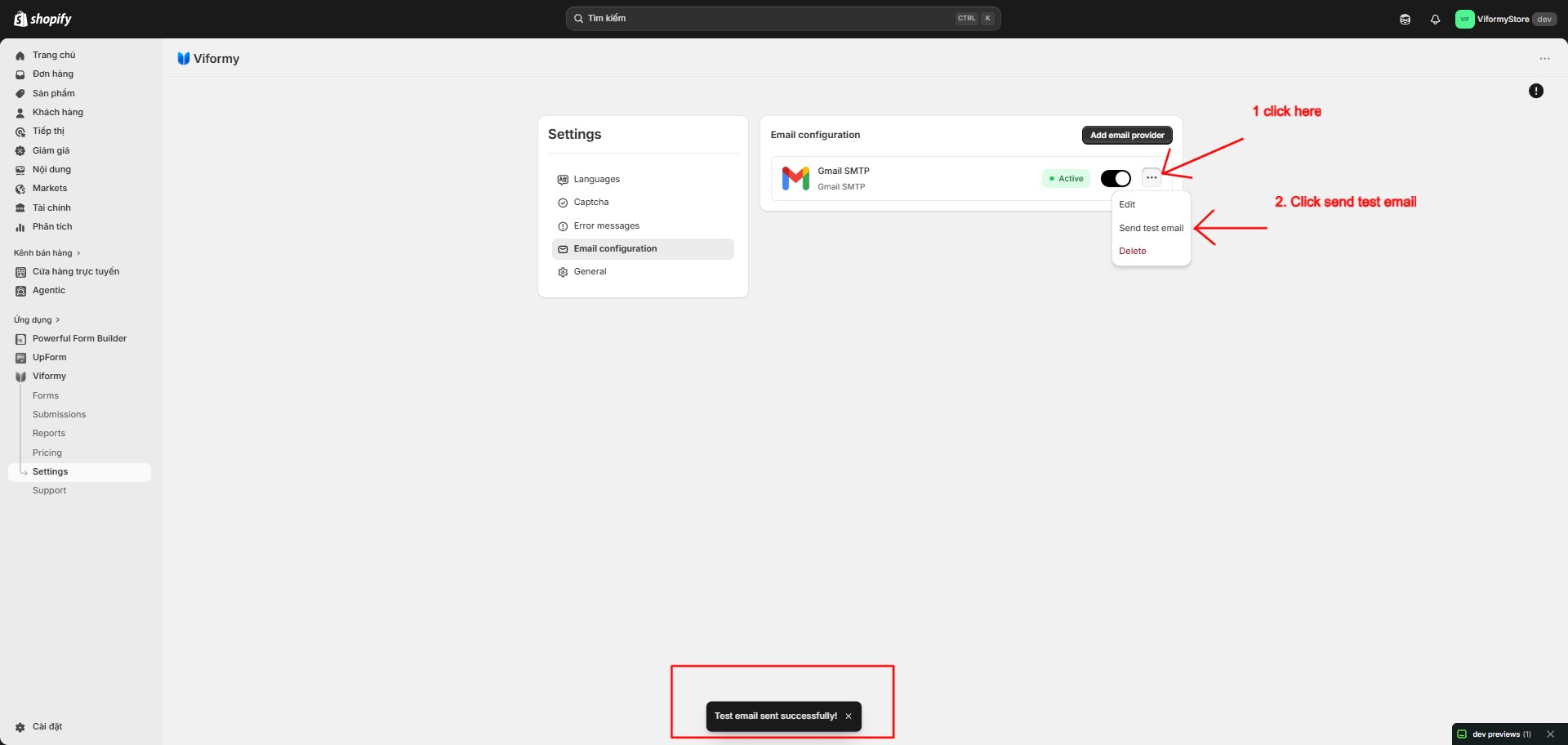
Step 5: Select the Provider for a Form #
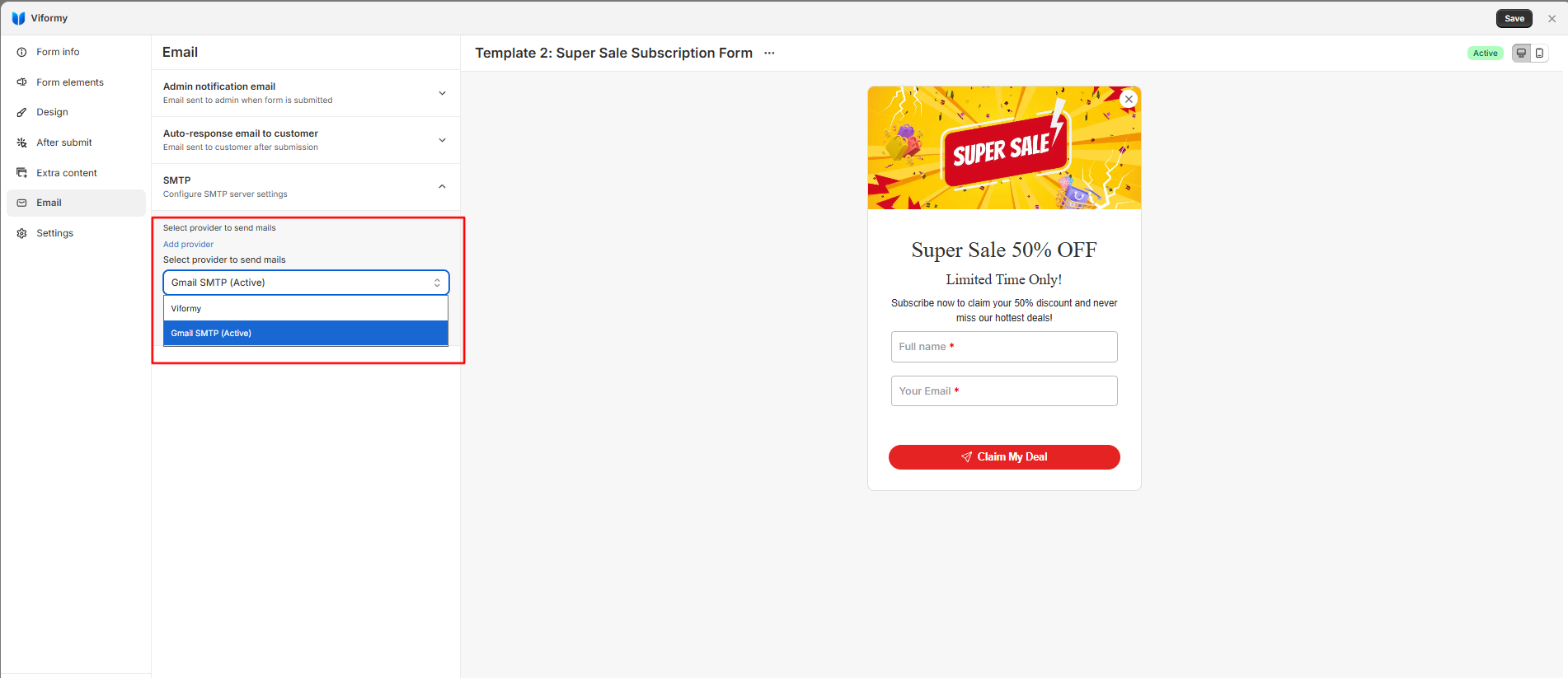
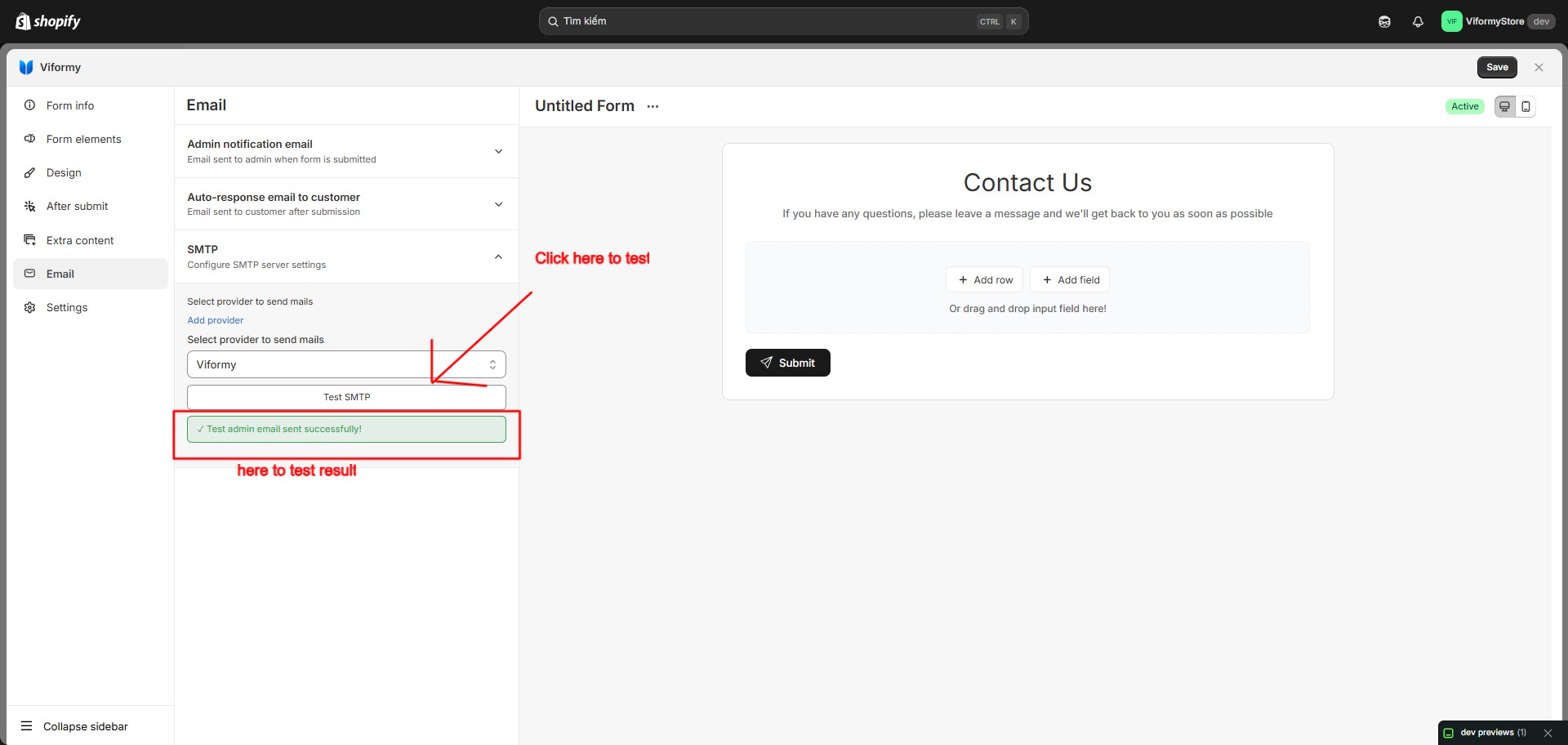
Step 6: Test SMTP in the Form #
-
If Admin notification is enabled, Viformy sends a test admin email.
-
If Auto-response email to customer is enabled, Viformy sends a test customer email.
-
Subject and Email body variables are replaced with sample data.
-
The result is saved in Email Reports.
Manage Providers in Settings #
-
Add a new provider
-
Edit an existing provider
-
Send a test email
-
Enable or disable Active status
-
Delete a provider
Common SMTP Errors #
1. Recipient email is required
2. Gmail email and app password are required
3. Sender email is not verified
4. AWS SES Sandbox Error
5. Unsupported SMTP provider for sending
Quick Setup Example #
-
Provider: Gmail SMTP
-
Gmail email: yourstore@gmail.com
-
App password: Gmail App Password
-
Encryption: TLS
-
Title: Store Gmail SMTP
-
Active: On