
How to Configure Admin Email Notification in Viformy #
Before You Start #
-
Save submission data is enabled: Open the form Settings tab and make sure Save submission data is turned on. If this option is disabled, Viformy will not save submissions, send emails, or sync data to third-party integrations.
-
Your form has valid submission data for testing: Having at least one valid submission helps the system generate sample values when testing email variables.
-
An email provider is available: By default, Viformy uses the Viformy email provider. If you want to send emails through your own SMTP service, configure it in the SMTP section of the Email panel.
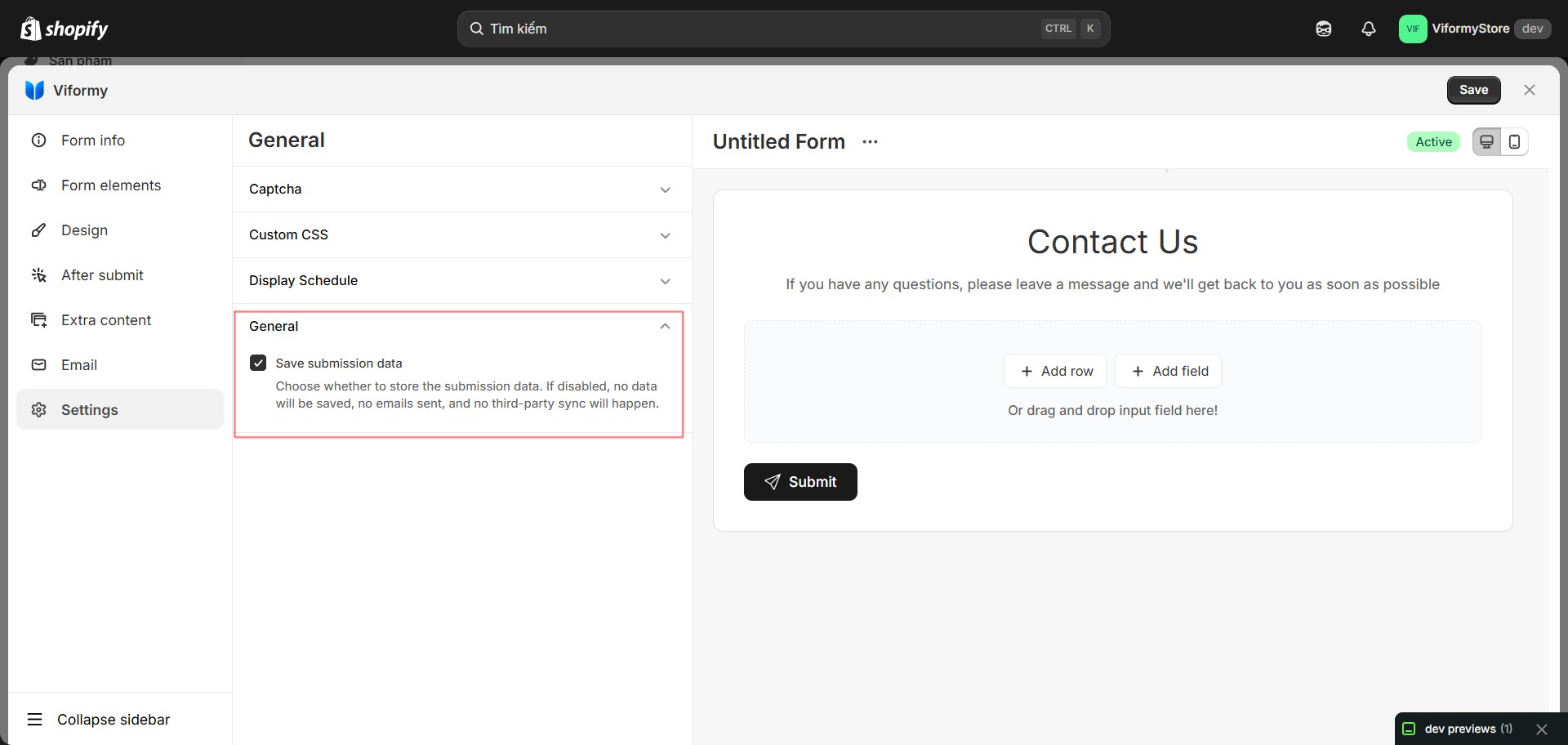
1. Open Viformy
2. Select Email
-
Admin notification email
-
Auto-response email to customer
-
SMTP
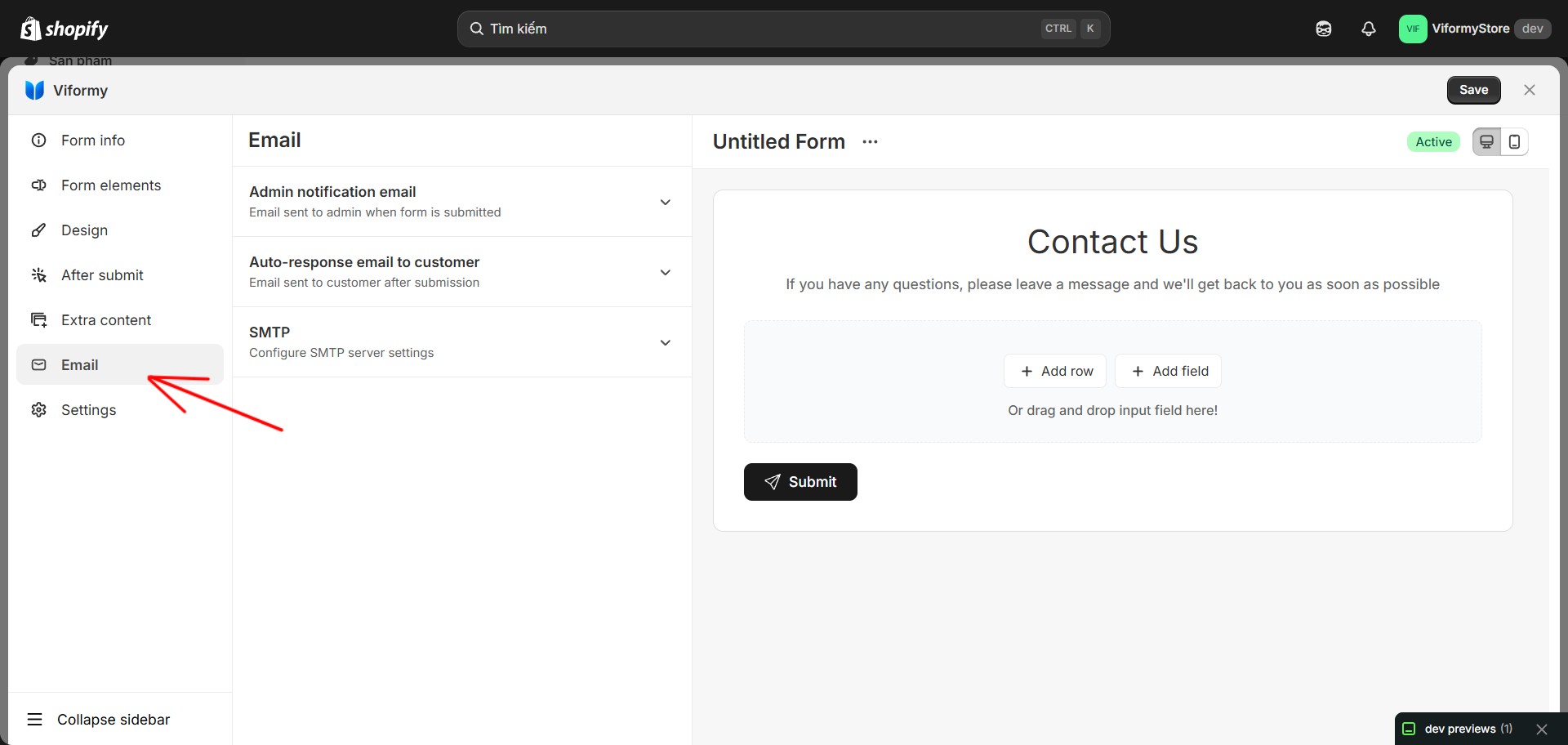
Step 2: Enable Admin Notification Email #
-
To
-
Subject
-
Email body
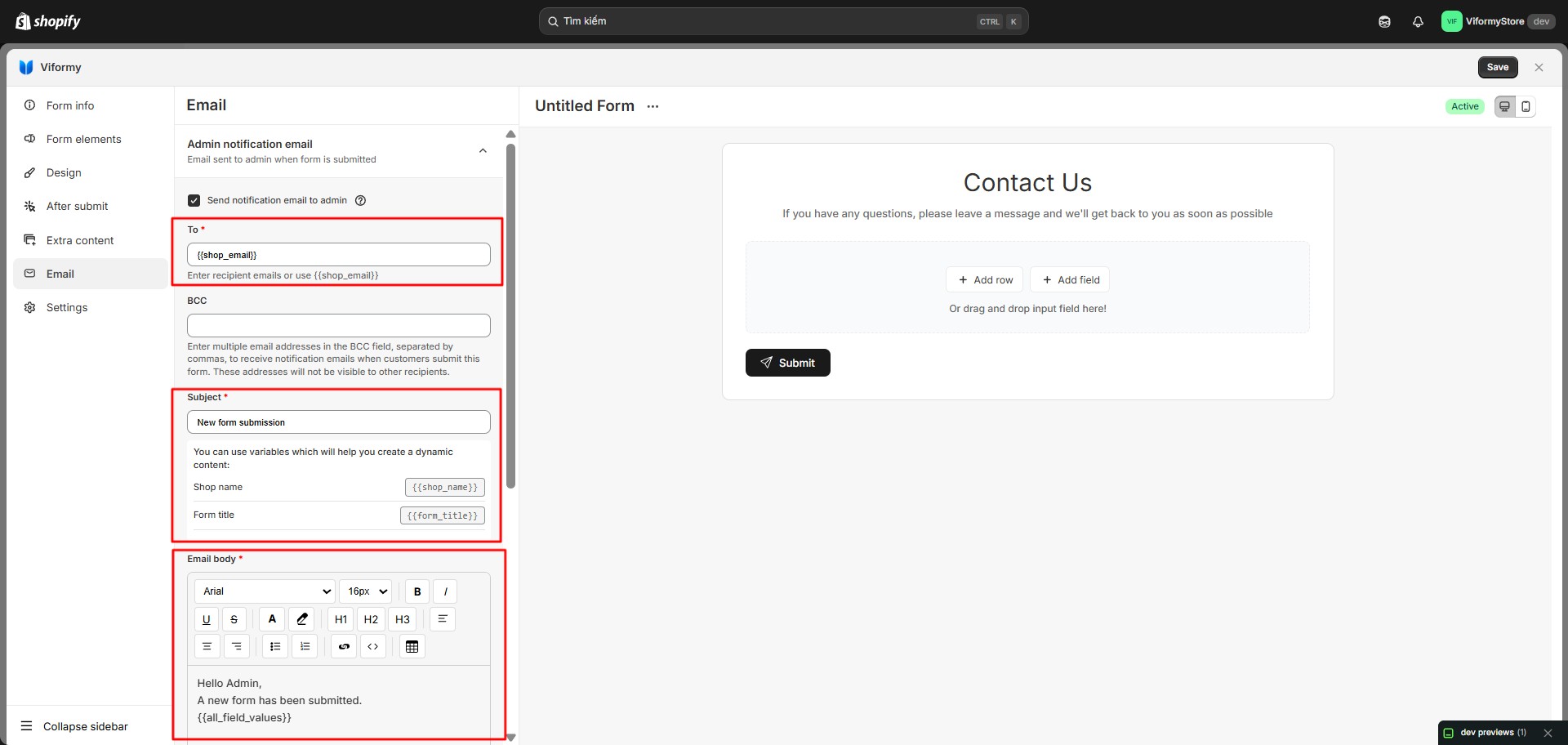
Step 3: Configure the To Field #
admin@example.com{{shop_email}}admin@example.com, support@example.com
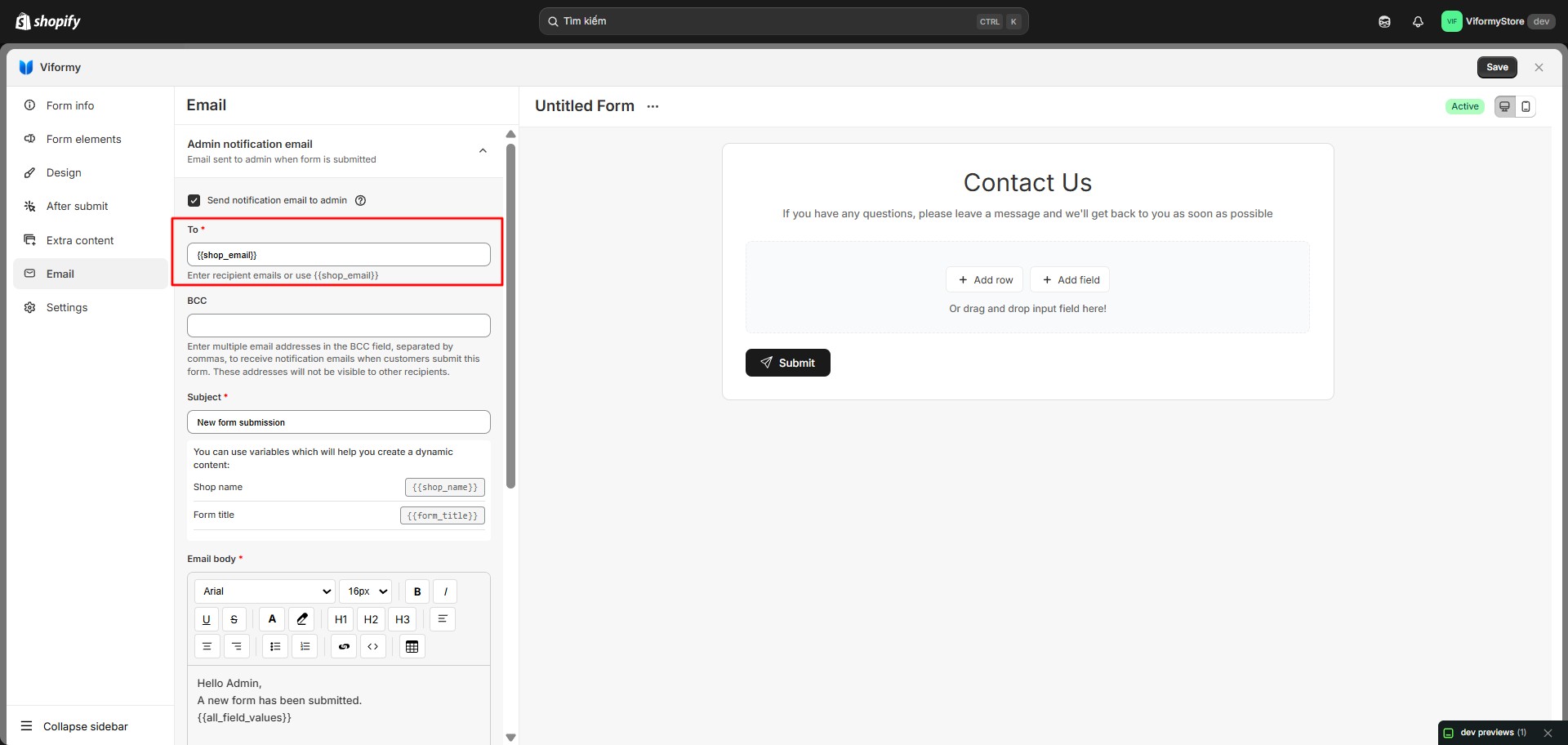
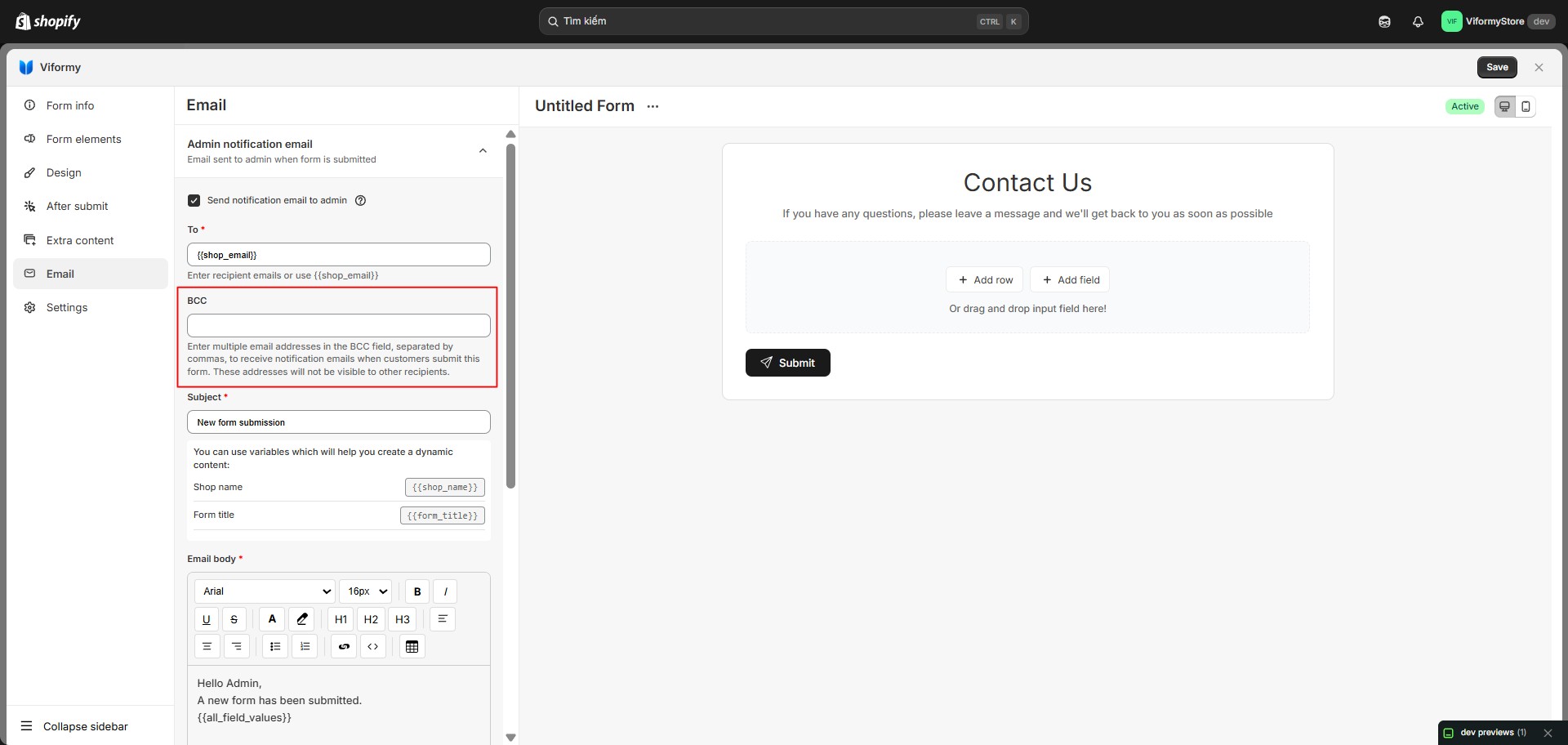
Step 4: Configure BCC #
manager@example.com, team@example.com
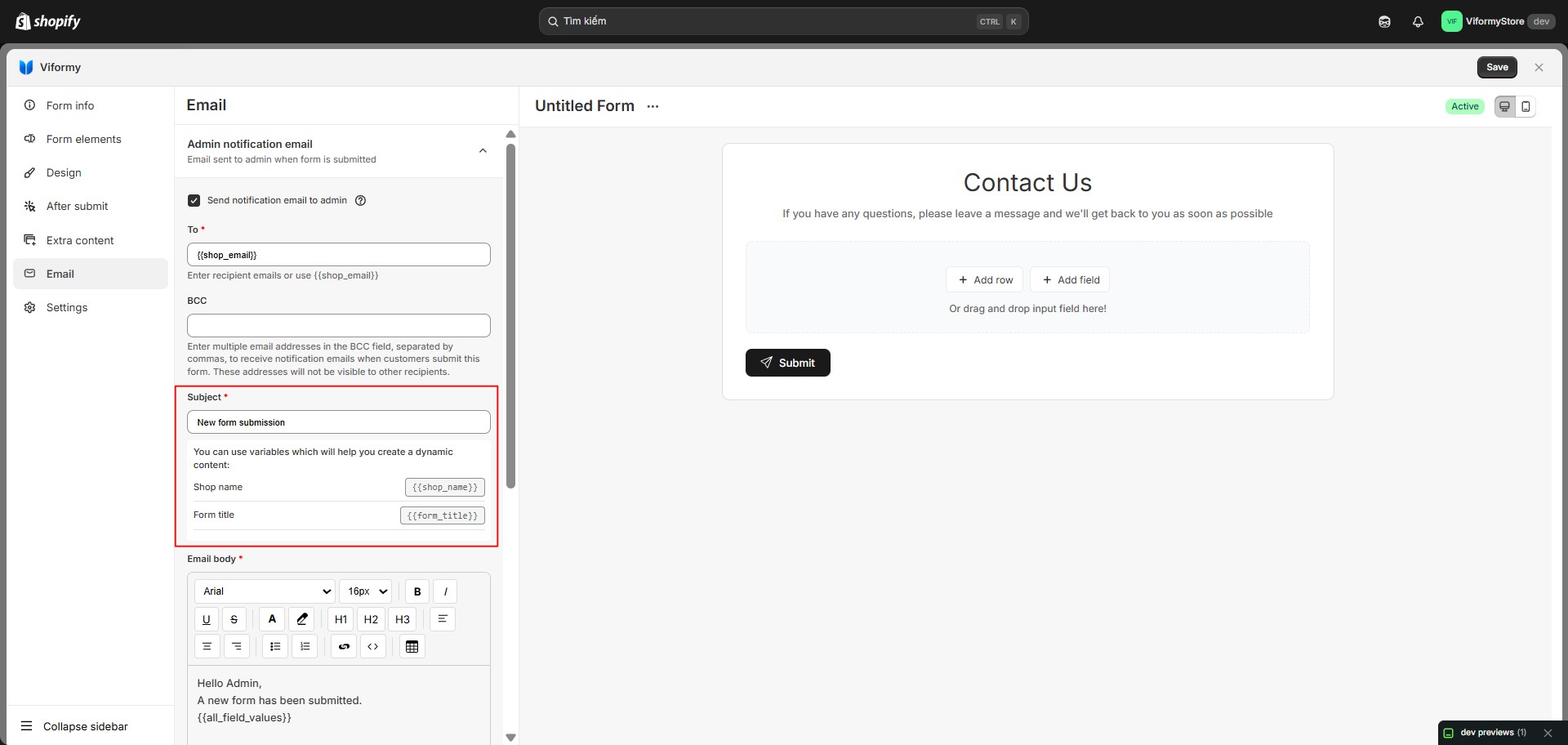
Step 5: Configure the Subject #
New form submission from {{form_title}}New message from {{shop_name}}
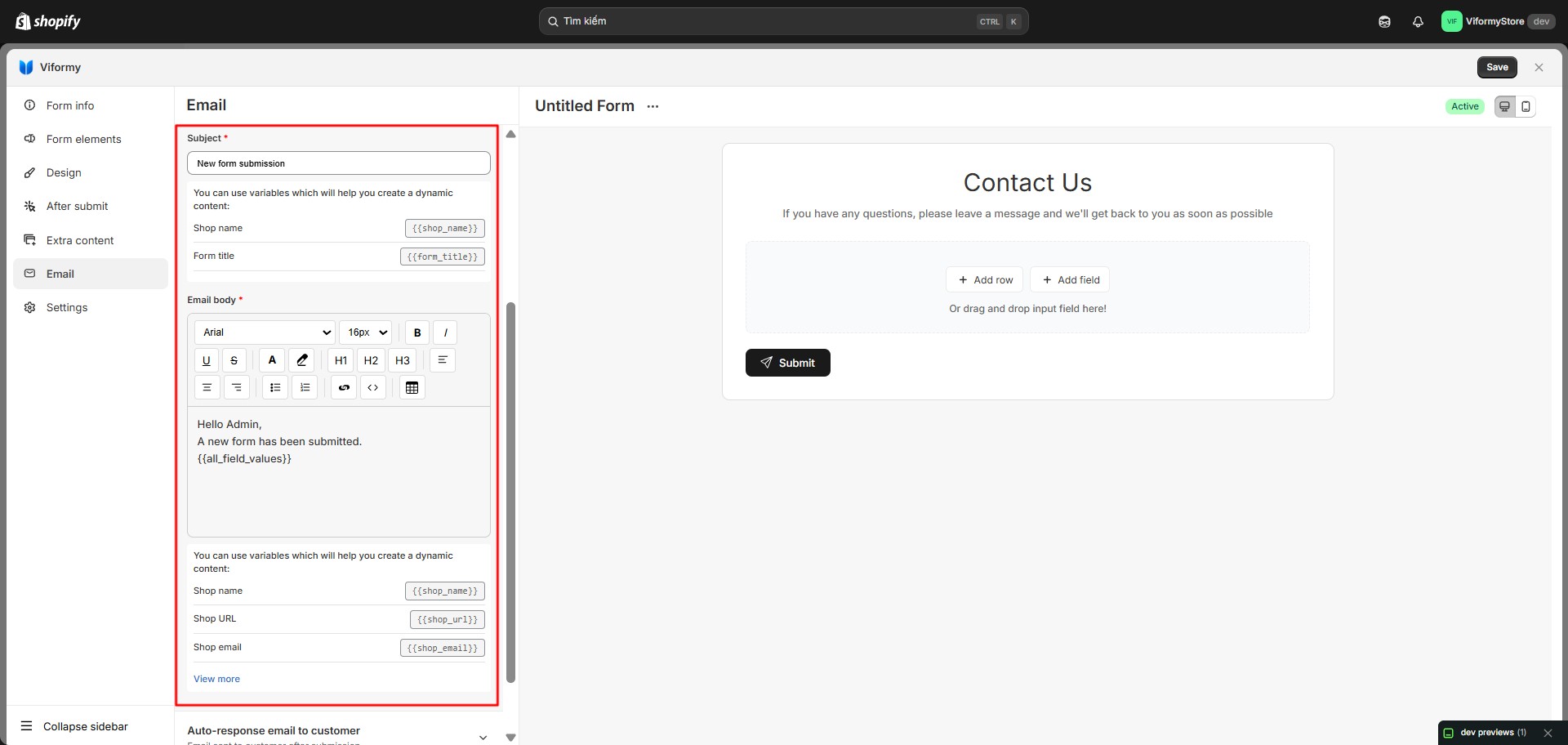
Step 6: Configure the Email Body #
<p>Hello Admin,</p>
<p>A new form has been submitted.</p>Hello Admin,
You have received a new submission from {{form_title}}.
Submission details:
{{all_field_values}}
Store: {{shop_name}}
Website: {{go_to_website_label="Go to website"}}-
{{shop_name}}: Store name -
{{shop_url}}: Store URL -
{{shop_email}}: Store email -
{{form_title}}: Form title -
{{all_field_values}}: All submitted field values, displayed as a table -
{{go_to_website_label="Go to website"}}: Creates a link to the store website
{{email-1}}
{{name-1}}
{{phone-1}}
{{textarea-1}}
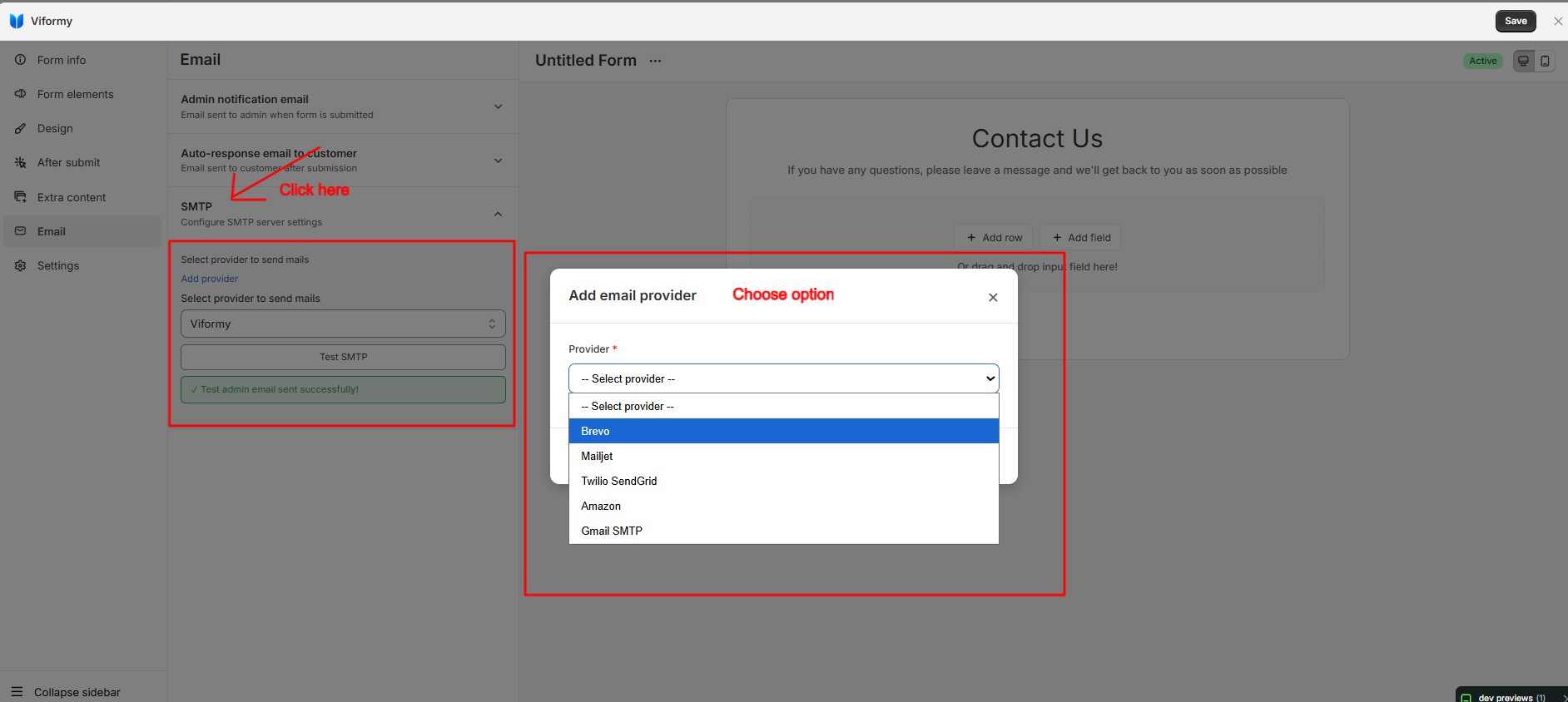
Step 7: Select an SMTP Provider #
-
Viformy: Default provider
-
Custom SMTP provider, such as Gmail SMTP, Brevo, Mailjet, SendGrid, Amazon SES, Yahoo SMTP, or another SMTP service
#
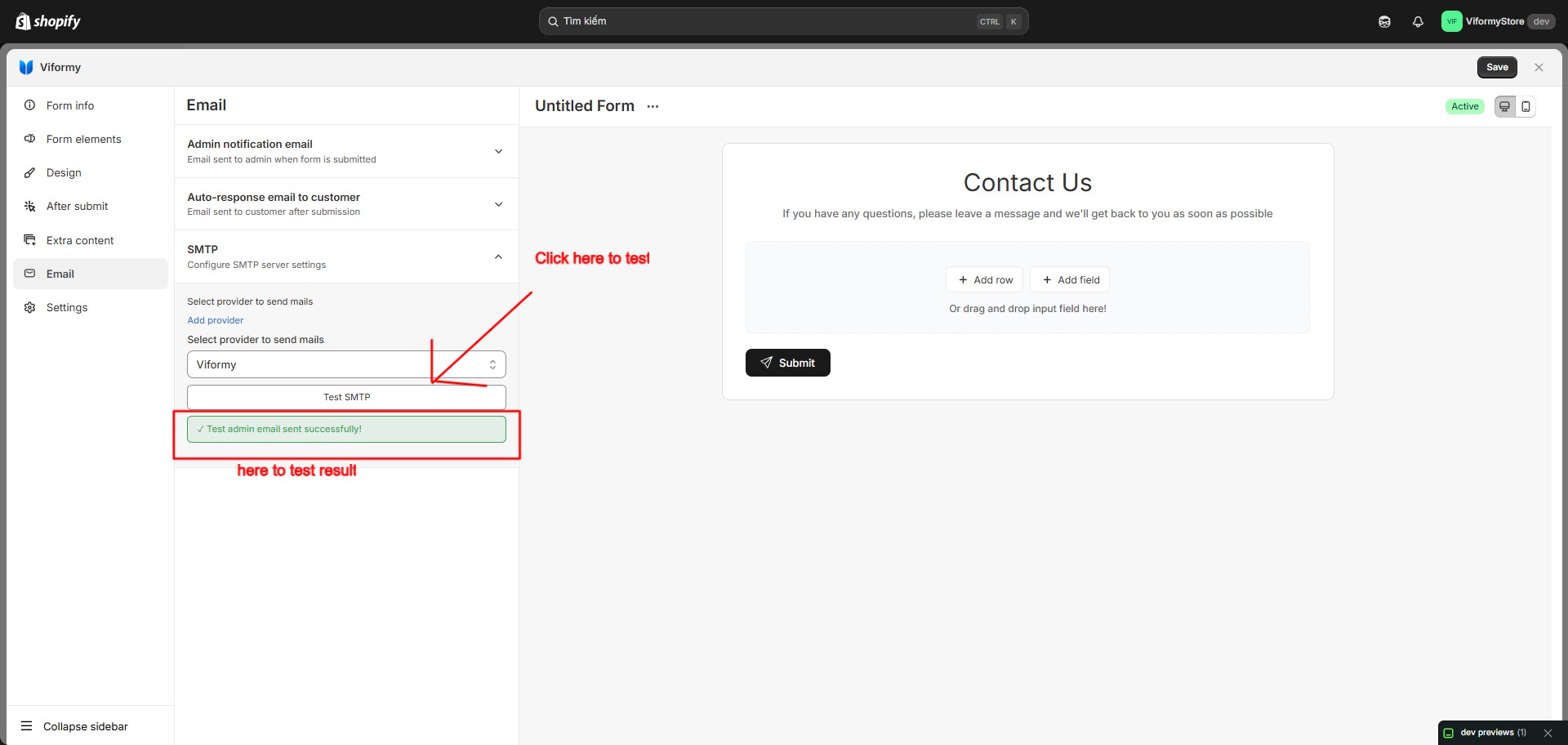
Step 8: Test the Email #
-
The To field contains a valid email address.
-
{{shop_email}}returns a real email address. -
The SMTP provider is configured correctly.
-
The sender email has been verified by the provider.
-
The Subject and Email body fields are not empty.
Step 9: Save the Form #
-
To
-
Subject
-
Email body
What Happens After Configuration #
-
The submission is saved.
-
Viformy checks the hourly email sending limit.
-
The system loads the email settings of the form.
-
If Admin notification is enabled, variables in To, BCC, Subject, and Email body are replaced with real values.
-
The email is sent to the admin.
-
The sending result is saved in Email Reports.
Quick Setup Example #
{{shop_email}}support@example.comNew submission from {{form_title}}Hello Admin,
A customer has submitted the form: {{form_title}}.
{{all_field_values}}
Shop: {{shop_name}}
Website: {{go_to_website_label="Go to website"}}