
What You Need Before You Start #
-
A Google account
-
A Site Key
-
A Secret Key
Step 1: Create Your reCAPTCHA Keys in Google #
- Enter your website name
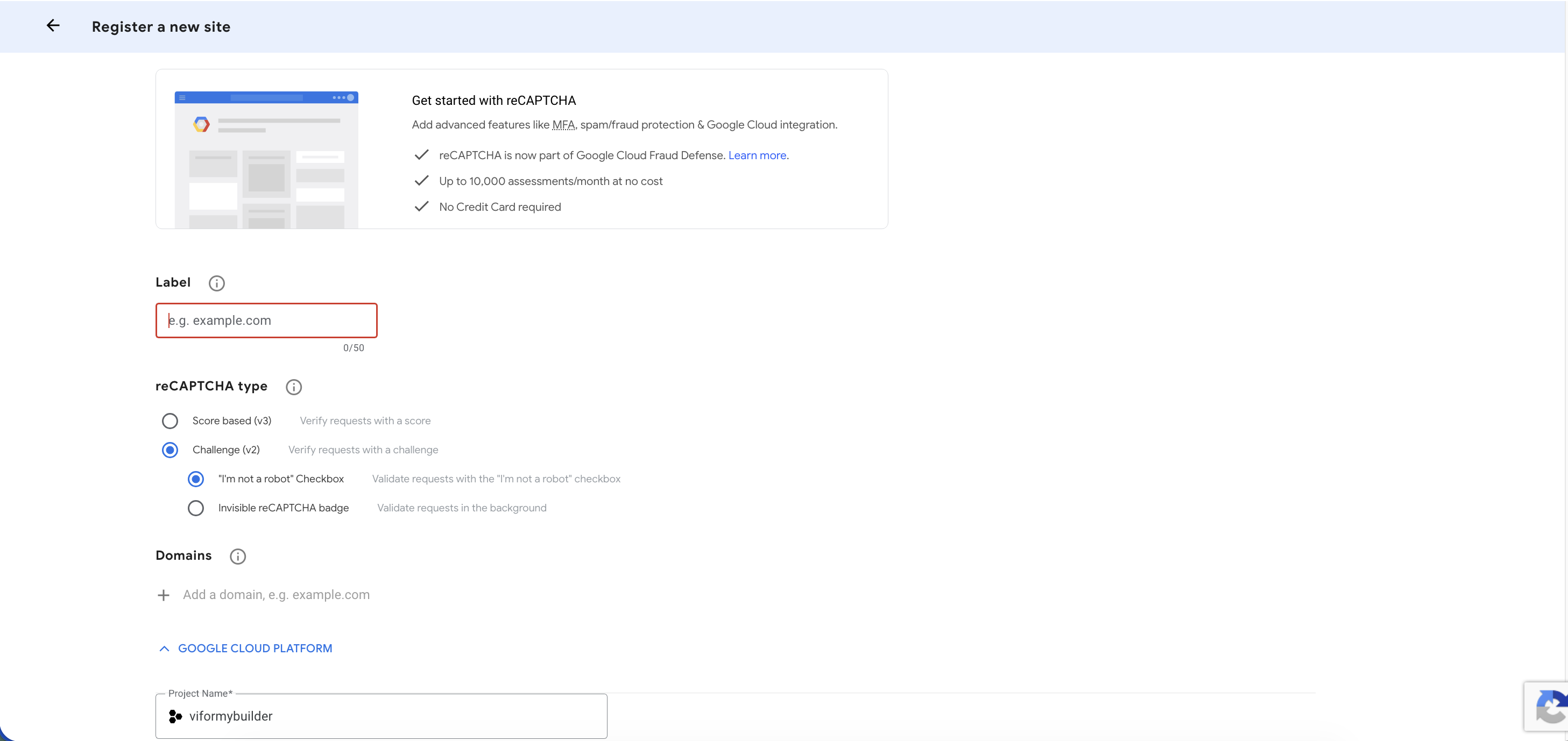
- When registering a new website, the form will open and you need to fill in all the details correctly then submit the form
-
Label: Enter a name to identify your site (e.g., “My Shopify Store”) as you want
-
reCAPTCHA Type: Select reCAPTCHA v2 and choose “I’m not a robot” Checkbox.
-
Domains: Input your domain name. For example:
On reCAPTCHA setup, enter:
viformy.com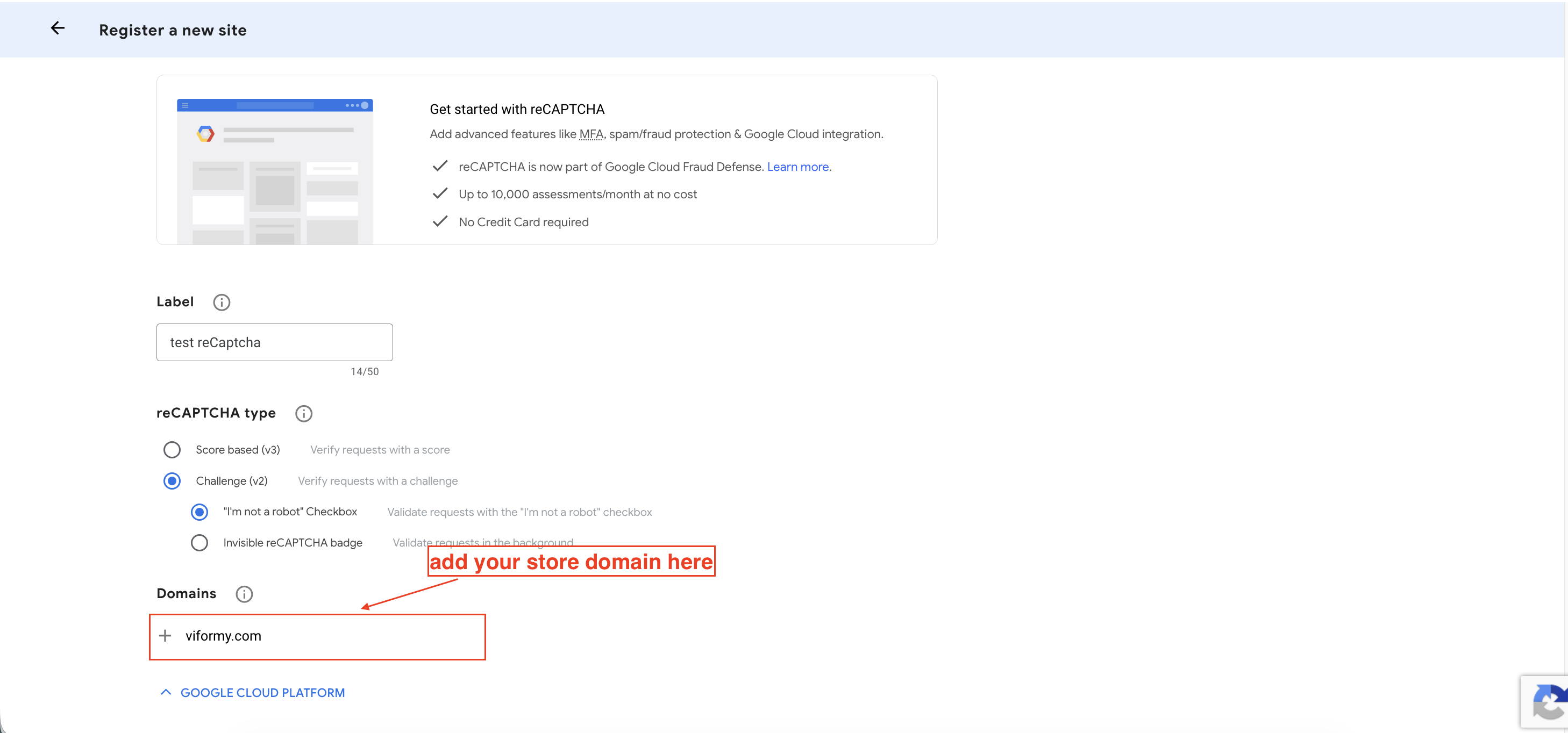
-
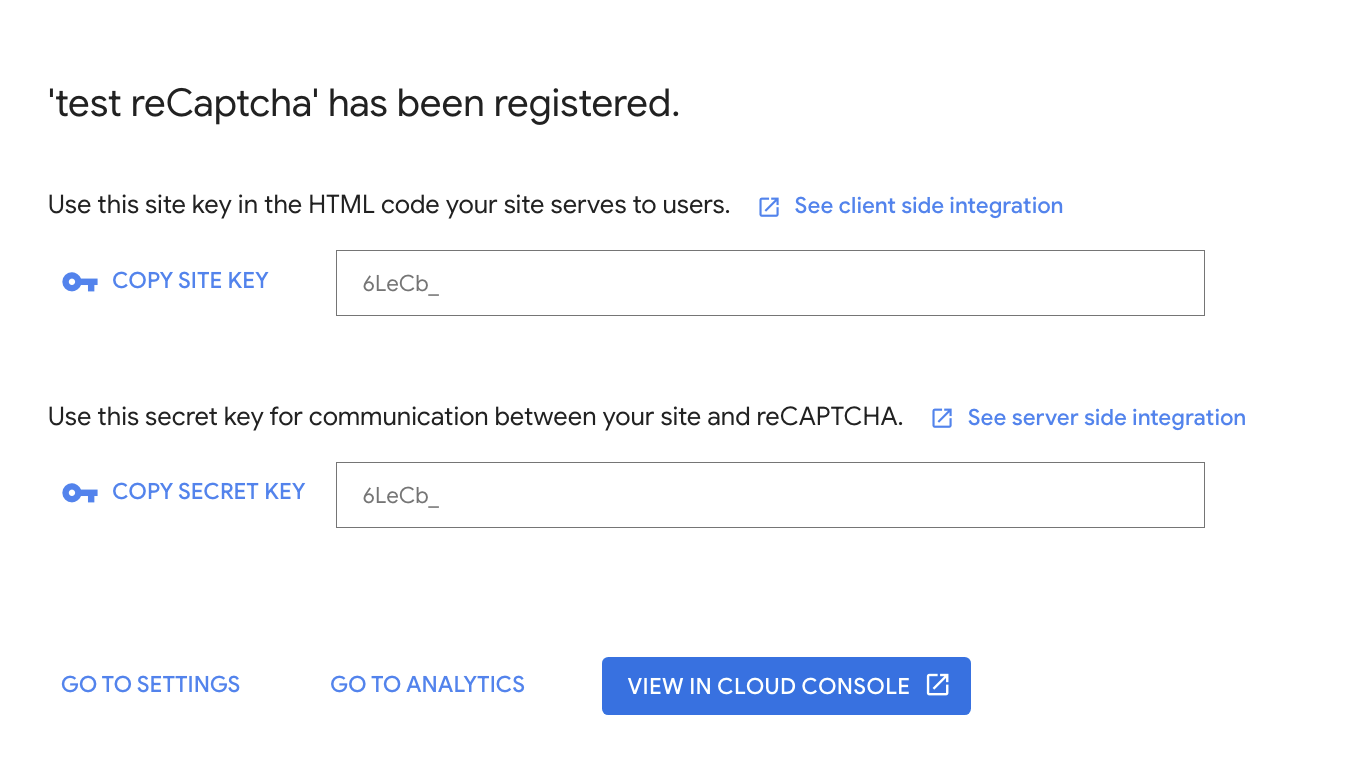
- Click Submit button and the site key and secret key shows up
Step 2 – Add Google reCaptcha to app Settings #
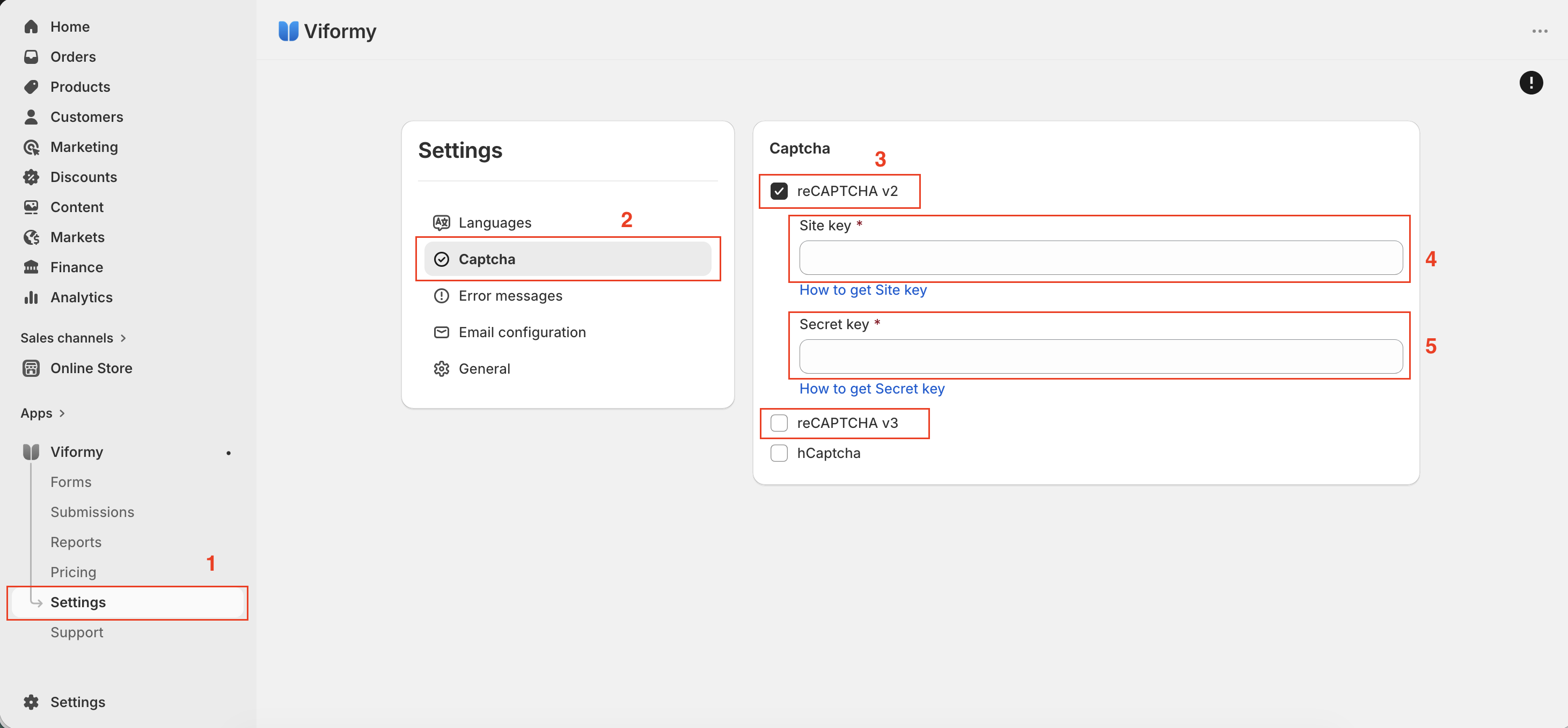
- Open the app -> click Settings
- Select Captcha
- Select reCaptcha type: v2 or v3
- Enter Site key you get in step 1 above
- Enter Secret key you get in step 1 above
- Click Save and save the app Settings
Steps 3: Enable Google reCaptcha on the form #
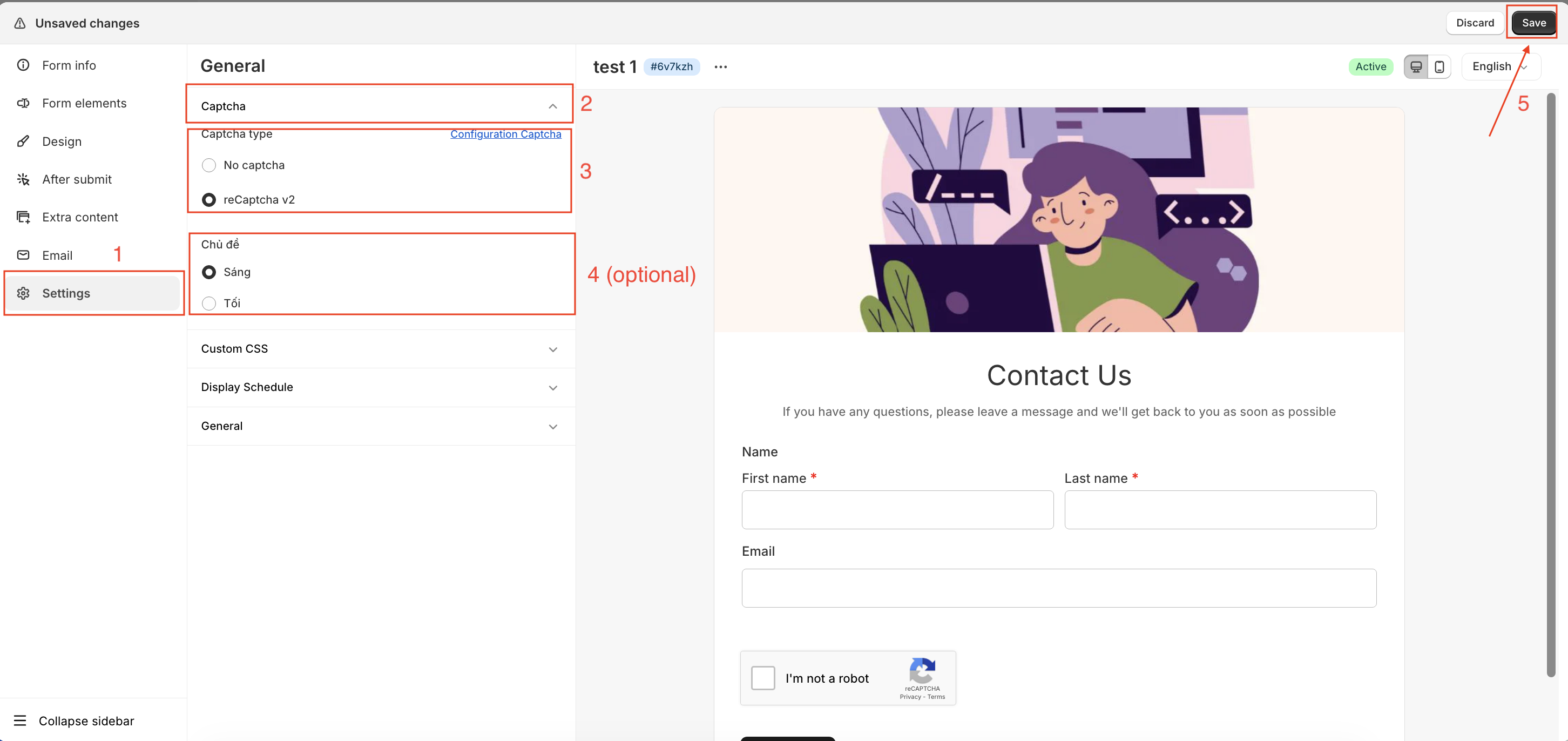
- Open the app > click Forms > open the form you want to edit
- Select Settings -> Captcha -> Captcha type (enable) -> Theme (optional)
- Click Save to update the changes
How It Works #
Google reCAPTCHA helps protect your forms from bots and unwanted spam submissions. Viformy Form Builder supports both reCAPTCHA v2 and reCAPTCHA v3, and each version works a little differently.
1. reCAPTCHA v2 — “I’m not a robot” Checkbox
How it works
Your form displays a visible “I’m not a robot” checkbox.
When users interact with it, Google checks different signals such as:
- Mouse movements
- Click behavior
- Browser activity patterns (anonymized)
If Google determines the visitor is likely human, the verification is completed instantly.
If the system is uncertain, users may see a small image challenge such as selecting traffic lights, bicycles, or crosswalks.
What users will see
✔ A visible checkbox
✔ Occasionally a simple image challenge
✔ A confirmation once verification succeeds
Recommended for
- High-traffic forms
- Websites receiving frequent spam
- Stores that prefer visible user verification
2. reCAPTCHA v3 — Invisible Background Protection
(Google has gradually reduced support for creating new reCAPTCHA v3 keys, so some users may only be able to generate v2 keys.)
How it works
reCAPTCHA v3 works silently in the background without showing a checkbox or challenge.
Google analyzes user activity and assigns a score between 0.0 and 1.0:
- 1.0 → very likely a real user
- 0.0 → very likely a bot
Based on this score, the app decides whether to accept or block the submission automatically.
What users will see
✔ No checkbox
✔ No image challenge
✔ Fully invisible protection
Recommended for
- Stores wanting a smoother user experience
- Forms that should feel fast and frictionless